

Pencil Drawing Effect
- January 20, 2026
- 2 replies
- 183 views
Looking for a fun way to give your photos a hand-crafted feel? Try turning them into pencil sketches using just a few tools in Photoshop. This simple technique is great for portraits, architecture, or even still life — and it works with any photo you already have. No tablet or drawing skills required.
 | Try it in the Desktop App Download the latest version and dive into the new features offered in Adobe Photoshop. |
This step-by-step guide walks you through how to create a pencil sketch effect that mimics real graphite lines and paper texture. Once you’ve tried it, share your results here in the community — we’d love to see your take on it.
Step-by-Step: Photo to Pencil Sketch
| 1. Duplicate Your Image: Duplicate your image layer and select the top layer and go to Image > Adjustments > Desaturate or use Command + Shift + U to make it black and white. | 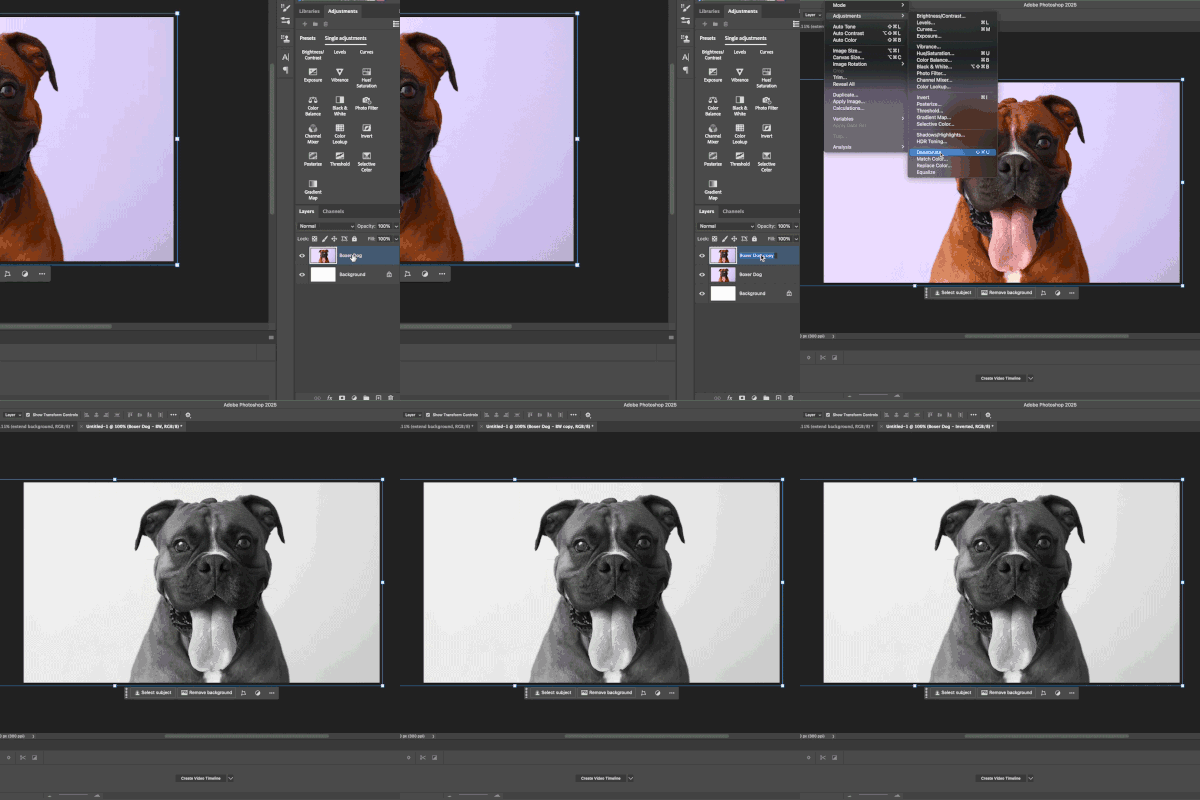
|
| 2. Invert Your Second Layer: Duplicate the desaturated layer. Then invert it using Command + I (or Control + I on Windows). Change the blend mode of the inverted layer to Color Dodge. | 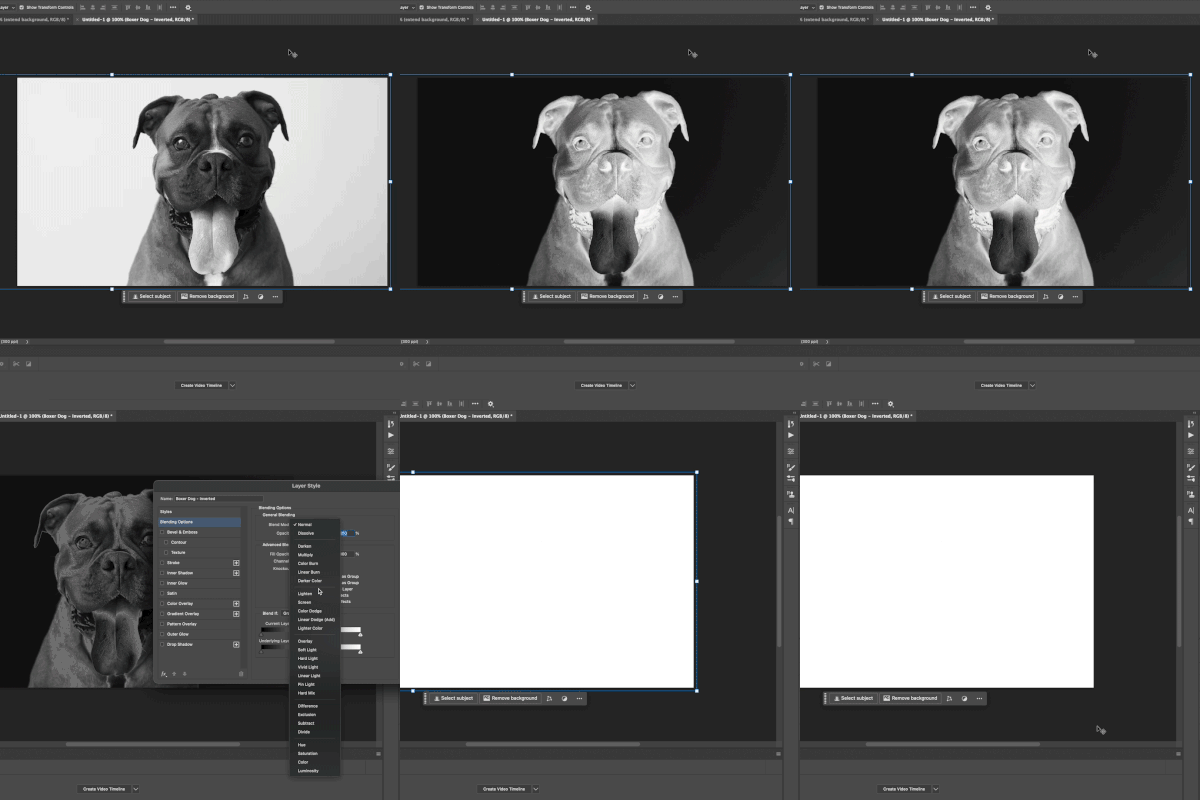
|
| 3. Add Gaussian Blur: Add a Gaussian Blur by going to Filter > Blur > Gaussian Blur. Adjust the radius until the lines start to resemble a pencil sketch. You can also adjust the brightness and contrast for more definition. | 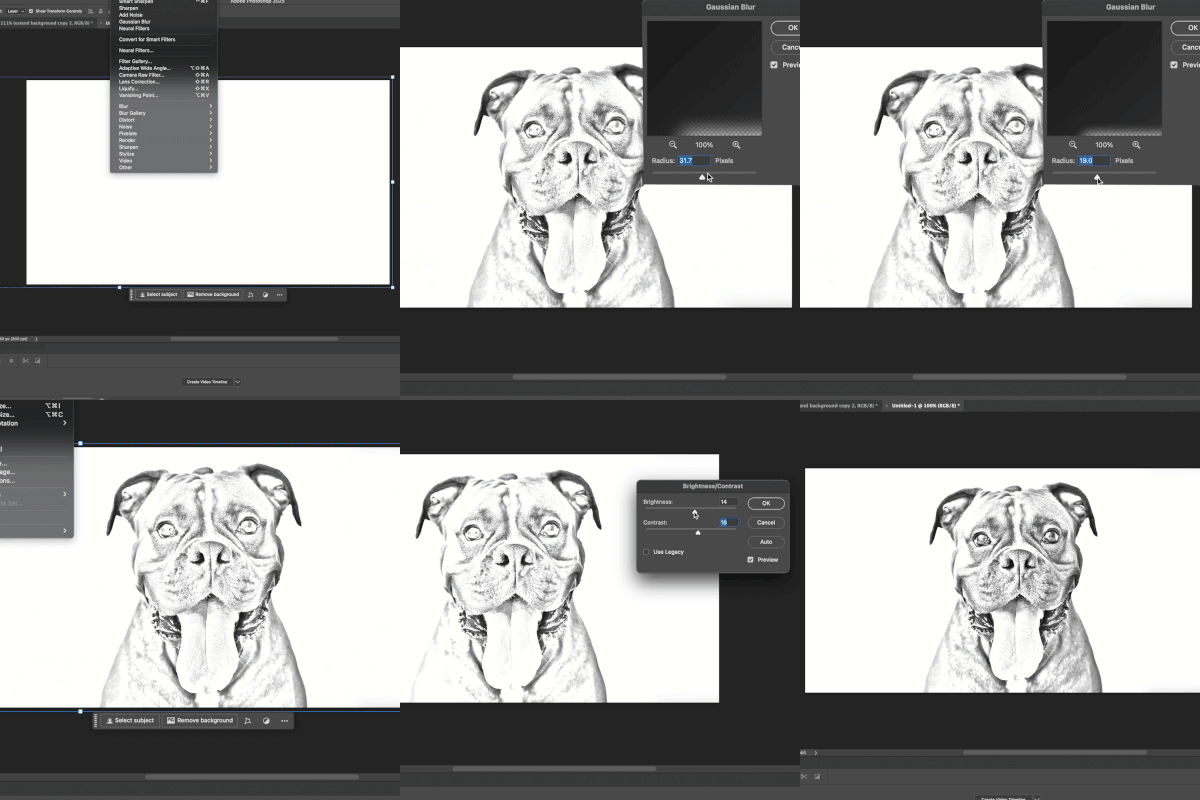
|
| 4. Combine Layers: Create a merged copy of the visible layers using Command + Shift + Option + E (or Control + Shift + Alt + E on Windows). Group and hide the original layers if needed. Convert the merged layer into a Smart Object. | 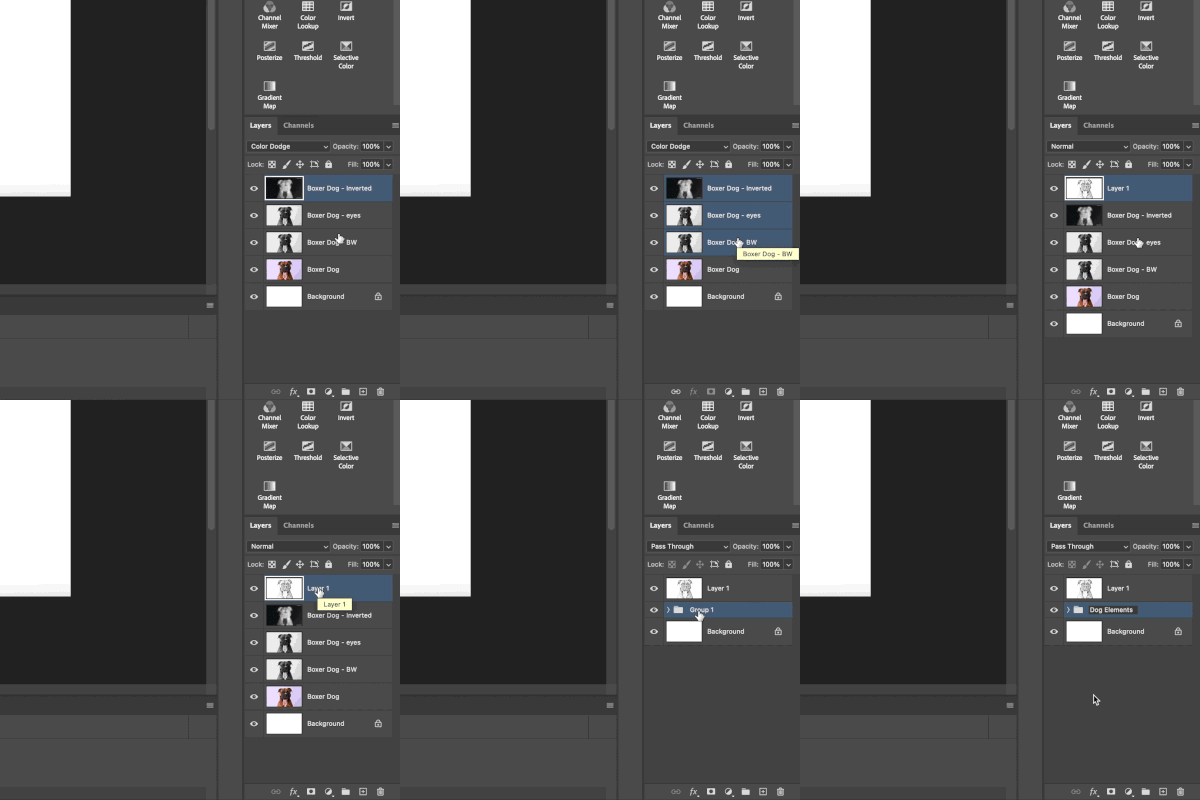
|
| 5. Add Texture: Create a more realistic pencil texture with filters. Go to Filter > Noise > Add Noise. Try around 11% to simulate a realistic pencil texture. Then go to Filter > Sharpen > Smart Sharpen and fine-tune the settings to bring out more detail. | 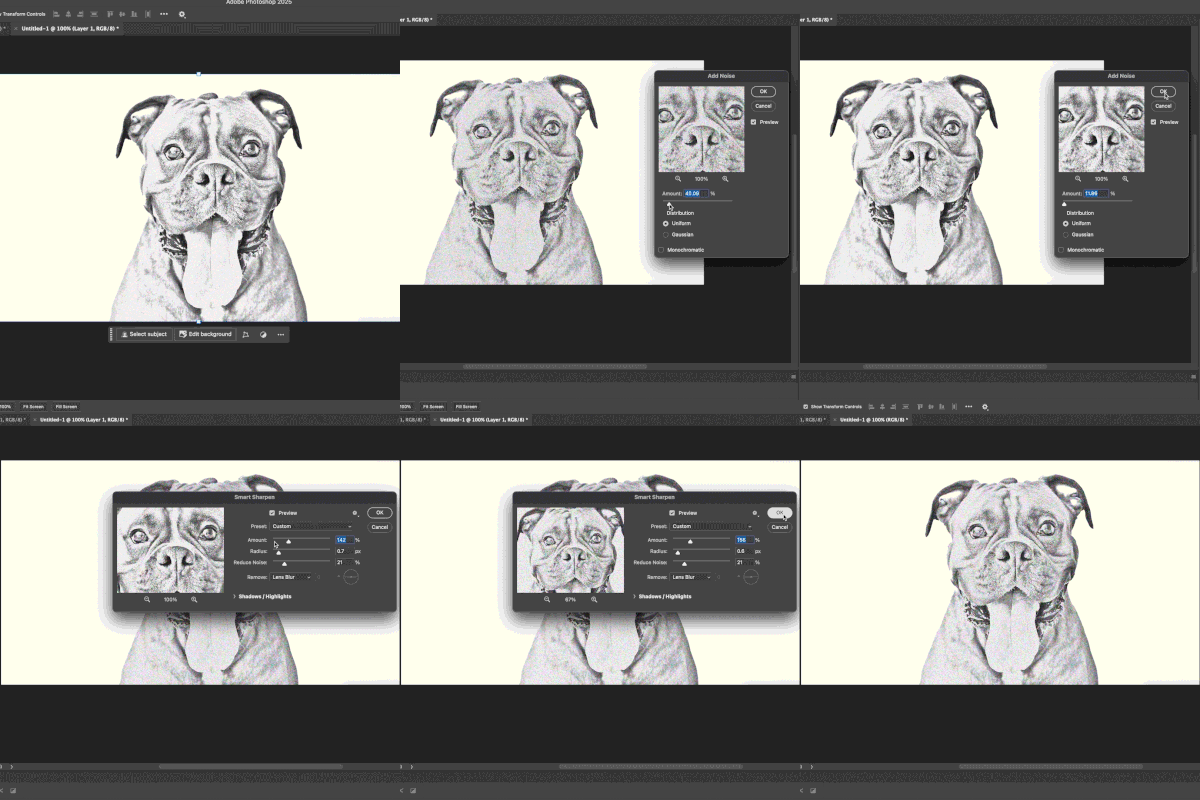
|
| 6. Add a Paper Background: Add a paper texture from Adobe Stock or your own image. Set the texture layer’s blend mode to Multiply to give your sketch a realistic background. | 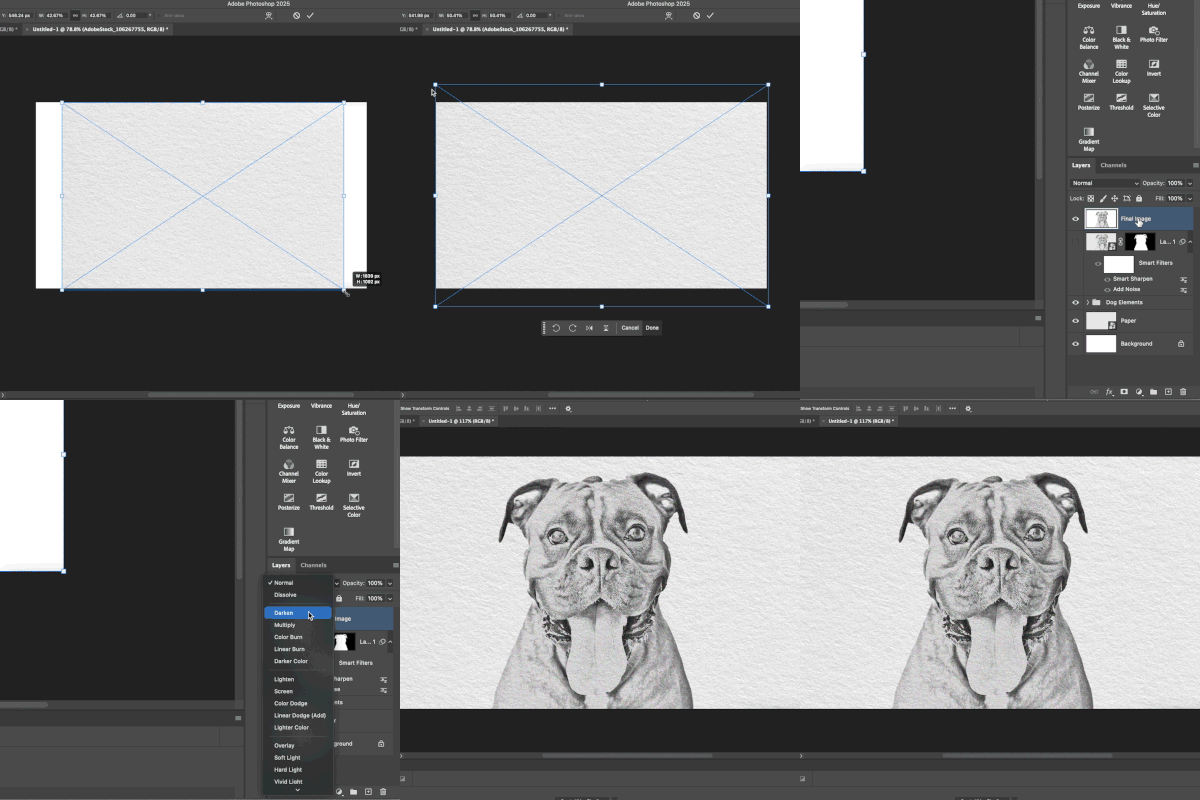
|
Bonus Tip
To create a colored pencil effect, add the saturated photo under the pencil layer, change your pencil sketch layer’s blend mode to Luminosity and increase the saturation underneath it.
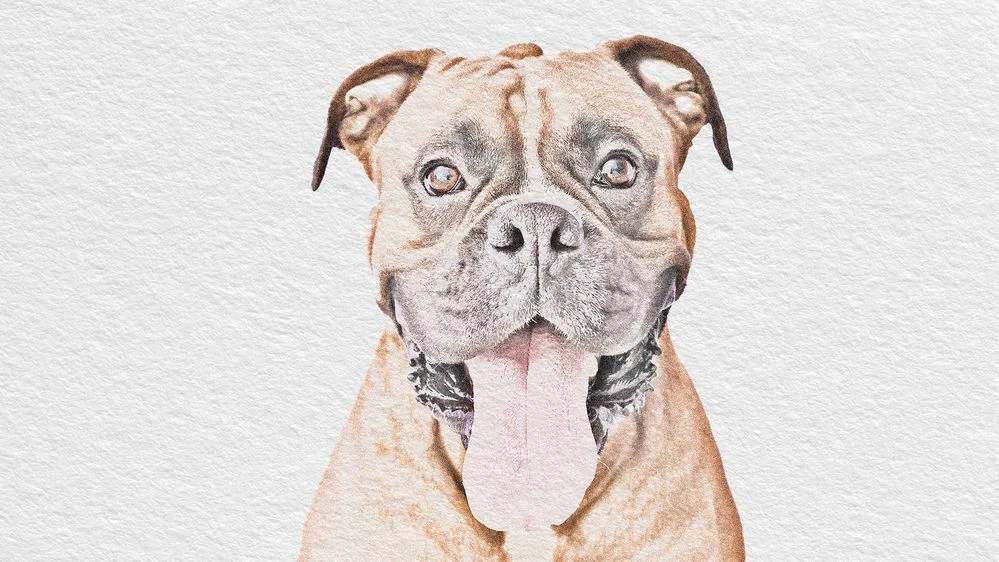
Give it a try and share your results here. Did you make any adjustments to get your perfect sketch effect? Let us know what worked for you.
We’d love to see what you’ve created and hear about your experience or feedback! Click 'Reply' below.
Click 'Follow' below to bookmark this post for easy reference.
For other questions, feel free to start a new post in the community.


 AdChoices