
Participant
October 27, 2018
Question

Perspective crop issue

  • October 27, 2018
  • 2 replies
  • 651 views

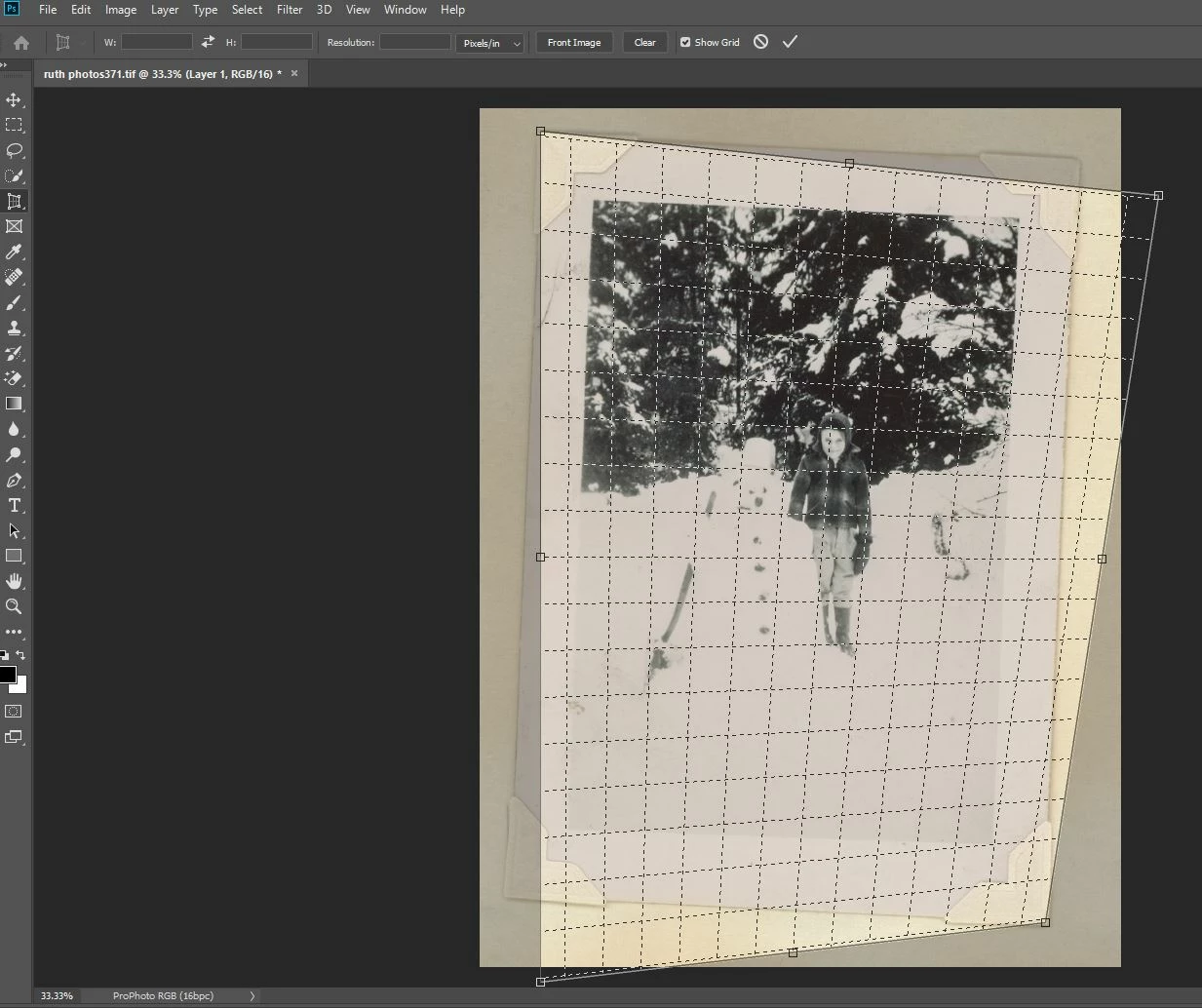
The perspective tool isn't working right for me. When I try and outline the image, it won't let me release the corners in the correct location. I am using windows 10 with a wacom tablet. I've updated my drivers for my video card and my tablet, I'm using Photoshop CC 2019 and I've updated windows. But it doesn't change anything. I'm not sure what else to try. Because it's hard to explain, I've attached a screenshot to show where the cursor tries to go, it either goes way outside the picture, or inside of it and it's very jerky in it's movement. I hope that makes sense and someone can help me.
This topic has been closed for replies.

2 replies

davescm
Community Expert
Community Expert
October 27, 2018

Hold down the shift key whilst dragging the corners.

As occulus.nigra said the behaviour has changed in CC2019. In previous Photoshop versions you held down the shift key to get the constrained behaviour that you are now seeing without it.

Dave

occulus.nigra
Inspiring
October 27, 2018

The behaviour has been changed... basically it's flipped compared to Photoshop CC 2018 and earlier. For a better understanding and various solutions, try this thread:

Photoshop CC 2019: Freely Transforming an object is not working anymore

Hope I've understood your problem and that this helps

.

Cheers!

occulus.nigra
Inspiring
October 27, 2018

Further...

This has been posted by several people. The paste below is from a post by gener7:

To revert to the legacy transform behavior, do the following:

  1. Use Notepad (Windows) or a text editor on Mac OS to create a plain text file (.txt).
  2. Type the text below in the text file:

    TransformProportionalScale 0

  3. Save the file as "PSUserConfig.txt" to your Photoshop settings folder:
    • Windows: [Installation Drive]:\Users\[User Name]\AppData\Roaming\Adobe\Adobe Photoshop CC 2019\Adobe Photoshop CC 2019 Settings\
    • macOS: //Users/[User Name]/Library/Preferences/Adobe Photoshop CC 2019 Settings/

Hope that this solves the problem you are facing.