Known Participant
November 24, 2019
Answered

Photoshop 2020 invisible menus

  • November 24, 2019
  • 4 replies
  • 1522 views

Not sure I like the new Photoshop 2020 user interface. I can get by with the invisible menus, but a new user would be screwed. Is there a way to get menus to show up?

This topic has been closed for replies.
Correct answer gener7

Your Menu bar is not invisible. The Tool Options bar is covering it up. Drag it out of the way using the "gripper" on the left edge of that bar.


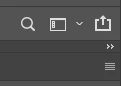
Alternatively reset the Workspace by clicking on the Workspace picker box to the right of the magnifying glass icon on the right side of that options bar, and select Reset Workspace from the dropdown menu. It will reset your panels and bars to the default.

             v

             v
4 replies

gener7
Community Expert
Community Expert
November 24, 2019

Then if the workspace reset doesn't fix it, J.J.Mack, I'll add the GPU helpdoc to show how to assign the proper GPU to Photoshop.


https://helpx.adobe.com/photoshop/kb/troubleshoot-gpu-graphics-card.html

fiedlerAuthor
Known Participant
November 25, 2019

I think I'm going to solve this by going to the previous version of Photoshop.  My video drivers are the latest version and I don't have tim to screw around with this. Upgrades used to be painless. I just hope Photoshop development hasn't been farmed out to another country like they have with other programs.

jane-e
Community Expert
Community Expert
November 25, 2019

"My video drivers are the latest version"


If you have more than one graphics card, see step 7 in the help file posted by Gene.


Jane

JJMack
Community Expert
Community Expert
November 24, 2019

Several Windows users has reported messed up UI like you have where menu are  being covered by the tool option bar.  Some solved the problem by configuring their machime so Photoshop only saw one  GPU. Their mchines had a Nvidia Display Adapter and Intel HD graphics.

JJMack
gener7
Community Expert
gener7Community ExpertCorrect answer
Community Expert
November 24, 2019

Your Menu bar is not invisible. The Tool Options bar is covering it up. Drag it out of the way using the "gripper" on the left edge of that bar.


Alternatively reset the Workspace by clicking on the Workspace picker box to the right of the magnifying glass icon on the right side of that options bar, and select Reset Workspace from the dropdown menu. It will reset your panels and bars to the default.

             v

             v

John Waller
Community Expert
Community Expert
November 24, 2019

Which operating system?


Can you post a screenshot?

fiedlerAuthor
Known Participant
November 24, 2019
 

Windows 10