
Participant
March 9, 2023
Answered

Photoshop 2023 - opens all files with reddisch layer

  • March 9, 2023
  • 5 replies
  • 361 views

Hello!
I couldn't find advise on my Problem:

When I open any picture or file in PS it has a redish "layer". I tried anything on the color profiles, chanels etc. In the Home view at the start the date is shown correctly. PS was installed today. As you can see even the thumbnail of de layer is shown in red. and there are no extra effects or else. PC was restarted of course but the problem is still active.
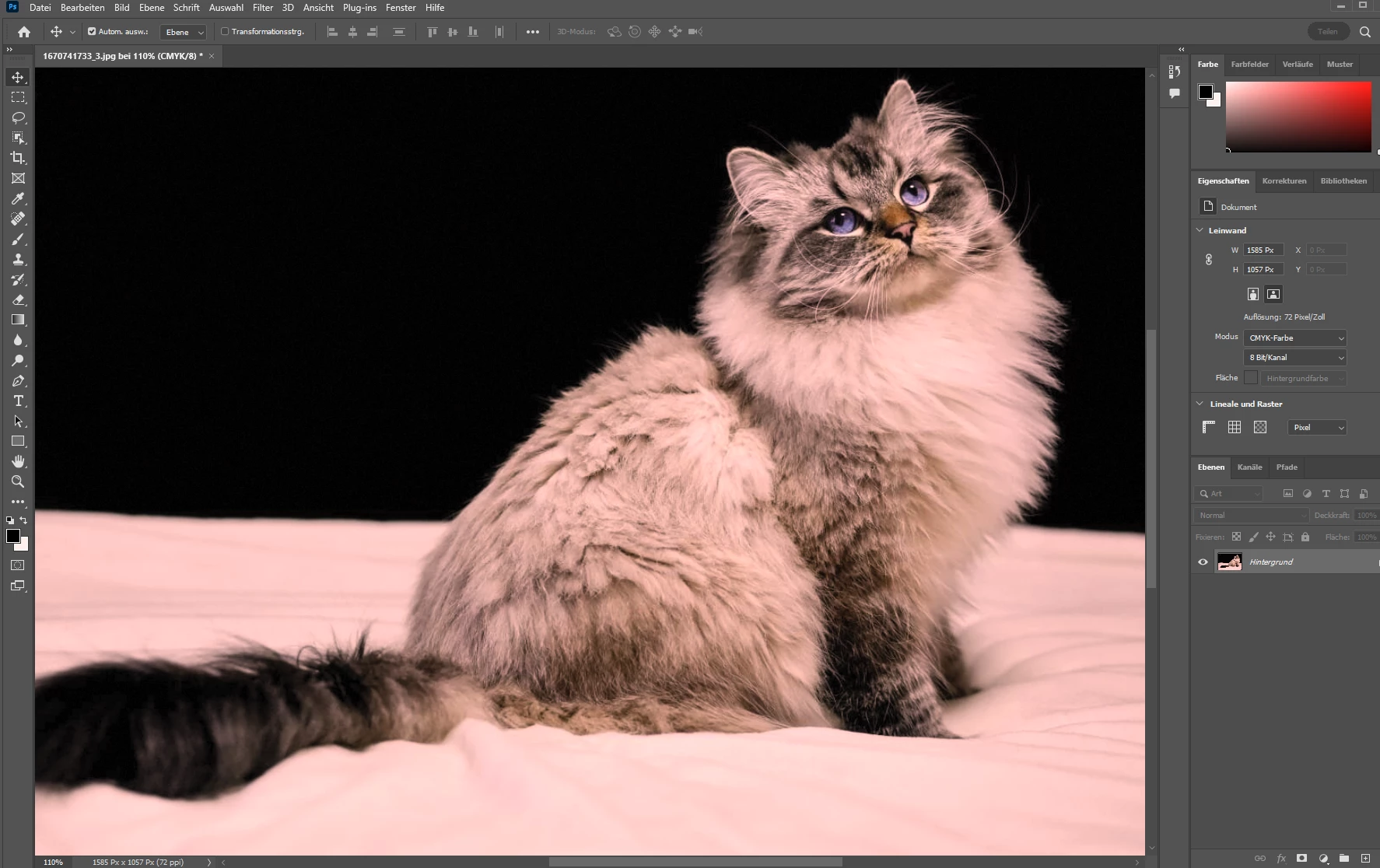
 

This topic has been closed for replies.
Correct answer davescm

That looks like a broken monitor profile. Photoshop is colour managed so uses the monitor profile installed in the operating system to ensure correct colours on screen.


Try this:

Close Photoshop.

In the Windows search box type Color management and open the Color Management dialogue.

Change the default profile for your monitor to either sRGB IEC61966-2.1 for standard monitor, or Adobe RGB (1998) for a wide gamut monitor. You may need to click on the Add button to do this.

Open Photoshop


If that improves the image then it confirms the broken profile, but your colours are still not correct. The next step is to create a profile using a hardware device such as the i1Display or similar which will create and install a profile for your monitor.


Dave

5 replies

D Fosse
Community Expert
Community Expert
March 9, 2023

Participant
March 9, 2023

Thank you both for the fast help!!
The problem is fixed now 😄

davescm
Community Expert
Community Expert
March 9, 2023

Sorry Dag - it looks like we were both typing together 🙂

Dave

davescm
Community Expert
davescmCommunity ExpertCorrect answer
Community Expert
March 9, 2023

That looks like a broken monitor profile. Photoshop is colour managed so uses the monitor profile installed in the operating system to ensure correct colours on screen.


Try this:

Close Photoshop.

In the Windows search box type Color management and open the Color Management dialogue.

Change the default profile for your monitor to either sRGB IEC61966-2.1 for standard monitor, or Adobe RGB (1998) for a wide gamut monitor. You may need to click on the Add button to do this.

Open Photoshop


If that improves the image then it confirms the broken profile, but your colours are still not correct. The next step is to create a profile using a hardware device such as the i1Display or similar which will create and install a profile for your monitor.


Dave

D Fosse
Community Expert
Community Expert
March 9, 2023

This looks like a broken/defective monitor profile.


That's set on system level - don't change anything in Photoshop color settings. That's not where the problem is. Revert everything to defaults there.


The Photoshop home screen isn't color managed and doesn't use the monitor profile.


The proper fix is to use a calibrator to write a new profile. If you don't have a calibrator, use sRGB IEC61966-2.1 for now. It won't be entirely accurate, but close enough for non-critical use. Relaunch Photoshop when done, it loads the monitor profile at application startup.