Participant
May 18, 2017
Answered

Photoshop batch process, cut image in half, save each half?

  • May 18, 2017
  • 3 replies
  • 12973 views

I have a folder full of files which I want to cut each file in half, and then save both halves into separate files. I've been trying to figure out batch processing in Photoshop to do that but can't quite figure it out. Would someone in this forum help me with the steps to do that, if that is possible?

If not possible in Photoshop, is there another tool out there that someone could recommend? Thanks!
This topic has been closed for replies.
Correct answer Stephen Marsh

Presuming left/right hand side crops (the idea is of course the same for top/bottom crops too)…

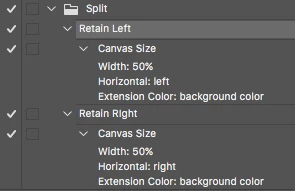
OK, the action is simple, here is a screenshot:

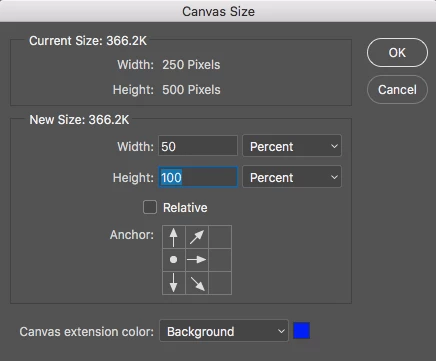
To record the canvas resize/crop, I recorded the following:

This is to crop off the right hand side, retaining the left. Notice how relative % is used, not an absolute pixel or other value and that the anchor point is set to the left rather than the centre. This of course presumes that the width is even and can be perfectly cropped in half.

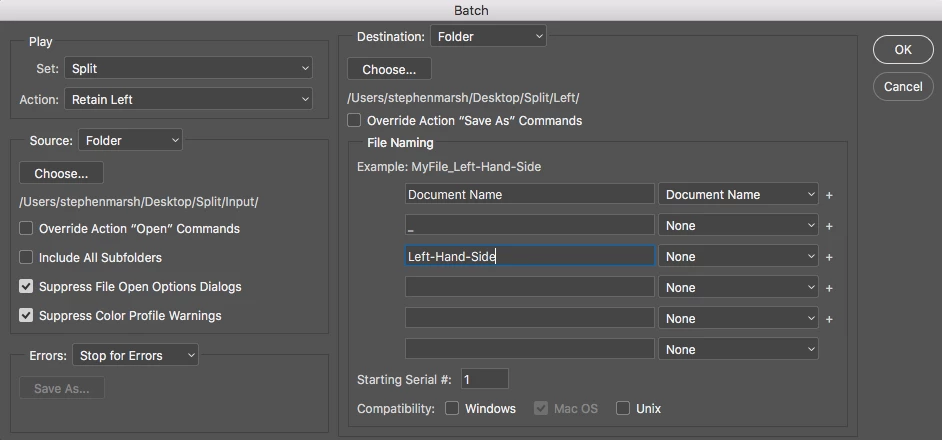
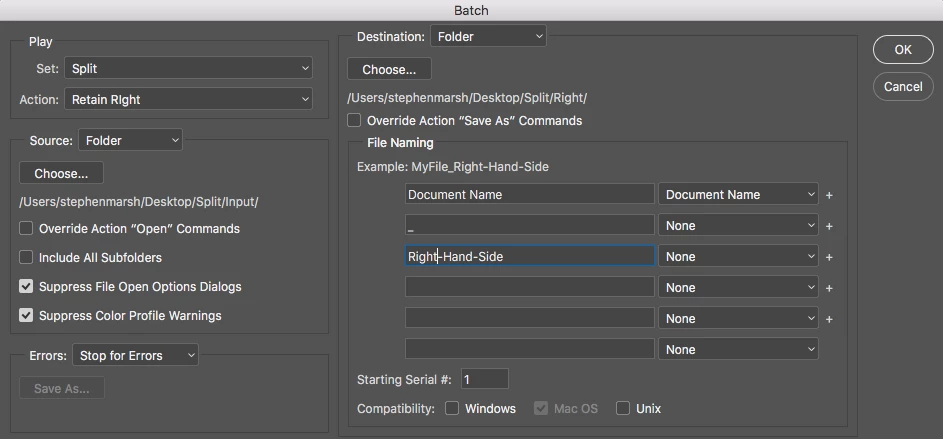
The action contains both the left and right crops, which are then referenced in two separate batch runs:

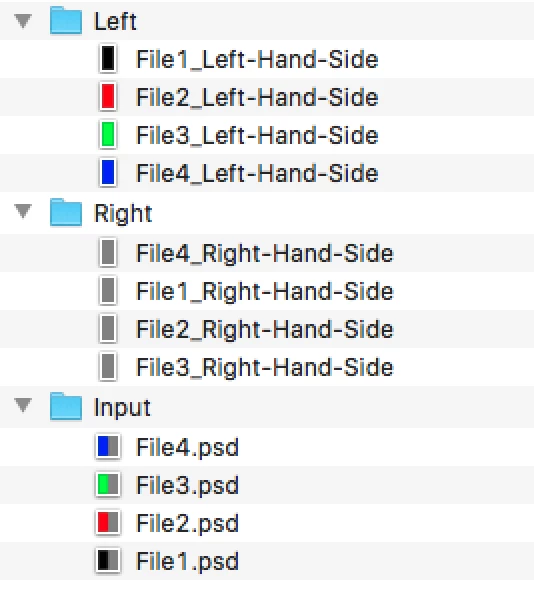
And here is the result:

P.S. And PLEASE make sure that on a real job that you DO SAVE A FILENAME EXTENSION in your Batch settings, unlike above (that’s what I get for doing this late at the end of a long week!)

3 replies

Stephen Marsh
Community Expert
Stephen MarshCommunity ExpertCorrect answer
Community Expert
May 19, 2017

Presuming left/right hand side crops (the idea is of course the same for top/bottom crops too)…

OK, the action is simple, here is a screenshot:

To record the canvas resize/crop, I recorded the following:

This is to crop off the right hand side, retaining the left. Notice how relative % is used, not an absolute pixel or other value and that the anchor point is set to the left rather than the centre. This of course presumes that the width is even and can be perfectly cropped in half.

The action contains both the left and right crops, which are then referenced in two separate batch runs:

And here is the result:

P.S. And PLEASE make sure that on a real job that you DO SAVE A FILENAME EXTENSION in your Batch settings, unlike above (that’s what I get for doing this late at the end of a long week!)

Participant
May 19, 2017

wow I will give this a try! I had a feeling it could be done with Actions but was unsure. will report back.

Stephen Marsh
Community Expert
Community Expert
November 13, 2019

I just stumbled over this post, I forgot to mention that the Image Processor Pro script can be setup to run multiple actions and save settings, so this could be run with a single script run.

Participating Frequently
May 18, 2017

You could set up an action using the Divide function of the slice tool to half the images, but saving to separate folders would require a script.

Participant
May 18, 2017

It sounds like scripting is the way to go, so diving into some tutorials there. I would save both halves into the same folder but would also need to add something to the end of the names to make the filenames unique. Thanks!

Stephen Marsh
Community Expert
Community Expert
May 19, 2017

Although not as nice as a script, simply being pragmatic and performing the split in two batches would be done “in minutes” (apart from run time, just the mechanics of setting this up)…where as the scripting route will likely take hours/days/weeks/months depending on various factors (finding a suitable script, relying on other’s good will in writing a script, learning scripting, writing and debugging and testing etc). Although I am very much into best practice, I also favour the practical route.

EDIT: I'll go through the steps shortly.

c.pfaffenbichler
Community Expert
Community Expert
May 18, 2017

A workaround involving two runs of Batch for example seems possible but a better approach would, in my opinion, involve Scripting.

Photoshop Scripting