



LauraMacky
Inspiring
April 9, 2025
Answered

Photoshop Bugs

  • April 9, 2025
  • 2 replies
  • 301 views

I'm on Mac Sequoia 15.3.2 and having lots of problems with photoshop.  here are my issues:


1) When I'm in LR and I select an image and then go to edit in PS, I get only one choice....PS Beta.   Then the file doesn't show up when PS Beta opens.


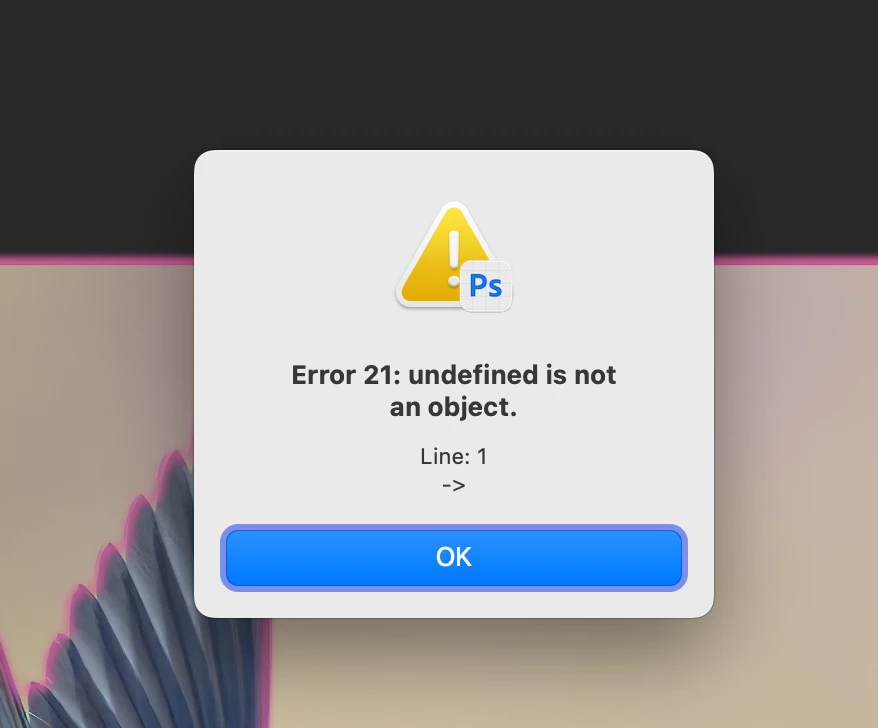
2) Finally after I go to LR again and select to open the file in PS as a smart object, it opens.  However, when I go to save the file, I get the attached error.   The file is saved however it does not appear in LR.


This all is really disconcerting and has completely stopped me using photoshop.  Can someone let me know if this has been identified by the powers that be to be fixed?

Correct answer Claire H.

Hi @LauraMacky, Let's get you back to a smooth workflow! First, could you try some of these troubleshooting steps?

  1. Check Photoshop Installation: Ensure that both the regular version of Photoshop and the Beta version are installed correctly. Sometimes, the Beta version might override the regular version in the system preferences.
  2. Update Software: Make sure that both Lightroom (Lr) and Photoshop (Ps) are updated to their latest versions. You can do this through the Adobe Creative Cloud Desktop application.
  3. Reset Preferences: Try resetting the preferences in both Lr and Ps. This can often resolve unexpected behavior.
  4. Reinstall Applications: If the issue persists, consider uninstalling and reinstalling both Lr and Ps to ensure a clean installation.

Regarding the issue with the File save error, let's try this.

  1. Save Settings: Ensure that you are saving the file in a compatible format and location. Sometimes, saving in a different format or location can resolve the issue.
  2. Check LR Preferences: Double-check the preferences in LR, including the catalog settings and file handling options. Ensure that LR is set to recognize and import the saved files from PS.
  3. Clear Cache: Clear the cache in both LR and PS. This can help resolve issues related to file handling and display.
  4. Permissions: Ensure that both LR and PS have the necessary permissions to access and modify files on your Mac. You can check this in the System Preferences under Security & Privacy.

If you're still experiencing issues after trying these steps, please send us more information about your computer system and the steps to reproduce the issue. That way we can better help you figure out the issues. Thanks! ^CH

2 replies

LauraMacky
Inspiring
April 9, 2025

I will try these things tomorrow.  Thank you so much for this.

Laura Macky
Claire H.
Community Manager
Claire H.Community ManagerCorrect answer
Community Manager
April 9, 2025

Hi @LauraMacky, Let's get you back to a smooth workflow! First, could you try some of these troubleshooting steps?

  1. Check Photoshop Installation: Ensure that both the regular version of Photoshop and the Beta version are installed correctly. Sometimes, the Beta version might override the regular version in the system preferences.
  2. Update Software: Make sure that both Lightroom (Lr) and Photoshop (Ps) are updated to their latest versions. You can do this through the Adobe Creative Cloud Desktop application.
  3. Reset Preferences: Try resetting the preferences in both Lr and Ps. This can often resolve unexpected behavior.
  4. Reinstall Applications: If the issue persists, consider uninstalling and reinstalling both Lr and Ps to ensure a clean installation.

Regarding the issue with the File save error, let's try this.

  1. Save Settings: Ensure that you are saving the file in a compatible format and location. Sometimes, saving in a different format or location can resolve the issue.
  2. Check LR Preferences: Double-check the preferences in LR, including the catalog settings and file handling options. Ensure that LR is set to recognize and import the saved files from PS.
  3. Clear Cache: Clear the cache in both LR and PS. This can help resolve issues related to file handling and display.
  4. Permissions: Ensure that both LR and PS have the necessary permissions to access and modify files on your Mac. You can check this in the System Preferences under Security & Privacy.

If you're still experiencing issues after trying these steps, please send us more information about your computer system and the steps to reproduce the issue. That way we can better help you figure out the issues. Thanks! ^CH

LauraMacky
Inspiring
April 11, 2025

Thank you!  Resetting preferences worked!

Laura Macky