



guidos50720937
Inspiring
October 20, 2017
Answered

Photoshop CC 2018 IGNORES TABLET PROPERTIES

  • October 20, 2017
  • 34 replies
  • 127667 views

I just updated Photoshop to the latest update ( 19.0 20170929.r.165 2017/09/29: 1138933  x64)
and it completely ignores the tablet properties such as:

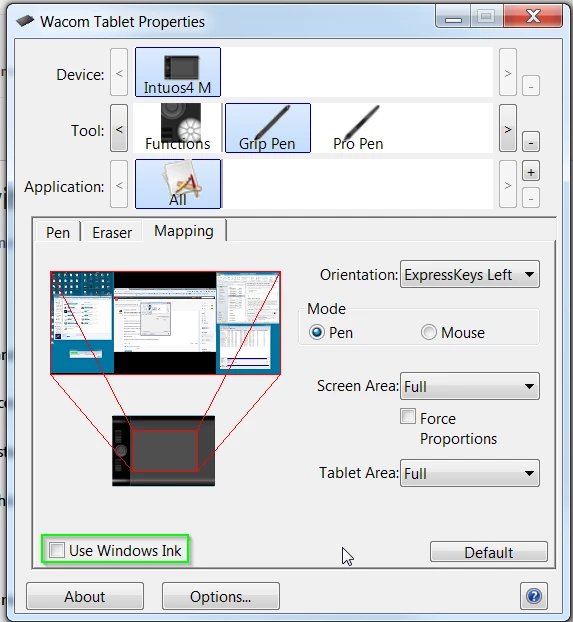
a) Pen Pressure (the pen no longer have pen pressure, no matter if windows ink is turned on or of)
b) Screen Lock (the tablet should lock on Monitor 1 while using Photoshop, and it doesn't)

Every other software i'm using such as Clip studio Paint, zBrush and so on are working fine.

While photoshop completely ignores them.

The previous version used to work fine, but it's been overwritten by the new one without even asking.

The software, no matter the new features, has got worse with every update in terms of performance,
stability, and usability.

Introducing the standard windows Alt key behaviour was already driving me nuts.

i still have not tried the windows ink workaround
i hope this gets fixed TODAY because as it is, PS is useless to me, and i'll be moving to
any alternative available.
    This topic has been closed for replies.
    Correct answer guidos50720937

    Update, the previous Win Ink workaround fix pen pressure and the screen lock

    Trevor.Dennis  ha scritto

    hansb90361119 wrote:

    If you check the "use windows ink" for wacom intous 5 (most likly all of the models) you are getting a REALLY annoying lag with zoom and pen size adjuster etc. If you turn it off, it works perfect, but the downside is the pen pressure opacity don't work.

    You've turned off Windows Ink, so without supplying an alternative, pen pressure is not going to work.  You have to enable WinTab.

    If Windows Ink is disabled

    1. Create a file that contains instructions to revert to the WinTab functionality.

    2. Create a text file in a text editor such as Notepad.

    Type in the following lines:

    # Use WinTab

    UseSystemStylus 0

    3. Save the file as a plain text file named PSUserConfig.txt

    4. Put (copy) the file into the Photoshop settings folder: C:\Users\[User Name]\AppData\Roaming\Adobe\Adobe Photoshop CC 2015\Adobe Photoshop CC 2015 Settings\

    5. Restart Photoshop and check the pen pressure and overall performance.

    34 replies

    alann46082631
    Participating Frequently
    April 12, 2018

    I'm new to Windows.

    What is WinTab?

    Participant
    April 12, 2018

    Good morning,

    Just a note to say that the issues I had over tablet drivers, windows ink and photoshop were resolved by updating Nvidia graphics drivers.

    That aside, the Wacom drivers often do not load properly on first boot, a reboot usually soves this.

    As far as Adobe goes, I have had very slow opening of CC apps for some time. This week I reinstalled the key programmes I use. This immediately improved the start time dramatically. Yesterday Windows 10 performed an auto update. The situation is back to normal, as slow to open as ever.

    Can I have my Amigas with DPAINT V back please?

    Beauteous_code1587
    Known Participant
    April 11, 2018

    Just reporting that the directions in Post# 21 worked for me on Windows 10 Pro and Photoshop 2018,

    Participating Frequently
    April 11, 2018

    That worked like a charm! Thank you!

    herminiam24019697
    Participant
    April 9, 2018

    Im currently having that problem with my gt-191 huion tablet. I don't know why it stopped working but if it continues im going to cancel my subscription of adobe software.

    Participant
    March 29, 2018

    **Side note for those who are using this fix on Win10: Be sure you don't type in the .txt, but leave the name as "PSUserConfig" ONLY, otherwise the file itself will end up being "PSUserConfig.txt.txt" and Photoshop won't recognize it. Took me an hour to realize this. Hope it helps!

    lesterp35682203
    Participant
    March 28, 2018

    I use photoshop elements 13 and im having the same issue. Correction: i've been having this issue for the past week.

    So im not going crazy these updates just broke the living heck out of pretty much every ver. of photoshop then.

    for sure on the day i got my new laptop and freshly installed my wacom tablet and photoshop elements 13 everything worked fine and was super hyped to get back into drawing on my computer only to find out like five updates later over the weekend that i have to do this obnoxious double tap thing.

    and i know for sure that the settings change in the wacom properties does NOT work as i tried multiple time to try and fix it with that method.

    help plz

    Edit: i've also looked in elements 13's files and could not find a setting folder for that file we were supposed to make to override windows ink.

    Participating Frequently
    March 4, 2018

    Thanks this worked for me, too.

    Can't believe Photoshop and Wacom can't get their sh*t together.

    Participant
    March 2, 2018

    Nothing works for me.

    1. Wacom Driver updated (6.3.28-3)

    2. All versions of Photoshop (2015.5, 2017, 2018) have no pressure control

    3. Pressure control is working in another applications including Adobe Illustrator

    4. I tried Windows Ink "on" and "off" with or without PSUserConfig.txt, with # Use WinTab and with # Use (something else form this thread)

    5. I tried to re-install Wacom drivers, Intuos etc.

    Just Nothing! I cannot work, I cannot do retouching!

    I need it now and it's very frustrating that this problem has long history and cannot be solver for so many years and versions of PhotoShop. Yet I totally sure that this is PhotoShop problem only, since pen pressure flawlessly works in all other applications.

    Inspiring
    March 2, 2018

    Do you use the Organizer by any chance? Brush pressure doesn't work with Organizer running.  Uggg!

    JConcepts
    Participant
    February 21, 2018

    Has this issue been resolved for Mac users?  My pen settings for PS2018 do not show up in PS.  I am running Mac OS 10.12.6 and the most recent version of PS2018 and the recent Wacom driver.  If I change a setting in the ALL tab it shows up in PS but anything under PS doesn't show up.  Is this an Adobe issue or Wacom?

    Inspiring
    February 16, 2018

    I have an alternative that worked for PSE (2018 is fixed, I'll check and see if other versions are fixed)

    I have Wacom Intuos Pro Medium (Pen and Touch, but I only use Pen) on Windows 10

    Open your Wacom Tablet Properties (from the start menu)

    Click the "+" near Applications (1)

    Then choose the open application (e.g. PhotoshopElementsEditor)  (2)

    Making sure the Photoshop Application Tab is highlighted,  select the settings you prefer.  For me, I had to have "Use Windos Ink" checked for the pressure sensitivity to work on the brushes. (3) (4)

    I also had to choose to have my pen pressure more firm in PSE than in my other programs.

    If this works for you, open Wacom Preference File Utility and back up these settings!  I made folder called WacomStuff, where I keep the .wacomprefs file (in case I have to restore) and all the driver versions (in case I have to reinstall the driver after the next big Windows update)

    Inspiring
    February 16, 2018

    PS Adobe folks, this does not fix the problem of the brush pressure disappearing in PSE when the Organizer is open.