
March 30, 2019
Question

Photoshop-Datei als Vektor umwandeln und Schriften in Kurven darstellen

  • March 30, 2019
  • 2 replies
  • 4470 views

Hallo zusammen,

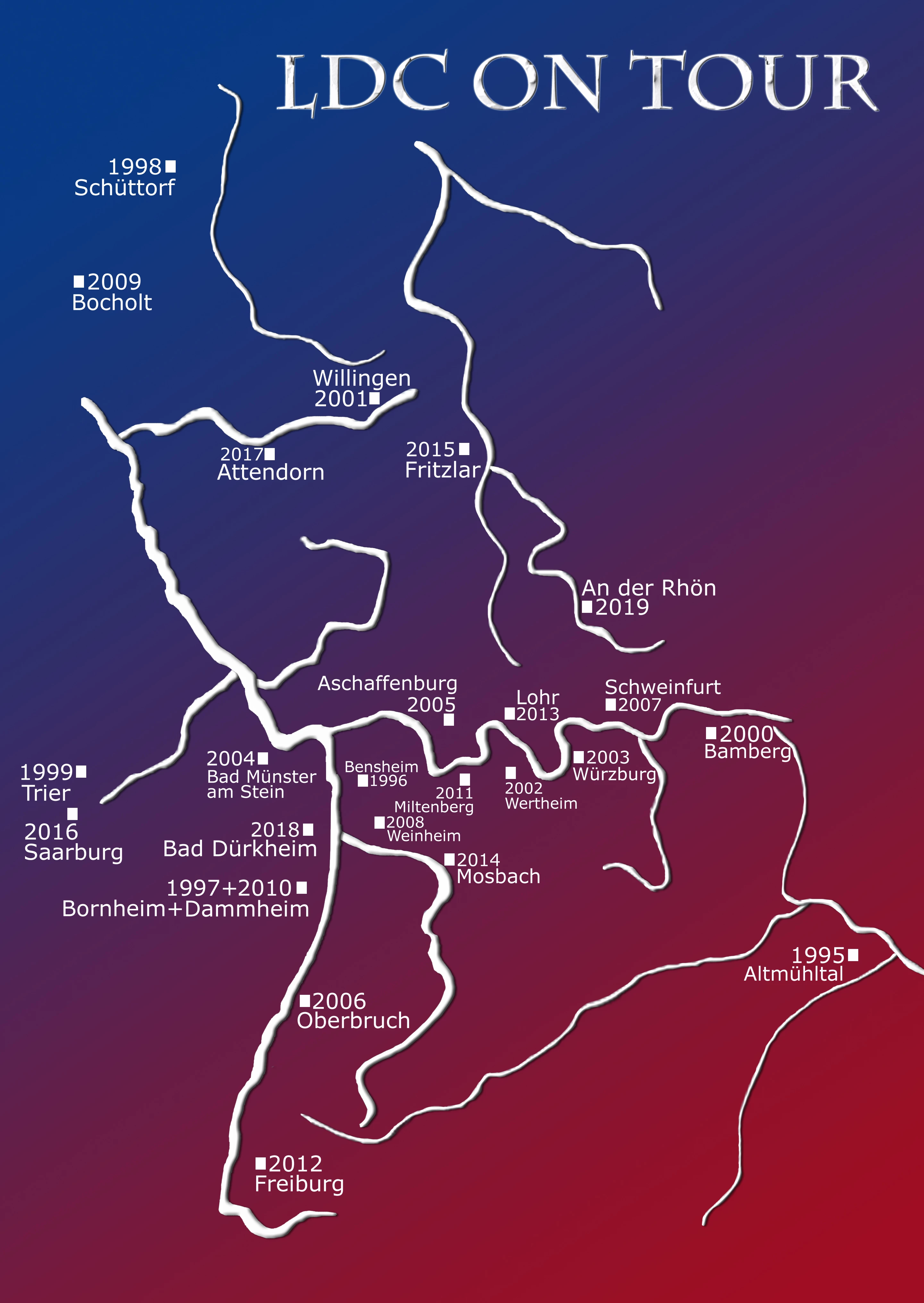
für meinen Schwiegervater habe ich eine Grafik erstellt mit Zeichnungen und Schriften. Es soll eine Flusskarte darstellen, in welcher die Städte markiert sind, wo schon einmal eine Tour statt fand. Jetzt bin ich leider weit entfernt davon eine Spezialistin zu sein. Diese Grafik soll auf ein Shirt gedruckt werden. Nun braucht der Hersteller eine Vektordatei als EPS oder PDF Datei - die Schriften in Kurven.

Kann mir jemand helfen, wie ich das schnell und einfach hinbekomme? Im Anhang findet ihr ein Bild von der Grafik. Der Hintergrund ist nur dazu da, damit man die weiße Grafik erkennen kann, gehört also nicht zum Druck. Ich nutze Adobe Photoshop CS2 Version 9.0

Vielen Dank schon mal im Voraus!

VG, Jessica
This topic has been closed for replies.

2 replies

Inspiring
March 30, 2019

The demand for text vectorization by outlines is probably a result of fear, that the font

might be handled faulty. Not necessary, IMHO.

My recommendation:

Put graphics and text on the same image with 300ppi, destination size, black on white,

flattened, and save as TIFF or high quality JPEG. Tell the printer "use white ink for black".

This would be good enough for text and images on t-shirt textiles.

Personally, I would replace the texture in the headline by solid color, and then, really

important, the smallest text by a larger one. A simplification of the river graphics geometry

might improve the appearance further. It's any way rather difficult to put all these details

onto a t-shirt readably.

Best regards --Gernot Hoffmann

(not responding actually because of travelling)

jane-e
Community Expert
Community Expert
March 30, 2019

This Graphic is to be printed on a Shirt. Now the Manufacturer needs a Vector file As AN EPS or PDF File-the Fonts in Curves.

Hi  Jessica,

Do you have Adobe Illustrator? If you do, you can try Image Trace.

Here it is with the Default Preset, which creates fills, and looking at the paths (outlines).

This is Default Preset, customized to Mode: Color instead of B&W, looking at the image (Tracing Result).

  • The background has banding. You don't want it anyway, so it can be deleted after you make it vector. Or redo it if you should want to keep it.
  • Retype the text so it is live text. Image Trace does not do this well. Convert the text to Outlines in Illustrator, but keep a copy of the live text in case there are edits.
  • You could also experiment with tracing strokes, not fills, and redoing the bevels and shadows in Illustrator if you are not happy with the way they turn out with Live Trace.