
Participant
January 3, 2017
Question

Photoshop gradients

  • January 3, 2017
  • 5 replies
  • 670 views

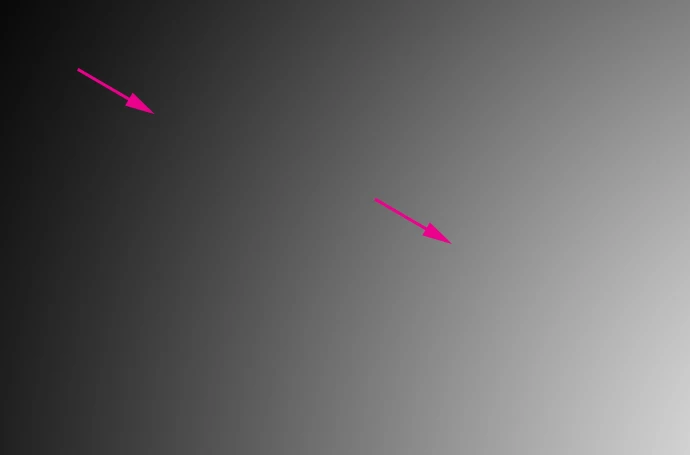
I have now tried using the Gradient Tool, the gradient adjustment layer and the gradient overlay (layer styles). All of them are creating banding as shown on the image below. Does anyone have a solution for this? It's not the first time I see this issue. Maybe it the programming? If I display this on our large projector at our school you really see the lines. Such a professional program shouldn't have these issues?
This topic has been closed for replies.

5 replies

PECourtejoie
Community Expert
Community Expert
January 3, 2017

Hello!

Some even recommend a round tripping to 16 bits, as the 16>8bits conversion includes dithering, to avoid banding.

The higher the bit depth of your display, the less banding would be visible (if it is display related) not sure about the capabilities of each projector...

I still wish we had a noise adjustment layer. (instead of having to use use filter>noise>add noise as a smart filter, or Camera Raw as a filter, if you prefer its noise with more control, in the FX tab)

c.pfaffenbichler
Community Expert
Community Expert
January 3, 2017
I still wish we had a noise adjustment layer.

I use a Pattern Layer or Pattern Overlay with a monochrome Noise Pattern* set to Linear Light and appropriate Opacity.

*: Based on Add Noise applied to a 50% gray area – different gamma RGBs (and CMYK) require Patterns created with the respective settings.

c.pfaffenbichler
Community Expert
Community Expert
January 3, 2017

Also which file format are the files you are ultimately projecting?

jpg’s lossy compression might aggravate the issue.

macpawel
Participating Frequently
January 3, 2017

You can also use Blur (Gaussian Blur) as well as some noise (dither) to your gradient

Pawel

D Fosse
Community Expert
Community Expert
January 3, 2017

Blur doesn't help if the banding is in the display system - which it usually is.

But a tiny bit of noise does it.

davescm
Community Expert
Community Expert
January 3, 2017

Hi

Smooth gradients show up any shortfalls in the display system and are not necessarily artifacts in the actual document. It sometimes shows as steps and sometimes as slightly coloured bands.

So some things you can do.

You can check your image at 100% using the eyedropper tool and see if it shows nice even grey (R=G=B ) steps. If it shows grey and your display shows colour then it is your display system.

To prevent banding in the image :

1. Work in 16 bit - this gives a lot more steps in brightness and is particularly needed if you place any adjustments over the gradient

2. Introduce a little bit of noise (as indicated by c.pfaffenbichler using dither)

If it is in your display, most displays are 8 bit and many are actually capable of displaying slightly less, you are stuck with it. This is not a shortcoming of Photoshop but it is a shortcoming of the display and is the primary reason for the move toward 10-bit displays. But be warned these are expensive.

Dave

TraxxazAuthor
Participant
January 3, 2017

I actually zoomed in and did some color picking. The shade with rgb(46,46,46) is 9 pixels wide. The other shades are 4 pixels. That's why it shows as banding. Blur doesn't help.

I forgot to say that its visible in my 8-bit PSD document. Its not a JPG compression.

I tried 32 bit aswell. It might be subpixel blending issues?

davescm
Community Expert
Community Expert
January 3, 2017

I forgot to say that its visible in my 8-bit PSD document.

Using 16 bit will keep the banding out of your image (set the info panel to 16 bit also when checking otherwise you are rounding the values to 8 bit) but you may not see a difference on screen as your screen will be using 8 bit to display the image.

Dave

c.pfaffenbichler
Community Expert
Community Expert
January 3, 2017

Did you check »Dither«?

TraxxazAuthor
Participant
January 3, 2017

I did check dither and it didn't solve it. The suggestions about adding abit noise works - sadly. Thanks for the help!