Participant
April 16, 2025
Answered

Photoshop: Methodology for refitting an oval image into a perfect circle?

  • April 16, 2025
  • 2 replies
  • 310 views

In PhotoShop is there a methodolgy for automatically refitting an oval image into a perfect circle?


I have oval images of abstract colors I want to reshape to fit a perfect circle without cropping any of the image.

Yes, this will distort the image and that is okay for my purposes.

The only method I know of is using the warp tool, but that is very "freehand" and imprecise.


Or, if not in PhotoShop, maybe another program like Illustrator?


Thank you in advance for your advice.


Using PhotoShop 25.5 / OS 15.3.2

 

Correct answer Trevor.Dennis

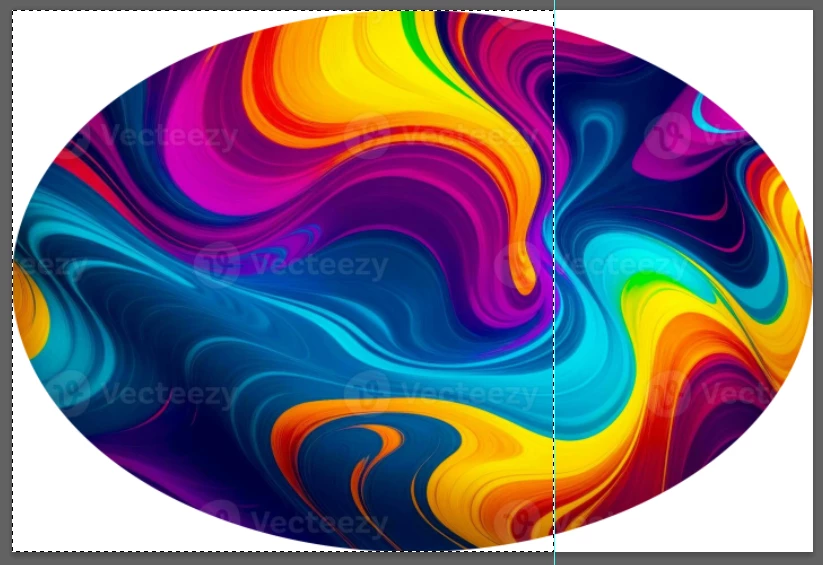
Assuming that the oval fits the canvas perfectly, like below.

Use the rectangle Marquee tool, and drag from top left corner whhile holding down the Shift key.

This will force a perfectly square selection.

Drag out a guide and let it snap to the selection's right side.

Release the selection, and start Free Transform (Ctrl T)

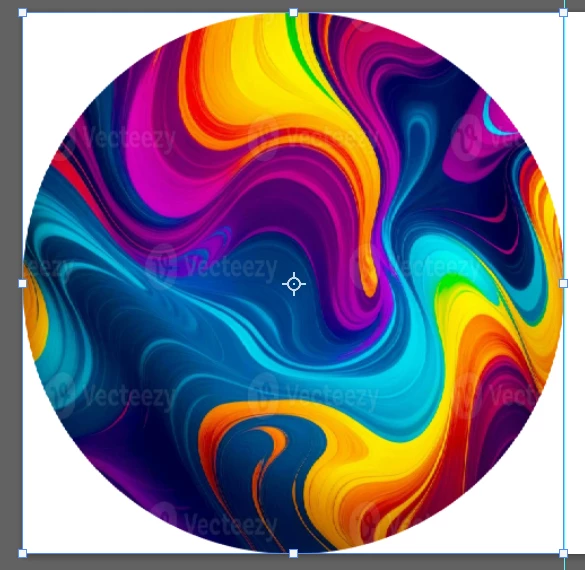
Hold down Shift, and drag the right side handle till it snaps to the guide.

OK this, and you have a perfect circle.

2 replies

Stephen Marsh
Community Expert
Community Expert
April 17, 2025

Sample files always help to illustrate. Do the images have transparency? Are they bordered or edge to edge etc?

Trevor.Dennis
Community Expert
Community Expert
April 17, 2025
quote

Sample files always help to illustrate. Do the images have transparency? Are they bordered or edge to edge etc?


By @Stephen Marsh


Yes I did wonder about that.  My simple FT will only work on a perfect oval.  It would not work on an egg profile, for instance,  unless you were happy to have some overspill, or to not fully fill the circle.

Trevor.Dennis
Community Expert
Trevor.DennisCommunity ExpertCorrect answer
Community Expert
April 17, 2025

Assuming that the oval fits the canvas perfectly, like below.

Use the rectangle Marquee tool, and drag from top left corner whhile holding down the Shift key.

This will force a perfectly square selection.

Drag out a guide and let it snap to the selection's right side.

Release the selection, and start Free Transform (Ctrl T)

Hold down Shift, and drag the right side handle till it snaps to the guide.

OK this, and you have a perfect circle.

Participant
April 17, 2025
Thank you,
I will try that!