
Inspiring
September 9, 2025
Answered

Photoshop random useless save warning in V26.10

  • September 9, 2025
  • 1 reply
  • 134 views

Why does photoshop V26.10 keep giving me this pop up now when it's obviously been saved over and I obviously want to keep updating the save making this pop up warning just an annoyance?  It just started today immediately after updating to 26.10.   

And how do I make force it to stop?
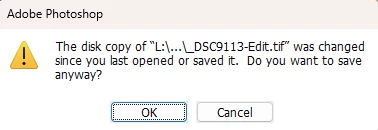


Is it because I started testing out Lightroom automatic writing metadata to xmp option that has been bugged for a couple years now?  Before that issue when it was on by default, it never popped up this warning, but now it is and that is coincidentally the only other thing changed other than updating both software.

 

Correct answer creative explorer

@Thai5C65 short answer, yes. The quickest and most effective way to eliminate this annoying save loop is to tell Lightroom Classic to stop writing metadata to the file while you're in Photoshop. Open Lightroom Classic. Go to Lightroom Classic (Mac) or Edit (PC) in the top menu bar, then choose Catalog Settings. In the Catalog Settings dialog, click the Metadata tab. and Uuncheck the box next to "Automatically write changes into XMP."


By turning this off, Lightroom Classic will keep all edits and changes solely in its fast catalog database, and it won't repeatedly update the file on your disk, which should immediately stop Photoshop from throwing that error every time you save. You can always manually save metadata to the file later in Lightroom (by selecting the photo and pressing Save) when you're finished with the Photoshop editing session.

1 reply

creative explorer
Community Expert
creative explorerCommunity ExpertCorrect answer
Community Expert
October 6, 2025

@Thai5C65 short answer, yes. The quickest and most effective way to eliminate this annoying save loop is to tell Lightroom Classic to stop writing metadata to the file while you're in Photoshop. Open Lightroom Classic. Go to Lightroom Classic (Mac) or Edit (PC) in the top menu bar, then choose Catalog Settings. In the Catalog Settings dialog, click the Metadata tab. and Uuncheck the box next to "Automatically write changes into XMP."


By turning this off, Lightroom Classic will keep all edits and changes solely in its fast catalog database, and it won't repeatedly update the file on your disk, which should immediately stop Photoshop from throwing that error every time you save. You can always manually save metadata to the file later in Lightroom (by selecting the photo and pressing Save) when you're finished with the Photoshop editing session.

m
Genius
October 6, 2025

Its probably better to turn off the option in Photoshop rather than Lightroom. Disable the preference to auto-update open file-based documents in PS Preferences.