
Participant
March 21, 2022
Question

Photoshop remove background failed error

  • March 21, 2022
  • 6 replies
  • 13232 views

Hello, I'm trying to remove the background of an image. I bring the image into PS, goto properties > Quick Actions > Remove Background. 

I click it, the system thinks for a second and then comes up with an error saying that 'Remove Background Failed'


The background layer is unlocked etc. I've tried everything. The image was downloaded from a paid version of Vecteezy, so it shouldn't be a permissions issue.
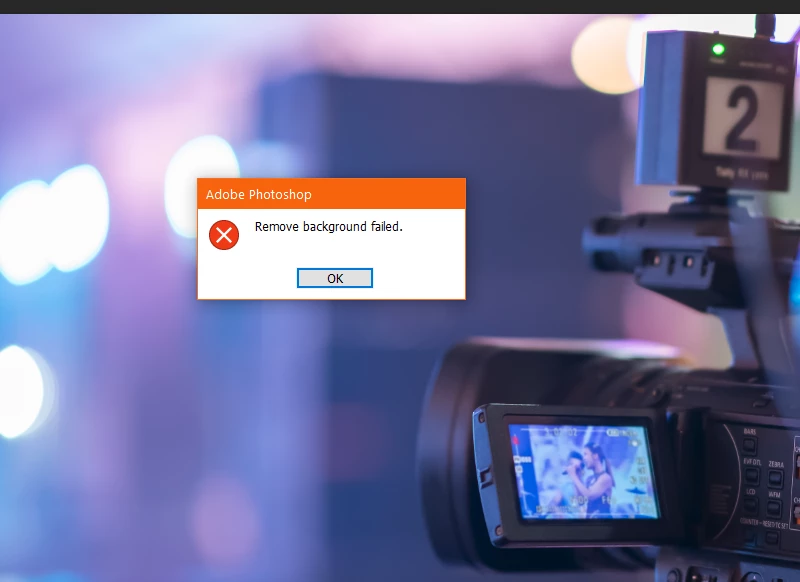

Note: moderator removed Actions and Scripting from tags.

6 replies

defaultua65hrhjrkoh
Participant
February 2, 2026

I know this is a few years old but found this page searching for the same issue having reset my prefs recently. Cured it by switching Image processing > Select subject and Remove background to cloud processing (probably my hardware isn’t up to it!)

Participating Frequently
October 20, 2025

The more serious problem is why it doesn't work in either case, completely regardless of contrast, colors and all other factors, and the Generative Fill tool (AI tools) doesn't work for me in a Windows 11 environment.

With the same images, with the same Cloud-based AI tools, everything works without problems on a Macbook (Apple Silicon).

So? Adobe of course doesn't give an answer to this either, we try to use workarounds, but it's ridiculous that the Windows version is so unstable (this is not my first problem with it, and probably not the last) compared to the MacOS one.

europac
Known Participant
September 23, 2025

Why can't I remove a background from an image in Photoshop.  Its NOT loccked.  I put the imager into Adobe Express and its removed instantly,  but in Photoshop CC - NOTHING - fails every time -  WHY


europac
Known Participant
September 23, 2025

After screwing around with the JPG image I saved a copy as a PSD format and that worked fine.  I tried a few other JPGs and the same issue, save as a PSD and then apply the "remove backgound" and it works. Hope this helps anyone else with this issue. 

Participant
March 22, 2022

Thank you both, i'll try those suggestions. I was hoping it wasn't an error with the software, so to test, I'll try an image with more contrast in the background to see if it's a software issue or the AI not being able to determine the subject.

Participant
November 3, 2023

Facing same issue, have tried several images, but same results. I re-installed the software and its working


S_Gans
Community Expert
Community Expert
March 21, 2022

Looks like there may not be enough distinction for Photoshop's AI to determine what to remove. Since you prefer something automated, and your original end result wouldn't create a layer mask - I'll provide a simple answer (if you ARE familiar with layer masks, Derek's answer is a cleaner option).

It may be better if you started it yourself, by making a loose selection with the lasso, of what you want to delete, and then delete it yourself (Please convert your layer before doing so, by double clicking the background layer and hitting ok). Once you get rid of some of the distraction in the background, the AI may have an easier time. 

Adobe Community Expert / Adobe Certified Instructor
Derek Cross
Community Expert
Community Expert
March 21, 2022

Try Select > Subject, then apply a Layer Mask and fine tune, though looking at that pic, a selection made with the Pen tool might be better.