Participant
June 1, 2026
Answered

Photoshop removes EXIF metadata during export. How can I export JPEG files while preserving all original metadata?

  • June 1, 2026
  • 2 replies
  • 57 views

I am experiencing an issue with EXIF metadata preservation in Photoshop.

My workflow is:

  1. Open a JPEG file that contains complete EXIF metadata.

  2. Edit the image in Photoshop.

  3. Export the image as a JPEG.

After exporting, all EXIF metadata is completely removed. Camera model, lens information, capture date, exposure settings, and all other EXIF fields are missing from the exported file.

I would like to know:

  • Is this behavior normal?

  • Which save or export method preserves all original EXIF metadata?

  • Is "Export As" designed to remove EXIF metadata?

  • Is there a Photoshop setting that ensures all EXIF metadata is preserved when exporting JPEG files?

Thank you for your assistance.

    Correct answer Stephen Marsh

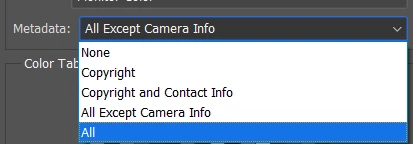
    Don’t use Export As as it doesn't support EXIF/Camera metadata:


    Either use Export > Save for Web - All:


    Or the standard Save/Save As/Save a Copy commands.

    2 replies

    jane-e
    Community Expert
    Community Expert
    June 1, 2026

    @Mehmet5C04 wrote “Using "Save a Copy" solved the issue”


    Since Save a Copy worked, you can also change preferences:

    Preferences > File Handling > File Saving Options , then enable both “Legacy Save As” and “Do not append ‘copy’ to filename”


    Jane


    Participant
    June 1, 2026

    Thank you, this information was very helpful.🤗

    jane-e
    Community Expert
    Community Expert
    June 2, 2026

    You’re welcome ​@Mehmet5C04, happy to help!


    Jane

    Stephen Marsh
    Community Expert
    Stephen MarshCommunity ExpertCorrect answer
    Community Expert
    June 1, 2026

    Don’t use Export As as it doesn't support EXIF/Camera metadata:


    Either use Export > Save for Web - All:


    Or the standard Save/Save As/Save a Copy commands.

    Participant
    June 1, 2026

    Thank you very much for your help.

    Using "Save a Copy" solved the issue and all EXIF metadata is now preserved correctly.

    I also tested "Save for Web," but I noticed changes in image quality and color rendering, so "Save a Copy" appears to be the best solution for my workflow.

    Thank you again for your assistance.

    D Fosse
    Community Expert
    Community Expert
    June 1, 2026

    I also tested "Save for Web," but I noticed changes in image quality and color rendering, 


    Just FYI - that’s because Save For Web has all color management disabled by default. You need to change these three settings to what shown here:


    Save For Web is extremely solid and reliable, unlike Export, which is still buggy and misses essential functionality. At least as long as your original files aren’t too big. Export was intended to replace SFW, but they just never seemed inclined to finish it, don’t know why. It works, but with severe limitations.