


Photoshop Smart Objects
Edit the contents of a Smart Object
When you edit a Smart Object, the source content is opened in either Photoshop (if the content is raster data or a camera raw file) or the application that handles the placed format by default (for example, Adobe Illustrator or Adobe Acrobat). When you save changes to the source content, the edits appear in all linked instances of the Smart Object in the Photoshop document.
- Select the Smart Object from the Layers panel, and do one of the following:
- Choose Layer > Smart Objects > Edit Contents.
- Double-click the Smart Objects thumbnail in the Layers panel.
- In the Properties panel, click Edit Contents.
Photoshop updates the Smart Object to reflect the changes you made. (If you don’t see the changes, make the Photoshop document containing the Smart Object active.)
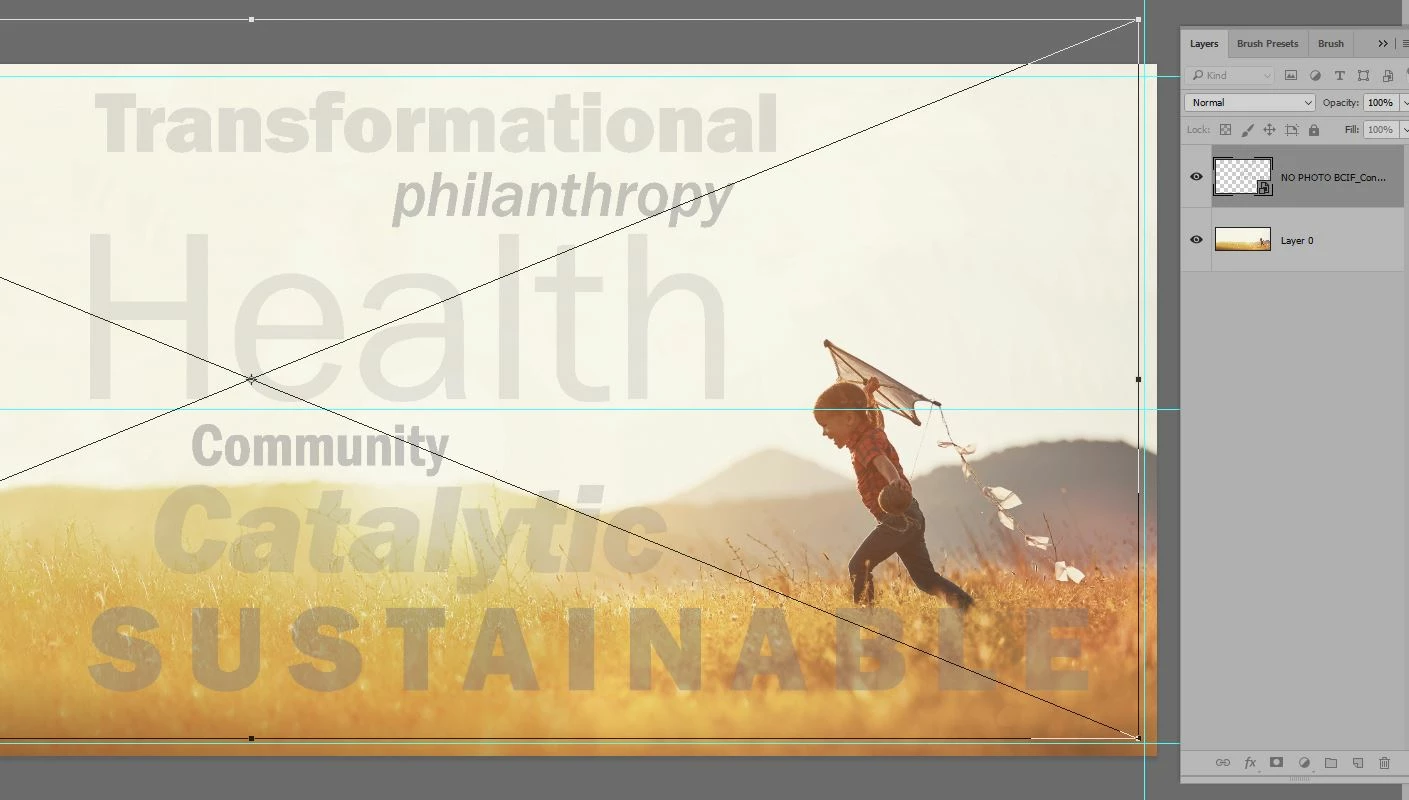
I did the above steps to adjust the text and then I noticed these lines. I repeated the steps again and again but the lines did not go away.
Then I tried to Free Transform the Smart Object and the hole Smart Object shifted up. I am all out of rhyme and reason for what has happen. Can you help?
I placed a guide under the word Health to help visualize what is happening.
The first screen shot is my file in Photoshop.
The Second screen shot is my file after I click on the one of the handles of my Smart Object.
What just happened and who can I fix it?

 AdChoices