Participant
March 25, 2021
Answered

Photoshop text tool not working

  • March 25, 2021
  • 3 replies
  • 2394 views

I just downloaded Ps and started working on my project. however, text tool is not working at all. What can I do to make it work? Any help would be appreciated. Thanks.

This topic has been closed for replies.
Correct answer c.pfaffenbichler

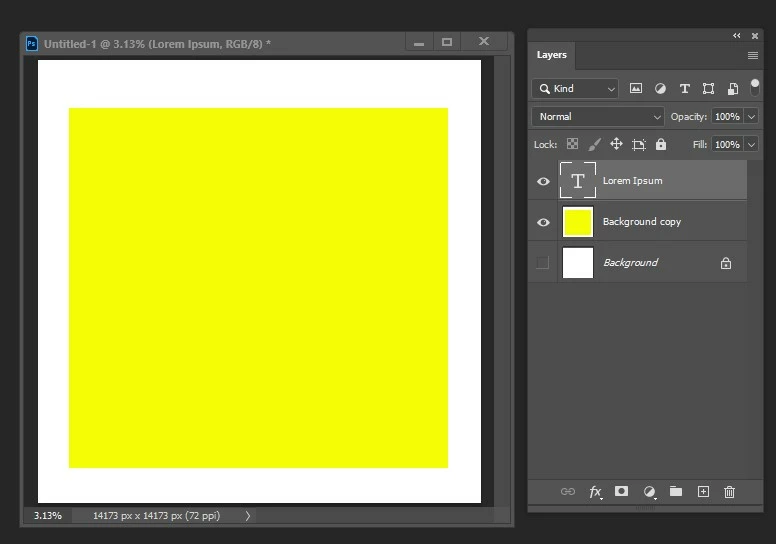
I'm attaching 4 screenshots. 

1- setting for blank project

2- color setting for better background

3- Text being invisible while layer shows default type setting

4- Text setting
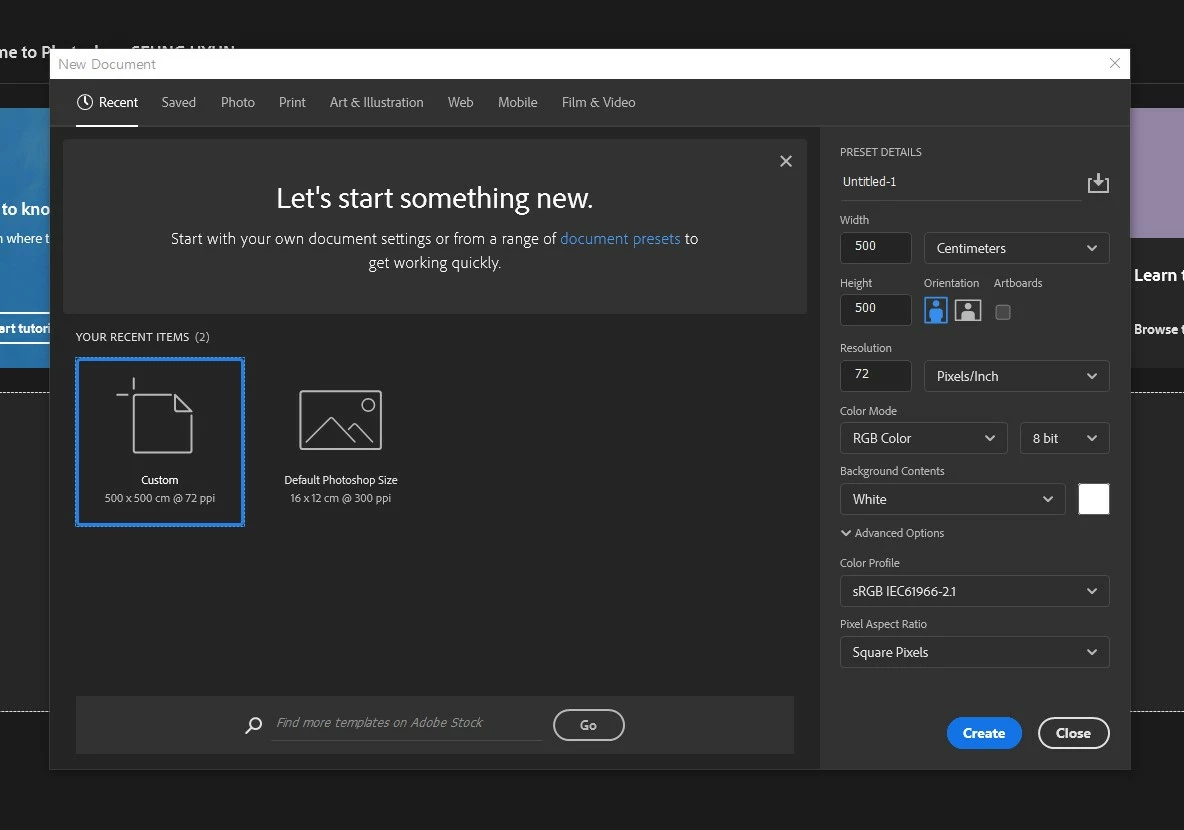
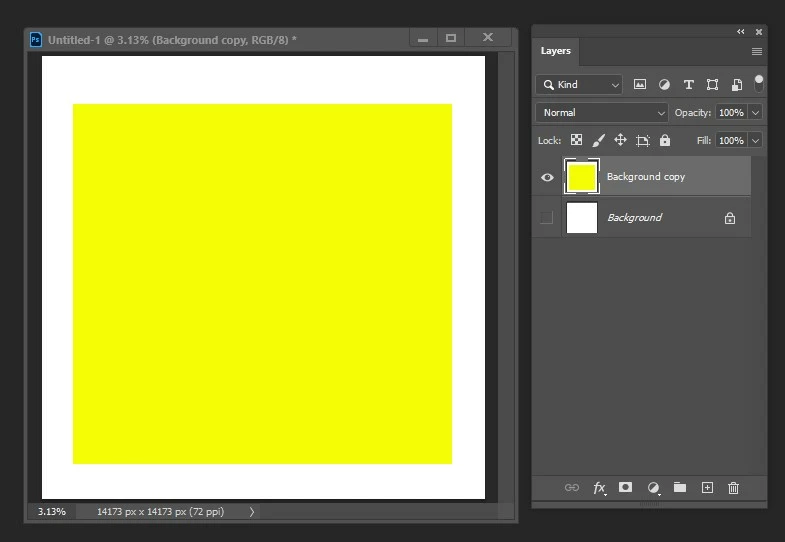

In the future please posr meaningful screenshots that include ALL the pertinent UI elements (Layers Panel, Options Bar, Toolbar, …). 


Did you click or (as requested) click-drag with the Type Tool? 

When you select the Move Tool and hitt cmd-T doe Transform Controls vecome visible? 


What have you done for all-purpose trouble-shooting so far?
Restoring Preferences after making sure all customized presets like Actions, Patterns, Brushes etc. have been saved might be a good starting point:
https://helpx.adobe.com/photoshop/kb/troubleshoot-fonts-photoshop.html
https://helpx.adobe.com/photoshop/using/preferences.html


3 replies

Participant
December 12, 2021

PHOTSHOP TEXT TOOL & TRANSFROM TOOL & LAYER NOT SHOWING

PHOTOSHOP TOOL NOT WORK


c.pfaffenbichler
Community Expert
Community Expert
December 12, 2021

What have you done for all-purpose and font-related trouble-shooting so far? 

https://helpx.adobe.com/photoshop/kb/basic-trouble-shooting-steps.html

https://helpx.adobe.com/photoshop/kb/troubleshoot-fonts-photoshop.html


Please read this (in particular the section titled "Supply pertinent information for more timely and effective answers”):

https://community.adobe.com/t5/using-the-community/community-how-to-guide-tips-amp-best-practices/td-p/11601738?page=1


Could you please post screenshots with the pertinent Panels (Toolbar, Layers, Options Bar, …) visible? 

jane-e
Community Expert
Community Expert
March 25, 2021

You didn't say if it was working before and stopped working or if you are a beginner and don't know how to use the Type tool or what the issue is.


Let's start here: Select the Type tool > click (or drag) to create a new type layer > type over the dummy text > click the checkbox in the options bar. Details here:

https://helpx.adobe.com/photoshop/using/add-edit-text.html


If this totally misses your issue, please clarify.


~ Jane

Participant
March 27, 2021

Thanks for the reply. I've been using PS for a few months at work by now. In order to do some extra work at home, I purchased the plan a couple of days ago. I know how to use text tool. Text tool itself did not work from the get go. I tried the pen tool to see if text would ride on. It didn't work either. I tried adding new layer as well ☞ layer> test. But once I click text tool, it just makes a dot and stops: cannot edit or add or do anything. The PS I puchased is the same version that I'm using at work. I have no idea why the text tool isn't working.

jane-e
Community Expert
Community Expert
March 27, 2021

Please start a new document and drag out a text frame. It should fill with dummy text. Show a screen shot with an text still selected and the Character panel.


~ Jane

c.pfaffenbichler
Community Expert
Community Expert
March 25, 2021

What exactly happens when you click on the Canvas with the Type Tool? 

Could you please post screenshots with the pertinent Panels (Toolbar, Layers, Character, Options Bar, …) visible?