



Poor Quality Transparency When Pasting From Clipboard
In recent versions you are able to copy images from the programs like the browser and paste it into Photoshop, maintaining transparency. Which is greatly appreciated but...
Problem: Semi-transparent pixels in images pasted this way do not look correct. I know why it's doing this I think, more on that later.
Example: This emoji: https://raw.githubusercontent.com/googlefonts/noto-emoji/main/png/128/emoji_u1f642.png
How the edges should look. This is how it looks if pasted into MS Paint for example, or if the file is saved and imported.

How it looks when pasting into Photoshop - notice the black background from the BMP leaking through.

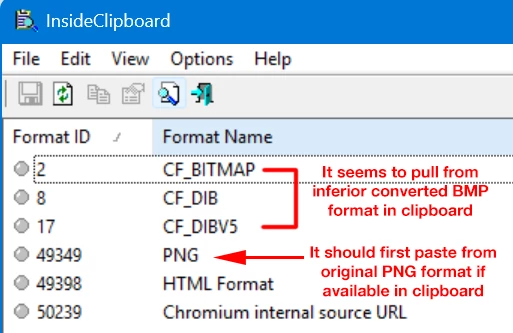
Cause TL;DR: I'm fairly certain this is because Photoshop is using the BMP (bitmap) format of the image in the clipboard, despite the original PNG format being available also in the clipboard.
Context: Looking with InsideClipboard after copying an image, you can see when copying a PNG image from Chrome, it puts both the BMP version and PNG version into the clipboard.
(Note: CF_BITMAP, CF_DIB, and CF_DIBV5 are all the bitmap image in slightly different formats, Windows basically automatically creates the other two if any of them are put into the clipboard. Not sure which photoshop is pulling from.)
Cause Details:
BMP doesn't natively support transparency, so Windows allows a pseudo-transparency in the clipboard for BMPs where the BMP clipboard items are basically are the image and mask data concatonated together. But presumably the transparency is flattened to black, so even though there's the mask, semi-transparent pixels aren't going to look right.
Solution:
Have it check for other image formats in the clipboard before pasting, and only use the BMP version as a fallback.


 AdChoices