Doc_Pit
Inspiring
January 30, 2024
Answered

Problem understanding the paths panel
  • January 30, 2024
  • 3 replies
  • 618 views

This topic has been closed for replies.
Correct answer Conrad_C

There is a logic to this, but like much about paths and shapes in Photoshop, it is not intuitive.


The Paths panel lists different kinds of paths simultaneously, including:

  • A temporary Work Path (an unsaved path), if it exists. 
  • Any number of saved paths (they are not part of any shape layers). 
  • If a shape layer is selected, its path. 
  • If a layer is selected that contains a vector mask, its mask path. 


The animation below should help. Watch how the Paths panel changes as each layer type is selected:
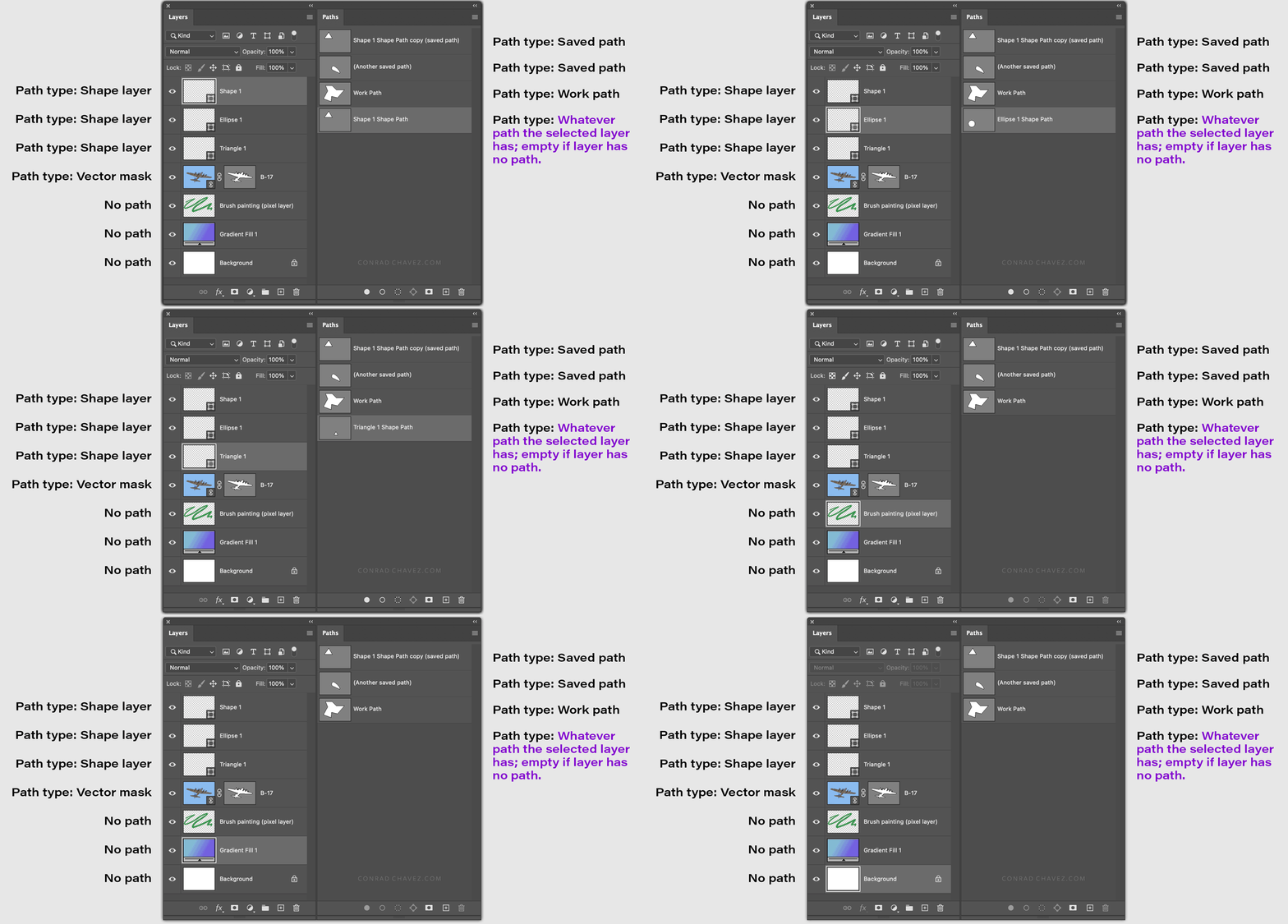
  • The Paths panel always lists paths not tied to a layer, including saved paths, and the temporary Work Path if one exists. 
  • If a selected layer contains a path component (e.g, shape or vector mask), that path is listed in the Paths panel, but only as long as that layer is selected. If you select a different layer that uses a path, that path is now displayed in the Paths panel along with the always-listed paths. 


This should explain what you see:


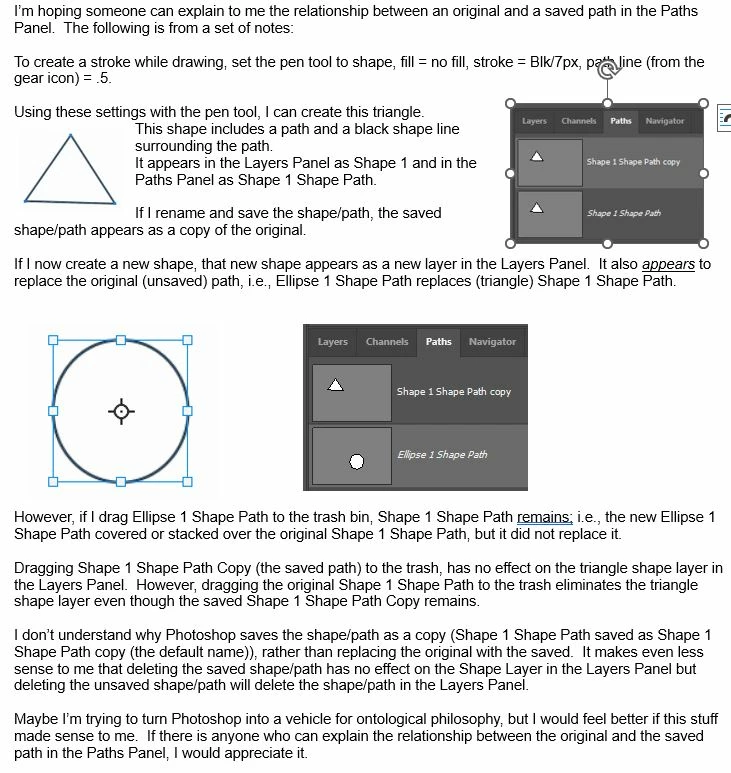
When you saw your Ellipse 1 Shape Path “replace” the Shape 1 Shape Path, that is not what was happening. The paths did not change or be replaced; the Paths panel was simply updating the view to reflect the fact that a different layer was now selected, so the path for the no-longer-selected layer should no longer be shown, and the path for the currently selected layer should be shown.


The saved paths and the temporary Work Path remain listed in the Paths panel at all times, because they are not tied to any specific layer.


If it makes you feel any better…it took me a long time to understand how this works.

3 replies

didiermazier
Community Expert
Community Expert
January 30, 2024

These are not path strictly sensu but shapes.

if you want to work with paths save them and combine you would better select path insatead on the option bar

And then work not on layers  (here and elipse but no shape layer) but in the path panel where you can save and edit paths much easier


Conrad_C
Community Expert
Conrad_CCommunity ExpertCorrect answer
Community Expert
January 30, 2024

There is a logic to this, but like much about paths and shapes in Photoshop, it is not intuitive.


The Paths panel lists different kinds of paths simultaneously, including:

  • A temporary Work Path (an unsaved path), if it exists. 
  • Any number of saved paths (they are not part of any shape layers). 
  • If a shape layer is selected, its path. 
  • If a layer is selected that contains a vector mask, its mask path. 


The animation below should help. Watch how the Paths panel changes as each layer type is selected:

  • The Paths panel always lists paths not tied to a layer, including saved paths, and the temporary Work Path if one exists. 
  • If a selected layer contains a path component (e.g, shape or vector mask), that path is listed in the Paths panel, but only as long as that layer is selected. If you select a different layer that uses a path, that path is now displayed in the Paths panel along with the always-listed paths. 


This should explain what you see:


When you saw your Ellipse 1 Shape Path “replace” the Shape 1 Shape Path, that is not what was happening. The paths did not change or be replaced; the Paths panel was simply updating the view to reflect the fact that a different layer was now selected, so the path for the no-longer-selected layer should no longer be shown, and the path for the currently selected layer should be shown.


The saved paths and the temporary Work Path remain listed in the Paths panel at all times, because they are not tied to any specific layer.


If it makes you feel any better…it took me a long time to understand how this works.

Doc_Pit
Doc_PitAuthor
Inspiring
January 31, 2024

That was really helpful.  Thanks for your time.  Much appreciated.

c.pfaffenbichler
Community Expert
Community Expert
January 30, 2024

You seem to use the terms »saved« and »unsaved« incorrectly in this case. 


The Path in a Vector Mask is saved. 

It is displayed in the Paths Panel only when the Layer is selected. 

Selecting another Layer with a Vector Mask does not replace the other Path, it just causes the currently selected Layer’s Vector Mask to be displayed in the Paths Panel. 

Double-clicking the Vector Mask raises the »Save Path«-dialog which creates a new »plain« Path unconnected to any Layer. 


Side note: Please don’t make posts with the whole relevant text in a jpg. 

Please write the text in the Forum properly and post more meaningful screenshots instead of disconnected snippets. 

Doc_Pit
Doc_PitAuthor
Inspiring
January 31, 2024

Thank you.
