
Participant
February 1, 2023
Answered

Problem with Surface Pro 9 Pen (W11) in Photoshop while you are making zoom

  • February 1, 2023
  • 1 reply
  • 1913 views

The Surface Pen works properly in Photoshop, but when you are making zoom, the pen only moves the canvas: you are not able to draw on it.


I have read the same problem with old version Surface but all the solutions are based on Windows 10. 


Does anyone know how to solve it in Windows 11? However, it works perfect with Gimp, so the problem is only working with Photoshop.


Thanks
 

Correct answer Sameer K

I'll help you turn this around. Your surface pen is working as touch input only at the moment. What version of Photoshop are you working on?


Check this optional extension to force Photoshop to use WinTab drivers instead of WindowsInk by default:


  • Use Notepad (Windows) or a text editor
  • Copy & paste the following text into the text document

    # Use WinTab
    UseSystemStylus 0

  • Save the file as "PSUserConfig.txt"
  • Go to this location on Windows 10/11: Users/[user name]/AppData/Roaming/Adobe/Adobe Photoshop [version]/Adobe Photoshop [version] Settings
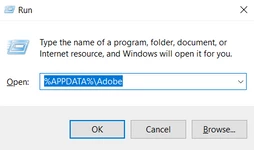
  • Shotcut > Press Windows + R & type this is the Run Window - %APPDATA%\Adobe


  • Paste within Adobe Photoshop [version] Settings folder.

Check this page for other optional extensions: https://helpx.adobe.com/photoshop/kb/enable-optional-extensions-photoshop-cc.html#turn_off_system_stylus


Let me know how it goes. Thanks!

Sameer K

1 reply

Sameer K
Community Manager
Sameer KCommunity ManagerCorrect answer
Community Manager
February 2, 2023

I'll help you turn this around. Your surface pen is working as touch input only at the moment. What version of Photoshop are you working on?


Check this optional extension to force Photoshop to use WinTab drivers instead of WindowsInk by default:


  • Use Notepad (Windows) or a text editor
  • Copy & paste the following text into the text document

    # Use WinTab
    UseSystemStylus 0

  • Save the file as "PSUserConfig.txt"
  • Go to this location on Windows 10/11: Users/[user name]/AppData/Roaming/Adobe/Adobe Photoshop [version]/Adobe Photoshop [version] Settings
  • Shotcut > Press Windows + R & type this is the Run Window - %APPDATA%\Adobe


  • Paste within Adobe Photoshop [version] Settings folder.

Check this page for other optional extensions: https://helpx.adobe.com/photoshop/kb/enable-optional-extensions-photoshop-cc.html#turn_off_system_stylus


Let me know how it goes. Thanks!

Sameer K

RalbavalAuthor
Participant
February 3, 2023

Thanks! It works perfect. Thank you for your avise.


Best,