
whitesellj
Participant
October 21, 2017
Question

PS 2018 Select and mask crashes

  • October 21, 2017
  • 13 replies
  • 10290 views

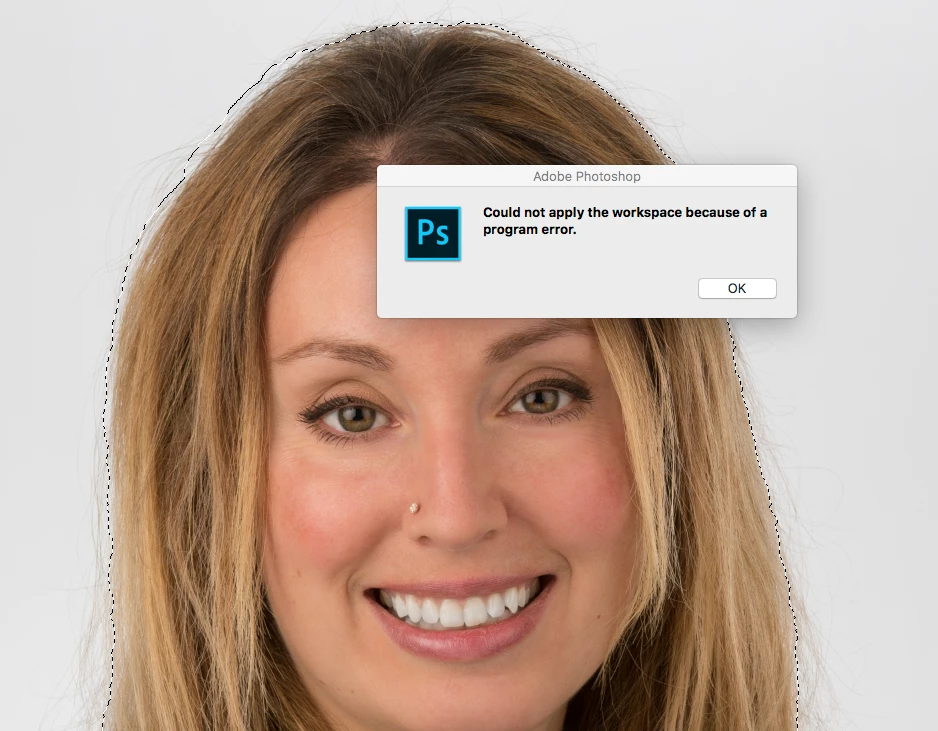
When I make a selection then click the "Select and Mask" button (or right click and choose select and mask) I get the following error:

"Could not apply the workspace because of a program error."

Using macOS Sierra 10.12.6

I've reset the workspace (by removing ~/Library/Preferences/Adobe Photoshop CC 2018 Settings/Workspaces (Modified) and relaunching)

Same error with multiple files.
This topic has been closed for replies.

13 replies

piet_psphotos
Participant
November 22, 2018

hi

photoshop-edit- preferences-performance-advanced - deselect open CU.

This worked for me.

Saw it on site of Windows

Best

P

JJMack
Community Expert
Community Expert
November 22, 2018

Do realize that question was asked a year ago. Also the is no Open CU its open CL which I believ was allreary posted in this thread. over a year ago

JJMack
Participant
November 8, 2017
craigl31472931
Participant
November 4, 2017

Experienced the same issue with Photoshop CC 2018/Windows 10; never had this problem in previous versions of Photoshop. Unchecking the OpenCL box didn't solve my problem and didn't want to be converting my files to 8 bits just to refine selections since this defeats the purpose of a 16 bit workflow. My graphics card driver is up-to-date. Have only used the Magic Wand and Quick Selection tools, but both show the error message when Select and Mask is used. THE ONLY SOLUTION THAT WORKED FOR ME WAS TO EDIT MY PHOTOSHOP PREFERENCES UNDER THE GENERAL CATEGORY TO "RESET PREFERENCES ON QUIT" THEN EXIT AND REENTER PHOTOSHOP AND MANUALLY RESTORE SOME OF MY SETTINGS IN MY CUSTOMIZED WORKSPACE AS NEEDED AFTER THE RESET. THIS WAS ONLY SOMEWHAT DISRUPTIVE AND THESE TWO TOOLS NOW WORK AS INTENDED. Hopefully it will last and was only a conversion issue between the old and new CC versions.

Known Participant
November 3, 2017

I am experiencing the same problem.

Three days ago I used the SM function with no problem. I made my initial selection with the Quick Selection tool and then clicked the Select and Mask button. No issues.
Yesterday I started working with a new image and now I have the problem.

I read through all of the suggestions above but none of them seem like viable solutions.

Here is the solution that is working for me.

Click on a selection tool but do not select anything. It is important to not have an active selection.
Then click on Select and Mask.
Now make your selection and then refine it as you wish.

Inspiring
November 1, 2017

I'm not experiencing the problem, but am working with someone who is.  He tried the following (which I thought I read hear but now cannot find) and it worked for him:

  1. convert your image to 8bpc
  2. make a selection
  3. refine your selection
  4. uncheck "save settings" and hit ok
  5. convert your image back to 16bpc
  6. make a selection
  7. refine the selection (now it works!)
  8. you can safely check "save settings" again
  9. hit ok
  10. fixed!
Participant
November 1, 2017

Having the same issue. Restored preferences at Startup as suggested by MelissaLA88. Worked for a few images. Getting the same problem again. Started while working on an image. Make a selection and did 'Select and Mask.' Was fine. Made another selection then the problem reoccurred. Shouldn't have updated. Wasn't an issue before CC 2018. Fix the issue Adobe.

jstclair3
Participant
October 30, 2017

In my case, Photoshop CC2018 works as expected (in regard to select & mask) if PS is launched directly and image is loaded from PS.  However, if I am in Lightroom Classic CC and choose to "Edit in Photoshop", select & mask shows the error message mentioned in this thread. 

Participant
October 31, 2017

It's the same in my case; launching PS directly gives no errors.

JJMack
Community Expert
Community Expert
October 23, 2017

Post your Photoshop CC 2018  meny Help>System Info.... As I wrote it seems to wotk on my windows 10 machines....

JJMack
Participant
October 25, 2017

I am having the same problem with select and mask in CC2018 and have unchecked Open CL which did not fix it.  However!!!  I changed the mode from my usual 16-bit to 8-bit and it works on the 8-bit .dng file.  I tested it with a small .jpg file with no problems which would seem to indicate that the problem does not lie with the Open CL or drivers.

Participant
October 25, 2017

Yes, I have the same problem and changing the PSD file from 16 bit to 8 bit fixes it.

However I would rather keep my files at 16 bit......

Participant
October 23, 2017

Same issue here.  Graphics card drivers up-to-date. Open CL unchecked.

Participating Frequently
October 23, 2017

Same here! OpenCL was already uncheck and even disabling use of graphics processing did nothing

JJMack
Community Expert
Community Expert
October 23, 2017

Try resetting you Photoshop Preferences to Adobe Default Settings. Select and Mask seems to work on my Windows systems. Also make sure your Display Adapter device driver is up to Date.  Install the least one that is available from it's manufacturer's web site.

JJMack
Participating Frequently
October 23, 2017

Tried that and it still errors. Tried different select tools and didn't make a difference. I did find that the only way it doesn't error is when you do a select all!

gtsomething
Participant
October 22, 2017

I have the same issue as well, and unfortunately OpenCL is already disabled for me.

Any other fixes? floramcRoei Tzoref