
bellevue scott
Inspiring
June 9, 2025
Question

PS 26.7 adjustment panel in modern all views are large icon.

  • June 9, 2025
  • 1 reply
  • 197 views

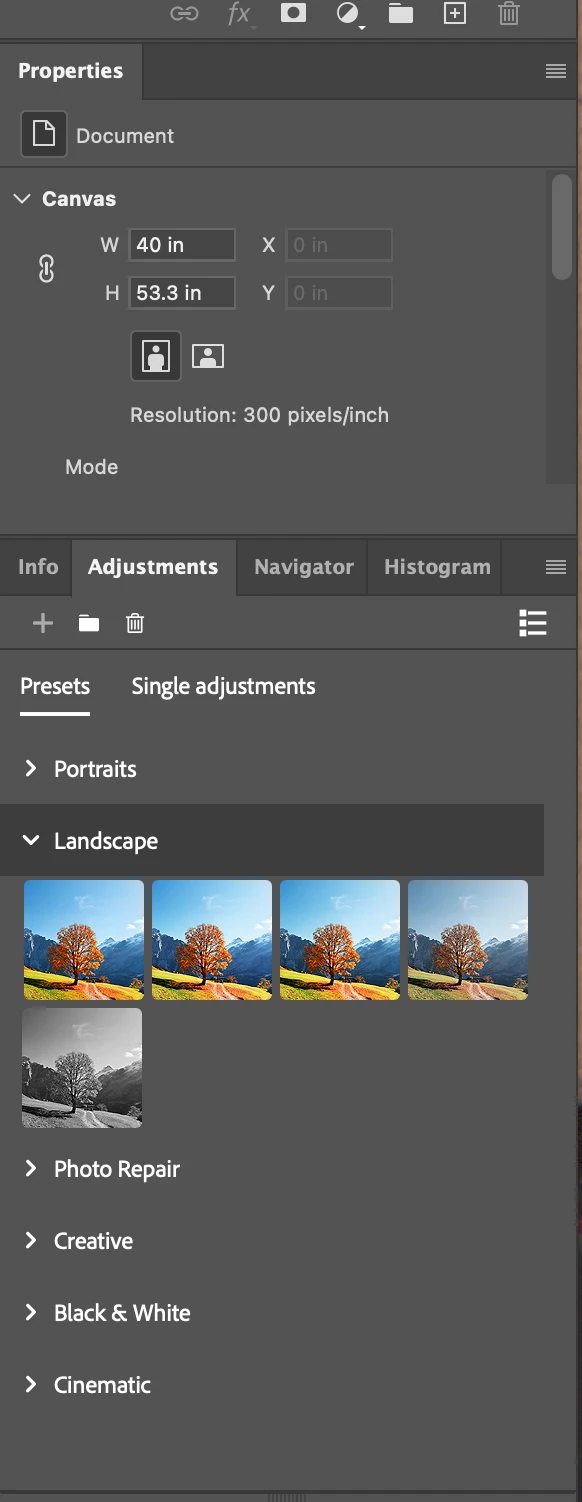
With PS 26.7 it seems the view in the adjustment panel is defaulted to modern. In icon view, the icons work as expected on a MAC but on Windows the icon view is always large for the "modern" view. Large icons, medium icons and small icons are all large. Changing their size in the settings doesn't change their size. 


We're seeing this on Windows but not on Mac. 
 

1 reply

Community Manager
June 9, 2025

Hi @bellevue scott! I gave this a try on my Windows machine but wasn’t able to reproduce the issue — it’s possible I’m missing a step or doing something differently.

Could you let us know exactly how you're changing the icon sizes? That’ll help us get a clearer picture and hopefully figure out what’s going on.

Thanks so much!
Alek

*(If you mention me with an @, like @Aleke, I’ll get a notification and can respond faster.)*
bellevue scott
Inspiring
June 9, 2025

Thanks Aleke. Here's a screen shot. It's from a Mac as one of my employees is currently usng the Windows machine, but it's the same... 

Noel Orridge
Community Manager
Community Manager
June 23, 2025

Hi @bellevue scott, Thank you for the screenshot! 


I'd suggest updating the application, as a newer version, 26.8, is out. Also, could you update your graphics drivers if you haven't done so lately? Studio Drivers are preferred over Game-ready drivers when it comes to NVIDIA GPUs.


You can also try out these fixes and see if they work.


Adjust UI scaling in Photoshop

  • In Photoshop, navigate to Edit > Preferences > Interface.
  • Locate the setting for UI Scaling. It may be set to Auto.
  • Try changing this setting explicitly to 100%.
  • Restart the application for the change to take effect. If 100% makes everything too small, you can try 200%, but do not leave it on Auto.


Adjust Windows Scaling

  • Right-click on your desktop and select Display settings.
  • Under the Scale & layout section
  • Try selecting a different scaling percentage from the one that is currently active.


Try these out and let us know how it goes!

Cheers!

Noel