lmcgeko
Participant
March 31, 2019
Answered

PS CC 2019 - Content aware does not appear in Crop tool options

  • March 31, 2019
  • 4 replies
  • 14172 views

I am getting frustrated with the 2019 release.

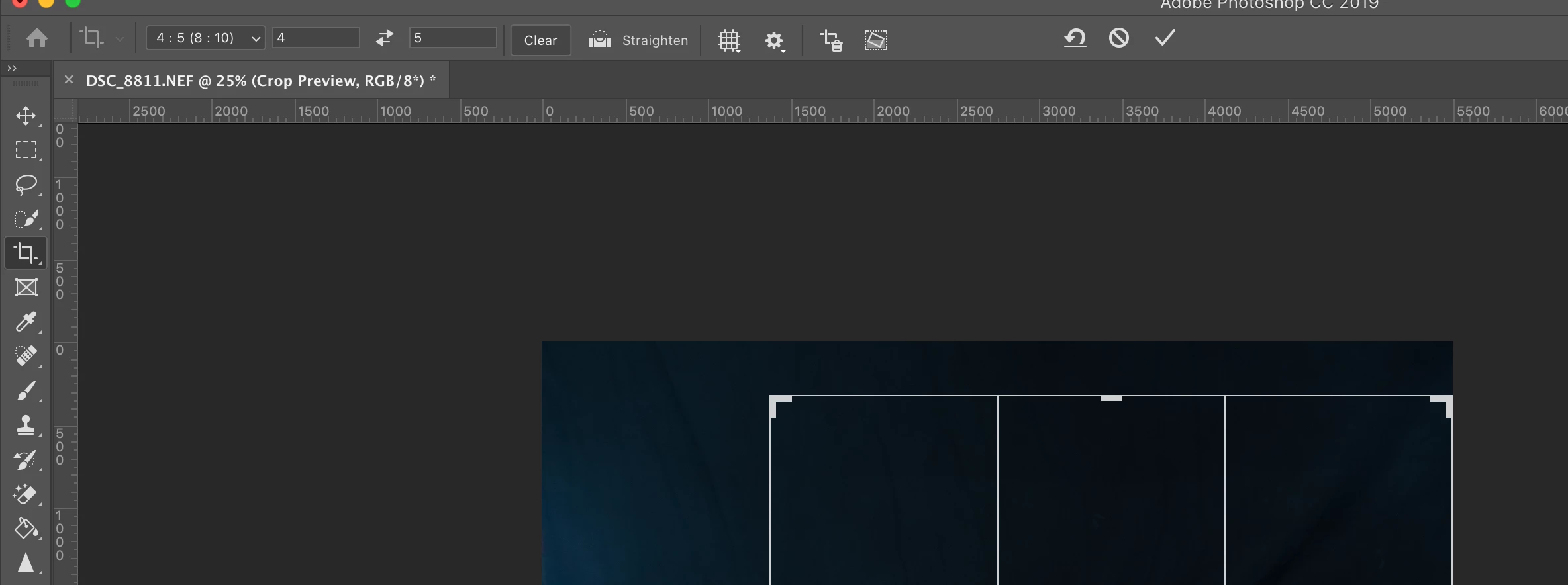
Focusing on the problem, Launched PS 2019 and opened a NEF fie. Trying to rotate and crop an image, So far so good, however I don't have the content-aware option visible in the tool bar. Tried resetting the tool - to no avail.

I have checked to see if the version has the latest updates and it does.

I have to get a job out to no avail. How do I get the content aware back?
    This topic has been closed for replies.
    Correct answer Conrad_C

    No options are missing.

    Nothing is wrong.

    Everything is working properly.

    There is no need to adjust your set.

    Your options bar does have the Content-Aware Fill option, it's just that you're seeing the icon version instead of the usual long text version. If you hold the mouse still over the last icon in the Crop tool options bar, you'll see that icon is Content-Aware Fill.

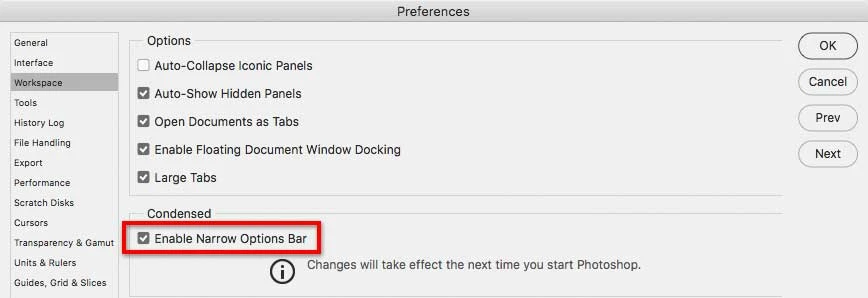
    This is happening because at some point, intentionally or not, the Enable Narrow Options Bar preference was turned on.

    If you want to see the long text version of the options bar, open Photoshop Preferences > Workspace and disable the Enable Narrow Options Bar preference.

    4 replies

    Conrad_C
    Community Expert
    Conrad_CCommunity ExpertCorrect answer
    Community Expert
    March 31, 2019

    No options are missing.

    Nothing is wrong.

    Everything is working properly.

    There is no need to adjust your set.

    Your options bar does have the Content-Aware Fill option, it's just that you're seeing the icon version instead of the usual long text version. If you hold the mouse still over the last icon in the Crop tool options bar, you'll see that icon is Content-Aware Fill.

    This is happening because at some point, intentionally or not, the Enable Narrow Options Bar preference was turned on.

    If you want to see the long text version of the options bar, open Photoshop Preferences > Workspace and disable the Enable Narrow Options Bar preference.

    Participant
    October 16, 2019
    I've tried this, and so has the tech at work. The option still does not appear. Do you have any other suggestions?
    Participant
    December 11, 2019

    The same here.  I don't see it and my enable narrow options bar IS disabled.

    JJMack
    Community Expert
    Community Expert
    March 31, 2019

    Are you sure there should be such a crop option.  I do not think I have ever see such an Item in Photoshop. The closest thing I can think of is Content Aware Scale.

    However, I looked and I do see the option though,  I do not know what it would do unless you can add canvas with the Crop tool I never use the crop tool

    JJMack
    Jeff Arola
    Community Expert
    Community Expert
    March 31, 2019

    It's there, you just have the Narrow Tool Bar Options enabled that uses a different icon.

    (Photoshop CC>Preferences>Tools>Enable Narrow Options Bar)

    gener7
    Community Expert
    Community Expert
    March 31, 2019

    It is there on my copy of CC 2019 MacoS 10.13.6 and it does work.

    Let's try a Preferences Reset:

    Inspiring
    February 25, 2020

    I just started having the same problem. This is for Photoshop, not PS CC. Narrow options bar is disabled, but the content aware box is grayed out and not usable in the crop tool. My other Mac it shows up as always, but on my iMac no such luck. Also have not checked the use classic mode button. It seems odd to me that all of a sudden that feature should disappear.