

Inspiring
Sep 19, 2026 8:40 PM UTC
Answered

PS keeps crashing

i9, 64 GB ram


Latest version. Turn settings down to minimum and max


rtx 5090


it can crash after 1 minute or 50


adobe couldnt figure it out. ive tried going back as far as two versions, so its clearly my computer



    denniscaleroartCorrect answer
    Inspiring
    Oct 28, 2026 2:14 PM UTC

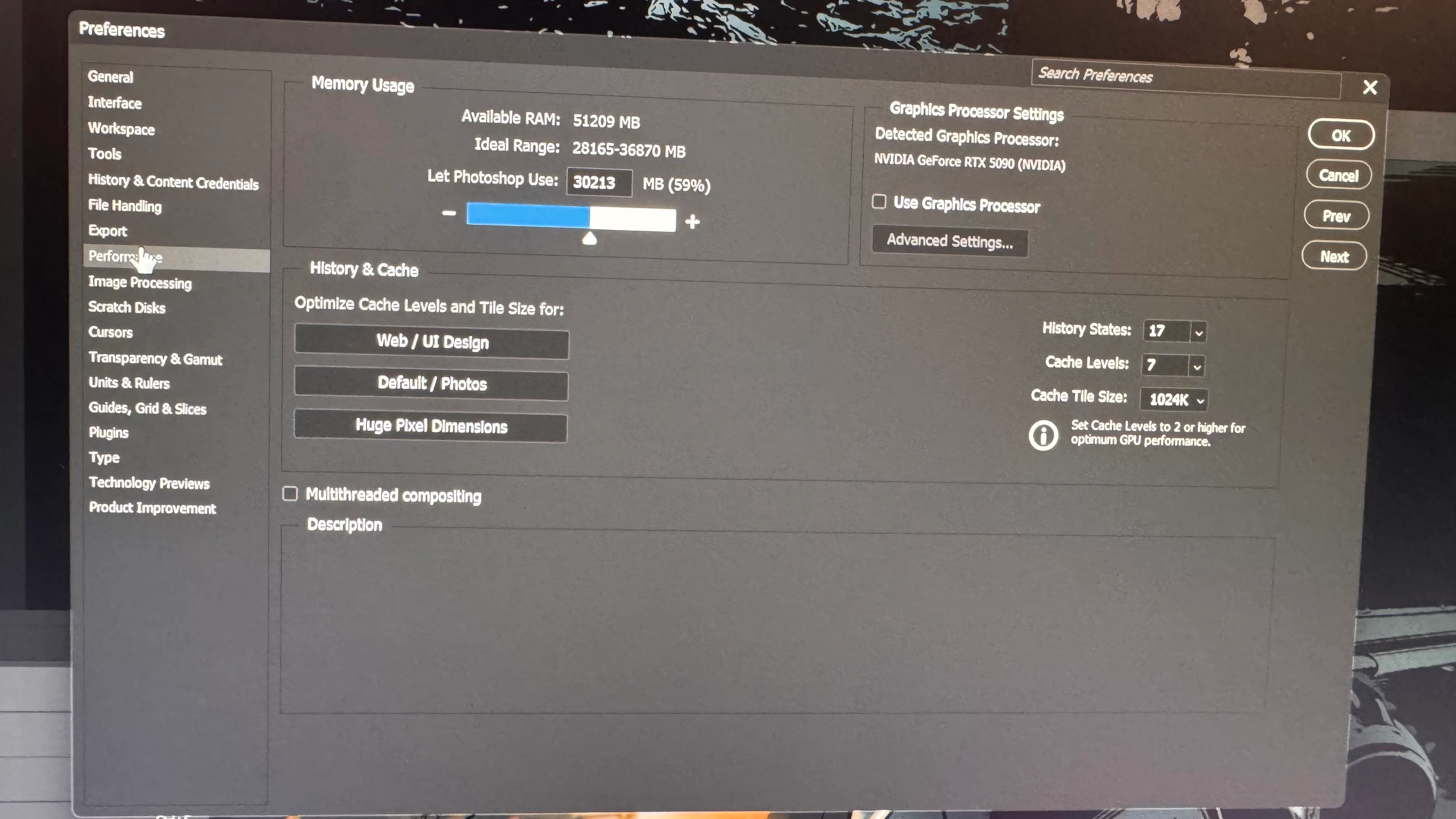
    Answer below: did each one by one, 2 is what got it to stop crashing. Last update, I set everything back up normally, no problems.


    How to Fix It

    Since the problem is a bad data call tied to your network cache or cloud home screen, try these steps to resolve it:

    • Purge the Web/Network Cache: Because the crash mentions UnlockUrlCacheEntryStream, corrupted local internet data or web view components can trigger it. Clear your temporary files and the internet cache via Windows Internet Options, and delete the contents of the OOBE and UWA folders located in %localappdata%\Adobe\.

    • Launch Photoshop in Offline Mode: Disconnect your PC from the internet entirely (unplug Ethernet or disable Wi-Fi) and launch Photoshop. If it opens successfully without crashing, the issue is strictly a server-side handshake loop with Adobe Creative Cloud. [2]

    • Reset Photoshop Preferences: Corrupted workspace and preference files often store bad network states. Hold down Alt + Control + Shift immediately after clicking to open Photoshop to prompt a full preferences reset. [4]

    • Disable the "Home Screen" on Startup: If you can get into the application (using the offline method), go to Preferences > General and uncheck "Auto-show the Home Screen." This bypasses the heavy network calls Photoshop makes right at launch. [4]

    • Update or Reinstall the Creative Cloud Desktop App: The underlying network protocols (dunamis) are shared with the main desktop application. Performing a clean reinstall of the Adobe Creative Cloud Desktop App usually forces those corrupted networking DLLs to rewrite themselves cleanly. [1, 2, 5]

    6 replies

    Inspiring
    Oct 24, 2026 4:20 PM UTC

    this was a bit of an eye opening experience. same suggestions over and over. all of which i stated as being tried.


    I took the system info and plugged it into chat gpt on a lark, being at my wit’s end. 


    it suggested the problem was a conflict with the program’s online connection with the creative cloud. i turned off some things as it suggested and voila, problem was solved in 2 minutes.


    thankfully, the update doesnt seem to have the same issue. 

    Translate
    Community Expert
    Oct 28, 2026 6:39 AM UTC

    Glad you've managed to get it working.

    Could you share exactly what ChatGPT suggested and which settings you disabled?

    You mentioned a possible conflict with Creative Cloud's online services, but without knowing what you changed, it's difficult to establish whether that was actually the cause.

    It would be particularly useful to know whether you disabled anything within Photoshop itself, Creative Cloud Desktop, or Windows services.

    You also mentioned that the latest update doesn't seem to have the same issue. Did you re-enable the settings you previously disabled and confirm that Photoshop now runs without crashing?

    If you could provide those details, it would be enormously helpful for anybody else experiencing similar crashes.

    At the moment, we know you've resolved the problem on your machine, but not what actually fixed it.

    Translate
    denniscaleroartAuthorCorrect answer
    Inspiring
    Oct 28, 2026 2:14 PM UTC

    Answer below: did each one by one, 2 is what got it to stop crashing. Last update, I set everything back up normally, no problems.


    How to Fix It

    Since the problem is a bad data call tied to your network cache or cloud home screen, try these steps to resolve it:

    • Purge the Web/Network Cache: Because the crash mentions UnlockUrlCacheEntryStream, corrupted local internet data or web view components can trigger it. Clear your temporary files and the internet cache via Windows Internet Options, and delete the contents of the OOBE and UWA folders located in %localappdata%\Adobe\.

    • Launch Photoshop in Offline Mode: Disconnect your PC from the internet entirely (unplug Ethernet or disable Wi-Fi) and launch Photoshop. If it opens successfully without crashing, the issue is strictly a server-side handshake loop with Adobe Creative Cloud. [2]

    • Reset Photoshop Preferences: Corrupted workspace and preference files often store bad network states. Hold down Alt + Control + Shift immediately after clicking to open Photoshop to prompt a full preferences reset. [4]

    • Disable the "Home Screen" on Startup: If you can get into the application (using the offline method), go to Preferences > General and uncheck "Auto-show the Home Screen." This bypasses the heavy network calls Photoshop makes right at launch. [4]

    • Update or Reinstall the Creative Cloud Desktop App: The underlying network protocols (dunamis) are shared with the main desktop application. Performing a clean reinstall of the Adobe Creative Cloud Desktop App usually forces those corrupted networking DLLs to rewrite themselves cleanly. [1, 2, 5]

    Translate
    D Fosse
    Community Expert
    Community Expert
    Sep 20, 2026 3:06 PM UTC

    Please post the full Help > System Info.

    Translate
    c.pfaffenbichler
    Community Expert
    Community Expert
    Sep 20, 2026 2:28 PM UTC

    What have you done for all-purpose trouble-shooting so far?

    Restoring Preferences after making sure all customized presets like Actions, Patterns, Brushes etc. have been saved might be a good starting point:

    https://helpx.adobe.com/photoshop/using/preferences.html

    https://helpx.adobe.com/photoshop/kb/basic-trouble-shooting-steps.html

    https://helpx.adobe.com/photoshop/kb/troubleshoot-crash-or-freeze.html


    Is your workflow Smart Object heavy? 

    What are the Scratch Disk situation? 

    Translate
    Inspiring
    Oct 24, 2026 4:17 PM UTC

    tried all of this and nothing helped. correct answer to come in a new comment

    Translate