
Participant
March 24, 2018
Answered

PS not listed in the open with option

  • March 24, 2018
  • 6 replies
  • 11699 views

I cannot open an image directly into photoshop CC 2018 by right clicking. PS CC 2018 does not show as a default program in the list. I've gone into browse and tried to add it by going to Adobe, Adobe photoshop 2018, choosing the program file, but nothing.
    This topic has been closed for replies.
    Correct answer

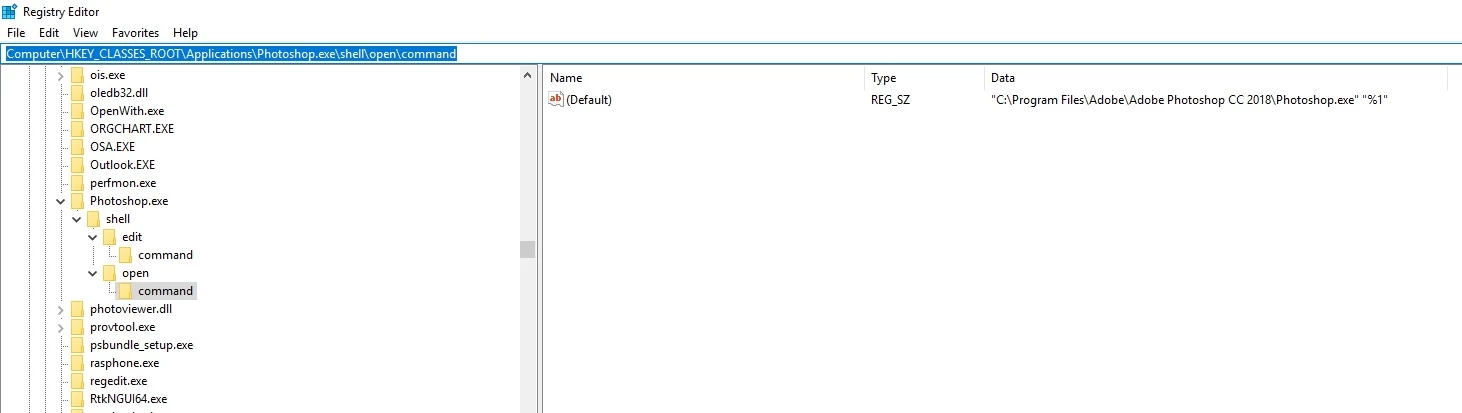
    If you're on Windows have a look in the registry in this location and see if the Photoshop.exe key is set

    HKEY_CLASSES_ROOT\Applications\Photoshop.exe\shell\open\command

    You should see the below

    To open the registry just type regedit in the run command

    6 replies

    Rob_Cullen
    Community Expert
    Community Expert
    May 31, 2023

    If you are unsure about editing the Windows Registry, there is a way using the [Open with] menus to add Photoshop as a default:

    1) Select a file and choose [Open with]

    2) [Choose another App]

    3) Scroll down and [Choose another app on your pc]

    4) In the Explorer window navigate to {C:\Program Files\Adobe\Adobe Photoshop 2023}

    5) Select {Photoshop.exe}


    Regards. My System: Windows-11, Lightroom-Classic 15.1.1, Photoshop 27.3.1, ACR 18.1.1, Lightroom 9.0, Lr-iOS 10.4.0, Bridge 16.0.2 .
    VPTD
    Participant
    September 21, 2023

    Thanks Rob. Was having the same issue and this easy solution worked perfectly. 

    Participant
    December 3, 2022

    Here's what worked for me to force Windows 10 to display Photoshop CC23 as an app for opening JPGs, PNGs, and even PSDs.  In the registry, navigate to HKEY_CLASSES_ROOT\*.xxx (xxx being the extension/file type you wish to associate with Photoshop)  Open the folder of that extension.  If you do not see a KEY that reads OpenWithProgIds, you'll need to create one.   First, make a NEW KEY.  Name that new key OpenWithProgIds. Then, make a NEW STRING VALUE.  In the value name box, type Photoshop.Image.xx (xx being the version number of the current installed version of Photoshop)  In this case, I'm on version 24.0.1.    You may need to search the registry for a String Value that includes Photoshop.Image.    Once you've finished making this new key, save the registry.   Then, find a file with the file format/type you wish to associate with Photoshop.  When you right-click on the file, and then "Open With" - the latest version of Photoshop should be in that branched right-click sub-menu.  From there, scroll to Choose another app.  Another dialog box should open.  At the top of that new list should be the latest version of Photoshop.   Select it.  Then check the box that reads "always use this app to open xxx files".  That should fix the problem.   


    link1227
    Participant
    May 31, 2023

    THANK YOU!

    June 8, 2021

    I have "C:\Program Files\Adobe\Adobe Photoshop CC 2018\Photoshop.exe" "%1" in

    both HKEY_CLASSES_ROOT\Applications\Photoshop.exe\shell\edit\command and HKEY_CLASSES_ROOT\SystemFileAssociations\image\shell\edit\command.

    When i right click and click Edit, photoshop is opened but image isn't!

    June 8, 2021

    Edit: right-click and click on "edit" a psd or another photoshop file, photoshop opens that file. But if i click on "edit" an image in jpg, bmp, gif, png etc. file types, photoshop doesn't open such images. Opening such files works with right-click and click on "open with".

    Barb Binder
    Community Expert
    Community Expert
    March 24, 2018

    Hi Rachel:

    This is a "file association" issue with your operating system (OS). Assuming you are on Windows 10:
    How to set a default browser (or anything else) in Windows 10 | Digital Trends.

    If you are on another OS, you can either google "setting the file association" for that OS, or let us know which one you are on and we can do it for you and post the link here.

    ~Barb

    ~Barb at Rocky Mountain Training
    Correct answer
    March 24, 2018

    If you're on Windows have a look in the registry in this location and see if the Photoshop.exe key is set

    HKEY_CLASSES_ROOT\Applications\Photoshop.exe\shell\open\command

    You should see the below

    To open the registry just type regedit in the run command

    Participant
    March 24, 2018

    This fixed my problem!! Thanks!

    Mylenium
    Legend
    March 24, 2018

    Same old, same old: Start by checking all those other tools that clog up the contextual list and remove their system integration options via their preferences or by uninstalling them if you really don't use them. Otherwise there are enough tools out there that can help you with fixing file associations/ context handlers and customize those right-click menus. A web search will help.

    Mylenium