Inspiring
July 26, 2022
Answered

question about "preserve details 2.0"

  • July 26, 2022
  • 3 replies
  • 8319 views

Hello,

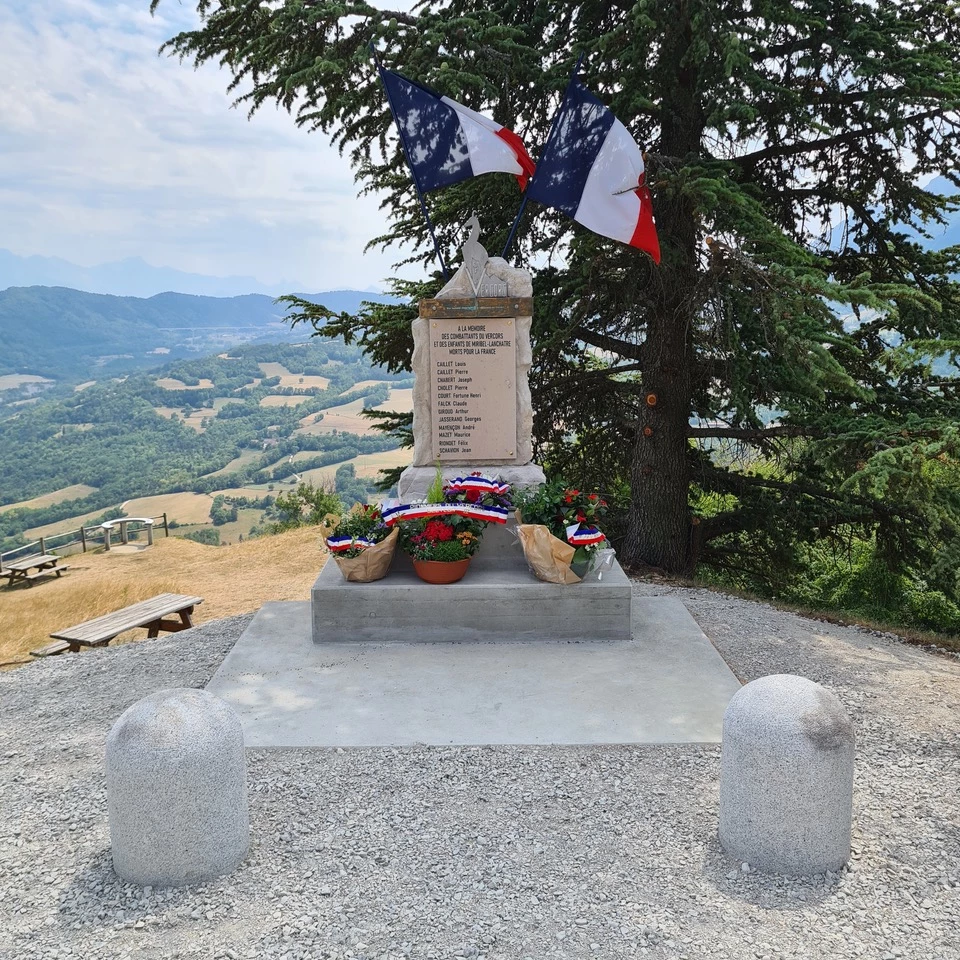
Please see this picture :


This is a 960 x 960 pixels with resolution of 72 ppp.

I would like to zoom in order to see the names inside the picture.

But if I use the Photoshop technology "preserve details 2.0", I don't succeed to have good result.

Could you try with this photo if you succeed a better result ?

This topic has been closed for replies.
Correct answer pierret18811376

@Conrad_C 

Ok, I have understood the cause of the problem.


This picture was coming from macintosh. And I have email this picture to my windows computer.

The original picture was of 4.2 Mo on macintosh, but by using Apple Mail to send the picture to windows computer, Apple Mail automatically resize this picture from 4.2 Mo to 463 Ko. So windows computer received a 463 Ko picture instead of 4.2 Mo. 


I have seen how to keep the original file size in Apple Mail in order to send the real size of the picture.


And by sending by Apple Mail the real file size of the picture (4.2 Mo), on Windows I have no problem to zoom and see the names inside the picture.


Thank you again for your help.

3 replies

pierret18811376AuthorCorrect answer
Inspiring
July 28, 2022

@Conrad_C 

Ok, I have understood the cause of the problem.


This picture was coming from macintosh. And I have email this picture to my windows computer.

The original picture was of 4.2 Mo on macintosh, but by using Apple Mail to send the picture to windows computer, Apple Mail automatically resize this picture from 4.2 Mo to 463 Ko. So windows computer received a 463 Ko picture instead of 4.2 Mo. 


I have seen how to keep the original file size in Apple Mail in order to send the real size of the picture.


And by sending by Apple Mail the real file size of the picture (4.2 Mo), on Windows I have no problem to zoom and see the names inside the picture.


Thank you again for your help.

Inspiring
July 27, 2022

@Conrad_C 

Thank you for your work on my picture. Unfortunately, by using Photoshop in your example, the result is not good concerning the text.


Meanwhile, I have tried a lot of online sites to upscale my low resolution photo, and also Topaz Gigapixel, but the result was not good also.


Finally, the only software that was working well to upscale my low resolution photo was on Apple : it was the software "Preview" (which comes with Mac OS). Here is the result with Apple Preview software :


According to you, why Apple Preview is better than the others softwares/online sites ?

Conrad_C
Community Expert
Community Expert
July 27, 2022

I was not able to get the same results on my Mac in Preview, but maybe I didn’t do it the same way or in the same version. I chose the Tools > Adjust Size command in Preview 11.0 that comes with macOS 12.5. Are you using a different command or version?

Conrad_C
Community Expert
Community Expert
July 26, 2022

There are some newer methods than Preserve Details 2.0.

I tried these four Photoshop methods:

  • Image > Image Size, Resample, Preserve Details 2.0 
  • Image > Image Size, Resample, Bicubic Sharper 
  • Filters > Neural Filters, Super Zoom, Enhance Image Details 
  • File > Open, Format: Camera Raw; Enhance, Super Resolution

Super Zoom and Camera Raw Super Resolution are newer features that are supposed to be powered by machine learning.


Camera Raw Super Resolution made the text the most readable; see below.

Next best was Image Size, Resample, Bicubic Sharper.

Preserve Details 2.0 was not much of an improvement.

Super Zoom was messy, the AI model does not seem trained to enhance text details.