


bellevue scott
Inspiring
July 22, 2026
Question

Question about using generative fill to clean up scanned paintings

  • July 22, 2026
  • 6 replies
  • 117 views

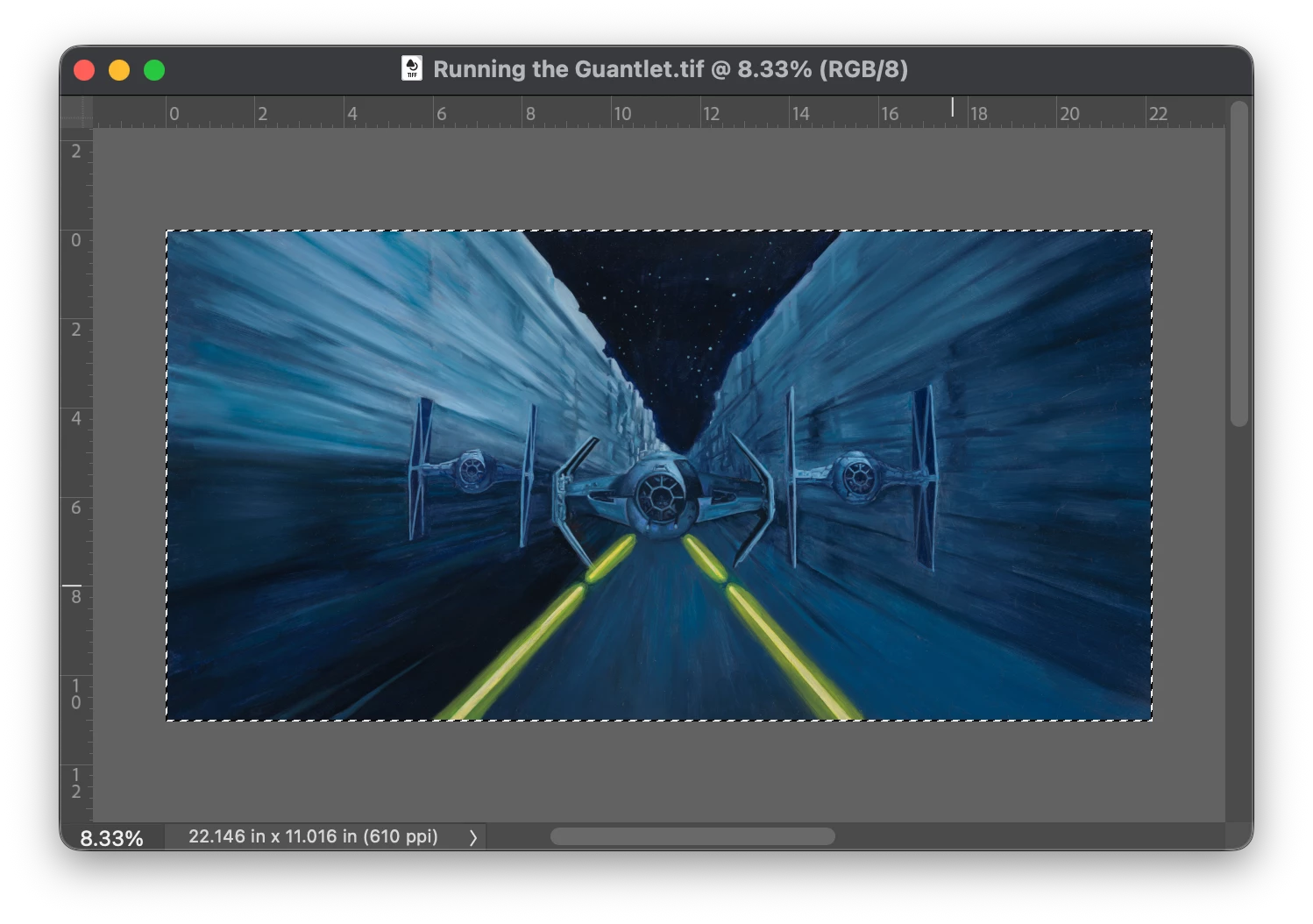
I have a question about using generative fill, or any other similar tool to clean up art scans. I have a series of images, oil paintings, that I’ve scanned and need to clean up. They are to be used for posters and such for Hollywood, and there’s a lot of clean up. the paintings are full of lint, dust, hairs and other things stuck to the varnish. 

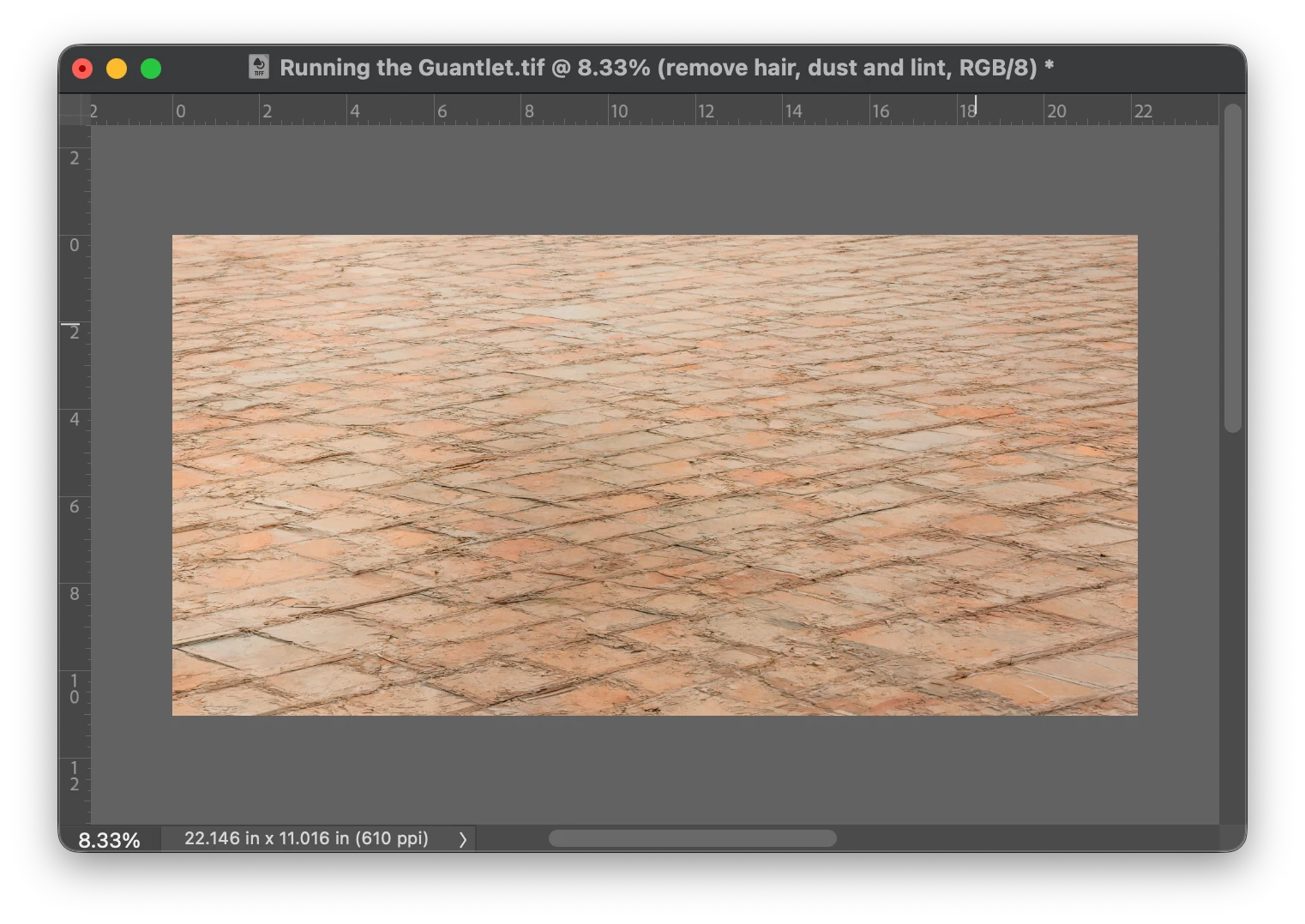
I’m using the healing brush tool, but it’s time consuming. I never use Generative fill or any of the AI tools because, well, they never work. So I thought I would try with these. I try and use Generative fill, and type “remove lint, hair and dust”. I’ve tried a few such prompts, but what I get is complete destruction of the image. Any ideas on making this quicker, or any prompts that might work?
 

Remove dust, lint and hair gives me this:  
 

    6 replies

    Inspiring
    July 24, 2026

    Filters or AI will not give the result you are looking for. I suggest using the Healing or Remove brush and get to spotting the files.

    Using cross polarized lights with a circular polarizer on the lens can reduce some of the “spots” you see.


    Barry Rudick

    Bayou Fine Art Imaging

    rayek.elfin
    Legend
    July 24, 2026

    Just out of curiosity: do you use a puffer tool to perform a basic physical cleaning of the paintings before scanning them? It can potentially save a lot of work afterwards in Photoshop.

    And answer to your question: nope, generative AI will not be helpful here. Wrong tool for this job in my experience. I agree with ​@D Fosse here.

    bellevue scott
    Inspiring
    July 24, 2026

    I think we both agree with ​@D Fosse here. We gave it the good old college try though! Sometimes I look for ways to improve our overall work flow, but this wasn’t a success. 


    Yes, I clean the paintings. sometimes we actually clean them with a damp rag. Often dust gets into the varnish, and sometimes even if you don’t see much with the human eye, you can see it at high resolution zoomed in. Sometimes we don’t clean them meticulously if they’re not going to be printed larger than the original because there’s no point. 


    For slides and transparencies you can wipe them with mineral oil, but if we’re doing hundreds of them it’s not possible, and we don’t do enough volume to justify something like a Noritsu scanner that has some great SW for this kind of thing. 

    rayek.elfin
    Legend
    July 24, 2026

    Thank you for that info in your process!

    Btw, since you mention transparencies and slides - are you aware of infrared dust and scratch removal?

    https://scanthology.com/how-infrared-dust-scratch-removal-works/

    It might shave off a lot of time cleaning those transparent scans.


    *edit* good old Silverfast has this option as well.

    https://www.silverfast.com/about-silverfast-why-scanning-basics-of-scanning/why-silverfast/silverfast-feature-highlights/isrd-dust-scratches-removal-eliminate-defects-with-infrared-channel/


    D Fosse
    Community Expert
    Community Expert
    July 23, 2026

    I understand that manual dust/spot removal is time consuming, I’ve done a lot of it. The upside is that you have full control of the result, which I can’t see that you have with any generative AI. 


    Empirically, we’ve seen so many examples that generative AI always tries to generate something that wasn’t there previously. After all, that’s its whole purpose, its raison d'être. You can try AI, but check carefully that it hasn’t added something you don’t want, like a little pink rabbit down in the corner.

    bellevue scott
    Inspiring
    July 23, 2026

    I tried filters->Noise->dust and scratches, and it just blurs the image until the dust and hair are no longer visible. So that won’t work. I’ve also attached a section of one of the images that was requested earlier. Anyway, dust and scratch removal doesn’t work. 

    AI denoise doesn’t work either. It’s really just blurring the image in a different way. 

    The reason I’ve tried to use AI for this is that I know dust and scratch removal doesn’t really work, and neither do any of the neural filters. But I’m working on a large project with over 50 of these images that will all be printed large, so it’s worth it for me to try a few things. 

    LOL on the pink rabbit. I would welcome that levity right now. :-) 

    I do appreciate the responses and I am looking for ways to save time on this kind of thing. Even beyond this one project, this is something we do a lot. We get a LOT of images that we’re asked to scan at 600 - 900 PPI, where the original is 30”x40” or 48”x60” and will be reproduced as massive wall coverings, billboards, building size banners etc. And dust and hair at that size needs to be removed. We also do a lot of slide and transparency scanning that needs to be cleaned up. 


    D Fosse
    Community Expert
    Community Expert
    July 23, 2026

    Well, I’m generally very skeptical of any global one-button approach to this, ai or not. It’s bound to have unwanted side effects. I’d bite the bullet and use the healing or spot healing brushes. Yes, it takes time, but once you’re in the flow you’re done before you know it. You just have to get in the zen frame of mind :-) The final result will be superior to anything else.


    I’ve tried the Remove tool, but it’s too slow even in local mode. To do this efficiently, you need instant response to every stroke.

    c.pfaffenbichler
    Community Expert
    Community Expert
    July 23, 2026

    On small sections Nano Banana 2 may work out, but it might be useful to try some of the other models, too. Possibly even in Firefly. 


    bellevue scott
    Inspiring
    July 23, 2026

    Thanks. I had never heard of Nano Banana. I tried doing the same thing you did here with sections of the image, but it’s clear that what it’s doing is severely blurring the image. I can see the artist’s brush strokes and other details get obliterated. 

    When I selected just sky, it did OK with the larger hairs, and looks like the example you show, but it definitely blurred the sky badly. However, when I try and do it with portions of the image that have details, PS completely obliterates everything and gives me a whole new image. 


    I tried dust and scratch removal under neural filters with photo restoration (beta), but currently the “OK” button is greyed out and I can’t use it. It appears to be broken. 


    I also tried AI Denoise on the test image I attached here (which is a section of the whole image I’m working with), but it didn’t appear to do anything at all. 

    Conrad_C
    Community Expert
    Community Expert
    July 23, 2026

    Thanks. I had never heard of Nano Banana. 

    Just FYI, Nano Banana is a code name for Google Gemini, one of the alternate generative AI models that is not by Adobe (that is, not Adobe Firefly). These alternate models are available because each of them is good at different things, so sometimes it helps to see if another model does a better job with a specific problem.

    So if you want Nano Banana, in the AI model picker look for it in the Partner section under its brand name Gemini, as shown in the picture below.

    The main thing to know about non-Adobe models is they might cost you a different (often higher) number of generative credits per use, and they might have different legal terms.

    Gord@APL
    Inspiring
    July 23, 2026

    I’ve read elsewhere that AI can have trouble understanding a text prompt to remove something. It prefers to generate what’s prompted, and can’t generate the absence of what it’s asked for.

    With individual selections, one can use the contextual ‘Remove’ button, but that would be just as time consuming - if not moreso - as using the healing brush.

    c.pfaffenbichler
    Community Expert
    Community Expert
    July 23, 2026

    I’ve read elsewhere that AI can have trouble understanding a text prompt to remove something. 

    Those limitations may apply to some models, but not necessarily to all. 

    So while Firefly Fill & Expand might completely miss the mark Nano Banana 2 might produce meaningful results (albeit with the aforementioned size restrictions; wherefore it may be necessary to work on segments). 

    c.pfaffenbichler
    Community Expert
    Community Expert
    July 23, 2026

    Are you aware that Generative Fill is subject to size limitations and scales the result up as necessary?

    So I think it is useless for the way you were trying to use it for resolution/detail-reasons alone. 


    Which models did you use? 

    Could you provide one of the images (or part of it)? 


    Inspiring
    July 23, 2026

    The Adobe suite is a professional program, built for professionals, with high pricing that reflects this. This implies high resolution images. If generative fill and other AI features can’t be used with large images, then what’s the point? In that case it’s a toy for amateurs and has no place in a professional suite. In either event, results like this are just a joke.

    If there are size limitations, why doesn’t PS throw a warning? A professional program should do that. Topaz lab’s gigapixel, for example, gives warnings. PS just fills the entire image with useless garbage. 

    I can’t share the image legally. But after this response I’m wondering what the point would be? 

    Gord@APL
    Inspiring
    July 23, 2026

    It’s not that it can’t be used with large/high resolution images, you simply can’t expect AI (as it currently stands) to interpret a text prompt to remove tiny unwanted features or blemishes across the entire image. It doesn’t examine the image in any way, and cannot tell the difference between painted detail and lint, dust, hair, etc.

    Direct it to a specific item you want to remove, and it’ll do that well enough, but Generative Fill is not a tool that can be used effectively across an entire image.