
Johnny Sokko
Inspiring
July 23, 2019
Answered

Question/Problem - masking image inside a shape

  • July 23, 2019
  • 2 replies
  • 1062 views

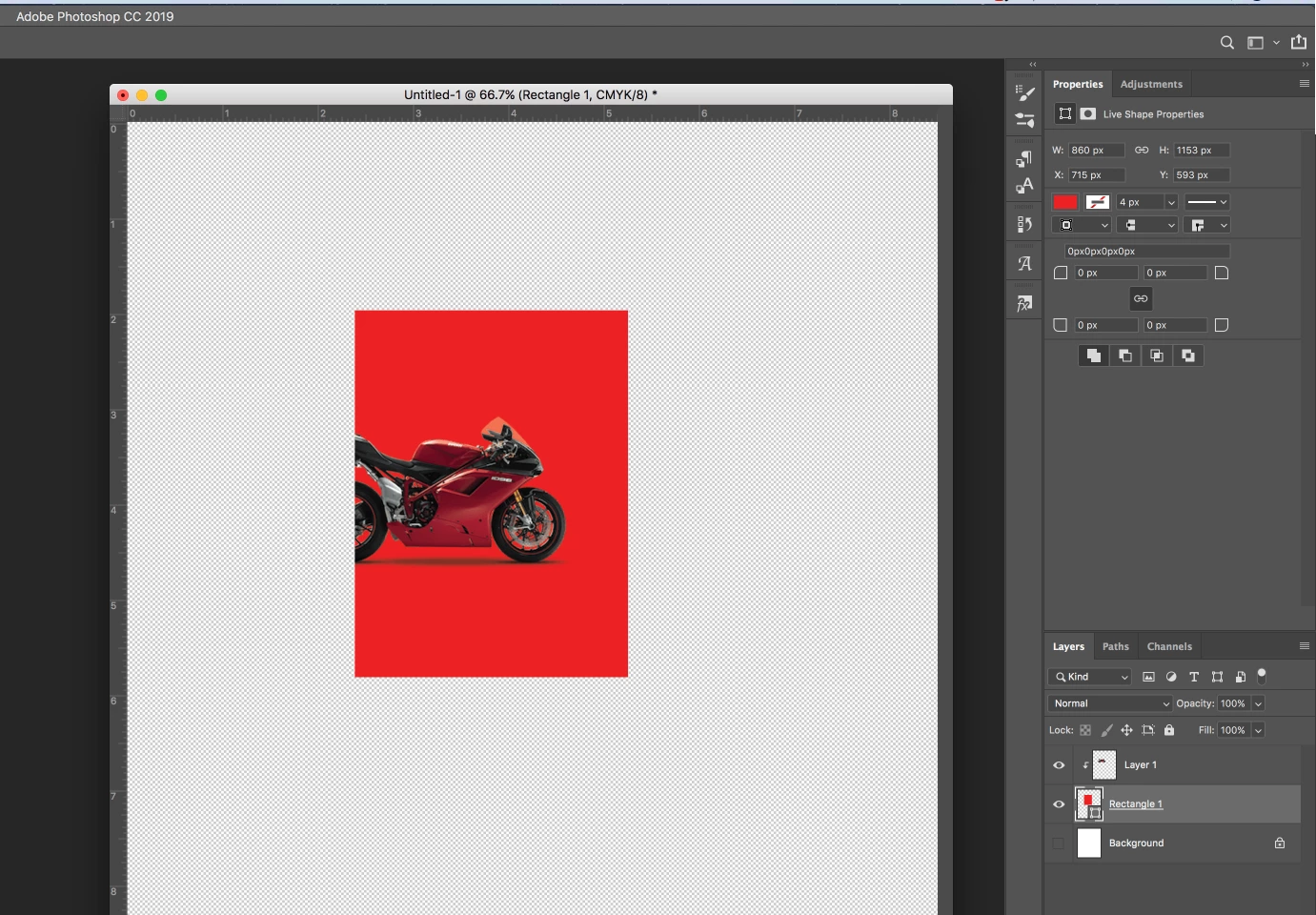
(See the screen capture below.)

I want to place the motorcycle PNG into the shape (red square), then eliminate the shape's background color. But when I set the shape's fill to nothing, both the shape and the motorcycle disappear. Is there a way to mask an image with a transparent background into a shape which has no background color?
    This topic has been closed for replies.
    Correct answer davescm

    Hi

    One way to do this is to right click on the shape layer, in the layers panel,  and choose Convert to Frame

    Dave

    2 replies

    davescm
    Community Expert
    davescmCommunity ExpertCorrect answer
    Community Expert
    July 23, 2019

    Hi

    One way to do this is to right click on the shape layer, in the layers panel,  and choose Convert to Frame

    Dave

    Johnny Sokko
    Inspiring
    July 23, 2019

      wrote

    Hi

    One way to do this is to right click on the shape layer, in the layers panel,  and choose Convert to Frame

    Dave

    Ok, but now I have a stroke around my shape, which I can't seem to get rid of:

    davescm
    Community Expert
    Community Expert
    July 23, 2019

    M_G6  wrote

    davescm   wrote

    Hi

    One way to do this is to right click on the shape layer, in the layers panel,  and choose Convert to Frame

    Dave

    Ok, but now I have a stroke around my shape, which I can't seem to get rid of:

    No you can delete the stroke for a frame in the properties panel just click back on the frame layer (note you always see a temporary stroke around the frame whilst it is selected)

    While selected

    Click on any other layer

    Dave

    Bob_Hallam
    Legend
    July 23, 2019

    It appears you have the mortorcycle layer Applied to the underlying layer.  Thus the reason the both dissappear.  Try option clicking the motorcycle layer so the downward pointing arrow dissappears.  Then if you need to make a layer mask for the mortorcycle layer and you will be able to change the red layer to whatever you want. 

    ICC programmer and developer, Photographer, artist and color management expert, Print standards and process expert.
    Johnny Sokko
    Inspiring
    July 23, 2019

    "It appears you have the mortorcycle layer Applied to the underlying layer.  Thus the reason the both dissappear.  Try option clicking the motorcycle layer so the downward pointing arrow dissappears.  Then if you need to make a layer mask for the mortorcycle layer and you will be able to change the red layer to whatever you want. "

    I tried option-clicking the motorcycle layer, but nothing at all happened. The arrow is still there. Did I do it wrong? Or are you meaning to option-click in between the laters to release it from the underlying mask?

    Bob_Hallam
    Legend
    July 23, 2019

    Try option clicking the thumbnail.  Hold down the option key and mouse over the thumbnail until until the cursor changes to the box with the down arrow and a slash then click. 

    ICC programmer and developer, Photographer, artist and color management expert, Print standards and process expert.