


Participant
April 22, 2022
Question

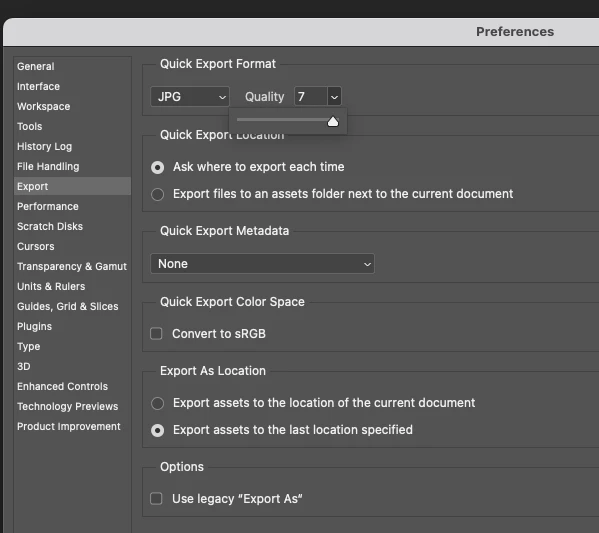
Quick Export to JPEG - Quality cannot go higher than 7

  • April 22, 2022
  • 3 replies
  • 8857 views

I'm trying to Quick Export to Jpeg as i have done in the past years and the quality was set at 12...

now the highest quality is 7 and I can't go any higher.

So the photos are being saved like 24% instead of 100%...


Please help....   


Sincerely confused..

Sam
    3 replies

    Known Participant
    November 10, 2022

    I'm exporting using "Quick Export as JPG" with the quality setting set to 7 (out of 7 -- this is the highest setting), and the JPEGS look extremely compressed. Using the very latest version of Adobe Photoshop 2023 (version 24.0.0). 


    This is STILL broken since this post was made 6 months ago?

    coredumperror
    Participating Frequently
    November 10, 2022

    Yes, it's still broken. Specifically, Quick Export as JPEG while using Legacy Export mode is broken ever since Photoshop 23.3 (I believe). The known workarounds at this time are to downgrade to 23.2, stop using Legacy Export mode, or use the full Export As dialog, rather than quick Export.


    I personally switched to using the full Export As, and hot-keyed that to the same hotkey I used to usefor Quick Export. It's several more keypresses, but they're always identical as long as you want to export as JPG (rather than PNG), so it's easy to just memorize the order of hotkeys. I use Ctrl-Alt-P, then once the Export dialog is open, Shift-Tab and Enter to trigger the Export button, then Enter to save. And if I am trying to overwrite a file, I then press Tab and Enter.

    TheDigitalDog
    Inspiring
    April 22, 2022

    This change was well explained by an Adobe employee (BrettN):

    "A while back, we changed the default method of using Export As to working with the new UXP-based method. The older CEP-based method (which used to be the default) is now activated by enabling the "Use Legacy" option in Preferences.
     
    One of the big differences between the two methods is the Quality setting for JPG files. In CEP, it used a API which allowed for a 1-100% quality scale, which is similar to the one used by Save For Web. UXP has an API which only allows for a scale of 1-7, which is similar to what is used in Save As. This scale is equivalent to approximately 15-20% jumps on the old scale. So 7 on the new scale is the same as 100% on the old, 6 is around 80%, and so on. Unfortunately, this is not something we can readily change, we are reliant on another piece of technology for this feature and are currently restrained by its limitations. 
     
    The 1-7 scale is a more recent UI change, from the old descriptors scale (Poor, Good, Great, etc). We only changed these labels to numbers, to make it easier to understand. We didn't change anything at all about the underlying JPG compression: 7 is exactly the same as Great and so on. 
     
    In your screen shots, we see exactly what we expect to see: 7 (from a scale of 1-7) in the new UXP settings ("Legacy" setting is off) is high quality. But 7 using (from a scale of 1-100) in the old CEP settings (Legacy is on) is low quality". 

    Author “Color Management for Photographers" & "Photoshop CC Color Management/pluralsight"
    SGCPhotoAuthor
    Participant
    April 22, 2022

    Ahhhhhhhhhhh...


    I have been looking for this answer for a while...


    Thank you so much for shedding light on this.


    Appreciate the time for you to help me...

    Thank you again TheDigitalDog


    LinSims
    Community Expert
    Community Expert
    April 22, 2022

    This looks like a Photoshop question to me, so let's try you there.


    The Using the Community forum is for help in using the Adobe Support Community forums, not for help with specific programs, installation issues, or account issues such as subscription questions or billing problems, or generalized questions about Creative Cloud services.

    * Product questions should be posted in the associated product community.
    * Installation questions should be posted in the Download & Install community.
    * Account issues, including subscription questions or billing problems, should be posted in the Account, Payment, & Plan community.
    * Questions about the Creative Cloud desktop app or general questions about apps in the Creative Cloud should be posted to the Creative Cloud Services community.