
🔎 Quick Tip: Discover one-click workflows and more

Quick Actions, in-app tutorials, and online help
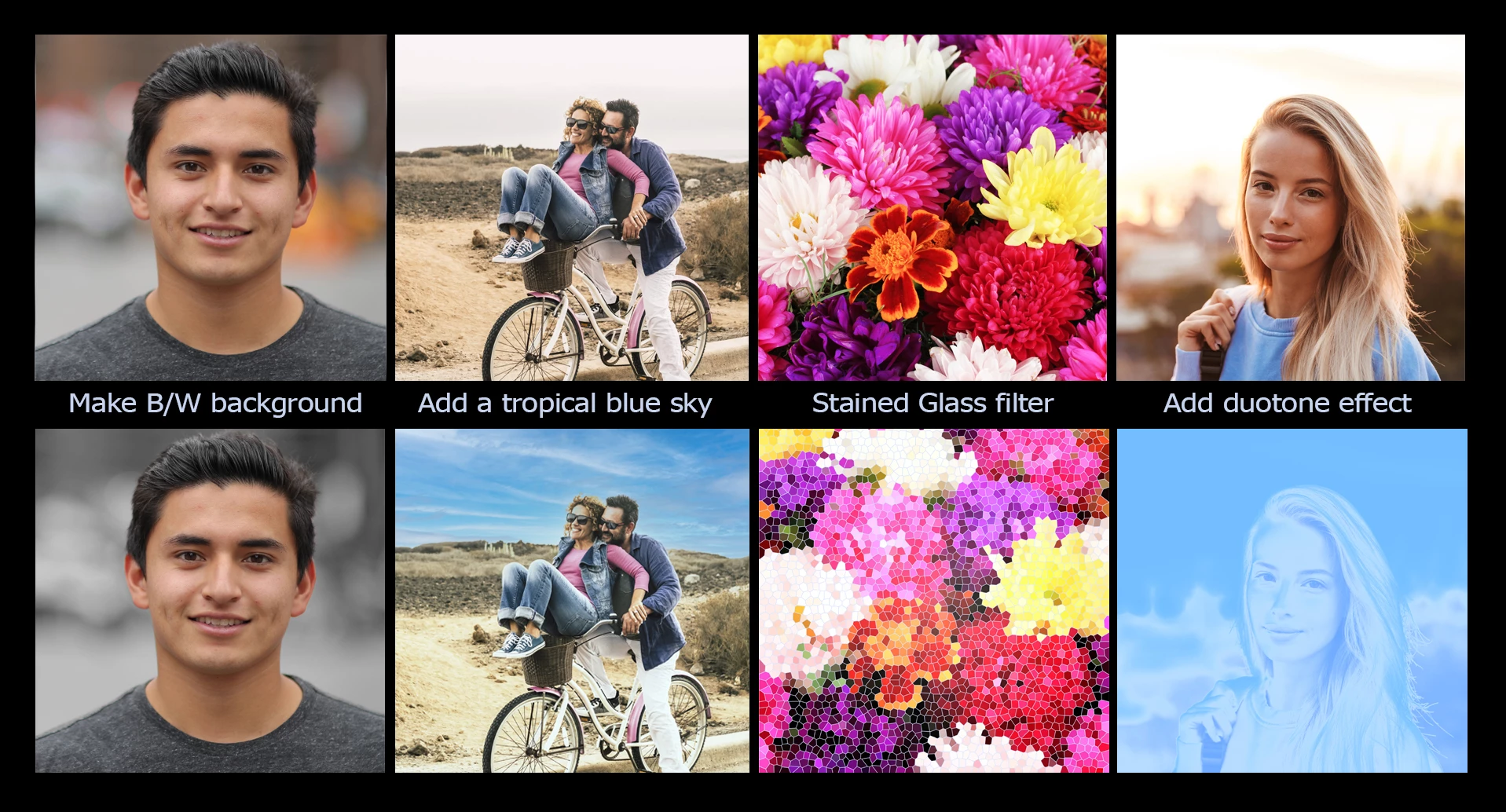
Did you know Photoshop has a nice selection of Quick Actions that give you one-click solutions to perform creative tasks? Quick Actions consolidate a series of steps that are required to perform common tasks into a single click to help shorten workflows such as removing a background, blurring a background, or making a background black and white. Here are a few before and after examples of what you can do with Quick actions. There are several others you can experiment with if you are feeling creative.
Click Here to Try a search in Discover Panel
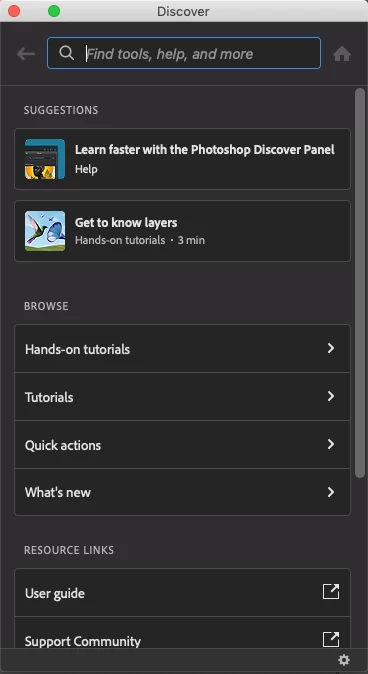
The in-app Discover Panel helps you find tools, tutorials, Quick Actions, and online help. You can search for information on any Photoshop topic and it will make suggestions as you type, often guessing what you are looking for before you are done. This is, however, more than just a search panel. There are also several other helpful options. The Tutorials and Hands-on tutorials are a great way to learn new skills. The What's new topic lists recently added features and the Resource Links area displays a ton of useful links. Give them a try to learn something new!
Accessing the Discover Panel
You can access the Discover Panel in any of these 3 ways:
- Use the Cmd/Ctrl + F keyboard shortcut
-
Click the Search icon (
 ) at the upper-right of the interface
 -
Choose Help > Photoshop Help from the main menu bar
Search Bar
You can use the Discover panel search bar at the top of the Discover panel to help you find tools, panels, windows, and menu items as well as in-app tutorials, articles, and Quick Actions. As you type, it will auto-complete suggestions for content, tool shortcuts, and quicklinks.
Suggestions
The Suggestions section offers content at the top of the interface. As you search more, the suggestions become more personalized.
Browse
The Browse section displays in-app tutorials, Quick Actions, and new feature information (What's new). If you are feeling creative, pick one of the tutorials and learn something new!
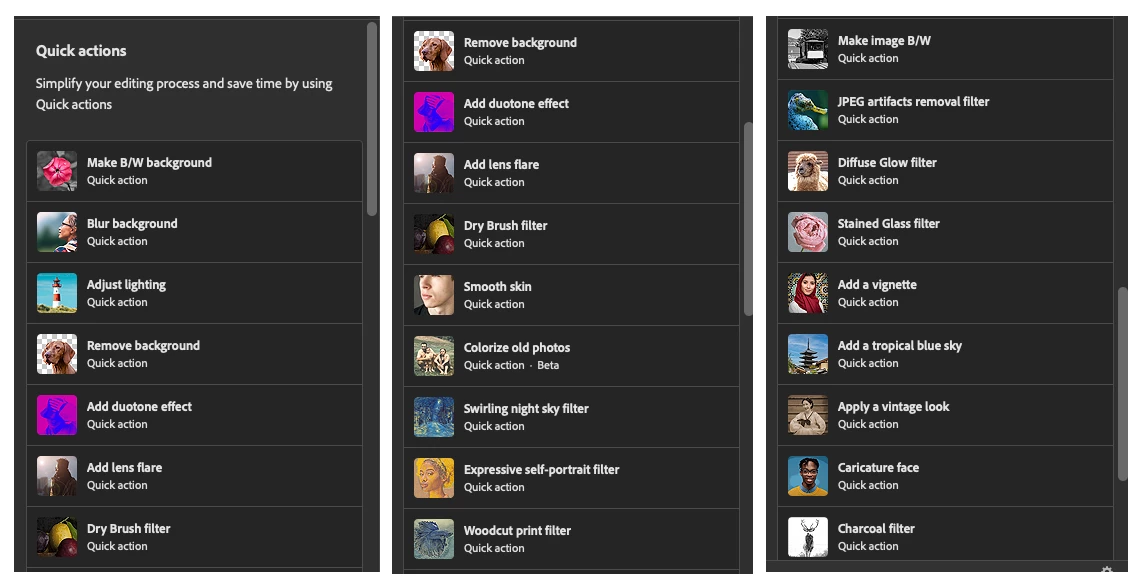
The Browse section also has Quick Actions, amazing one-click solutions for commonly used workflows. You will find options like removing or blurring backgrounds, turning an image black and white, creating a duo-tone, and many more. They are incredible time savers that really shorten your workflows. There's even a refine button in case you want to adjust the results after applying an action. Here is a list of the current Quick Actions found in the Discover Panel.
Resource Links
The Resource links section gives you a list of external links to help you find additional information.
Check out this video on Discover Panel to learn more:
Related links:
Learn how to search faster with the Photoshop Discover Panel
Remove backgrounds with a single click
Check out other Photoshop Quick Tips


 AdChoices