The short summary: For Denoise to be available in Camera Raw in Photoshop, do these three things:
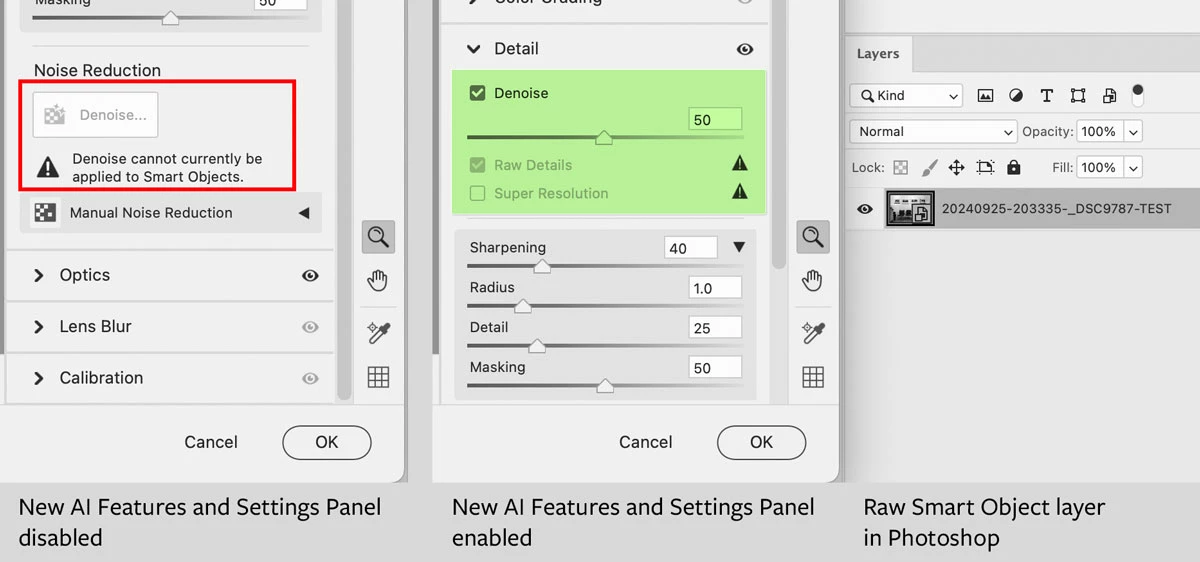
- Make sure the “New AI Features and Settings Panel” Technology Preview option is enabled in Camera Raw preferences. (This applies to Camera Raw 17.0 and may change)
- In Lightroom Classic, open a raw image file into Photoshop as a raw Smart Object layer.
- Edit its contents with Camera Raw (not by applying the Camera Raw filter).
If you need more details about each of those three steps, keep reading…
For the first thing, in my testing just now, Camera Raw only offers Denoise for a raw Smart Object in Photoshop if “New AI Features and Settings Panel” is enabled in Camera Raw Settings, Technology Previews panel. Note that how this works will change if Adobe finalizes that option and graduates it out of Technology Previews into a regular feature that’s available by default.
The second thing to get right is to make sure the data is still raw in Photoshop…
Before the upgrade yesterday, I would send a photo to PS from LrC and it would go as a tiff. Now I understand in the new version it goes as a raw file (I shoot Canon so my files are CR3).
By @susanl7866380
Actually I don’t think this changed? I think we still have the same options for sending from Lightroom Classic to Photoshop that we had in the previous versions. And, this is important because the way you send it to Photoshop determines whether Denoise will be available in Camera Raw in Photoshop.
You do not want to use either of these two methods, because these will convert the raw image and render it to RGB channels, which does not work with Denoise at this time:
- In Lightroom Classic, choose the command Photo > Edit In > Photoshop 2025.
- Drag from Lightroom Classic, drop on Photoshop, Camera Raw opens, click Open.
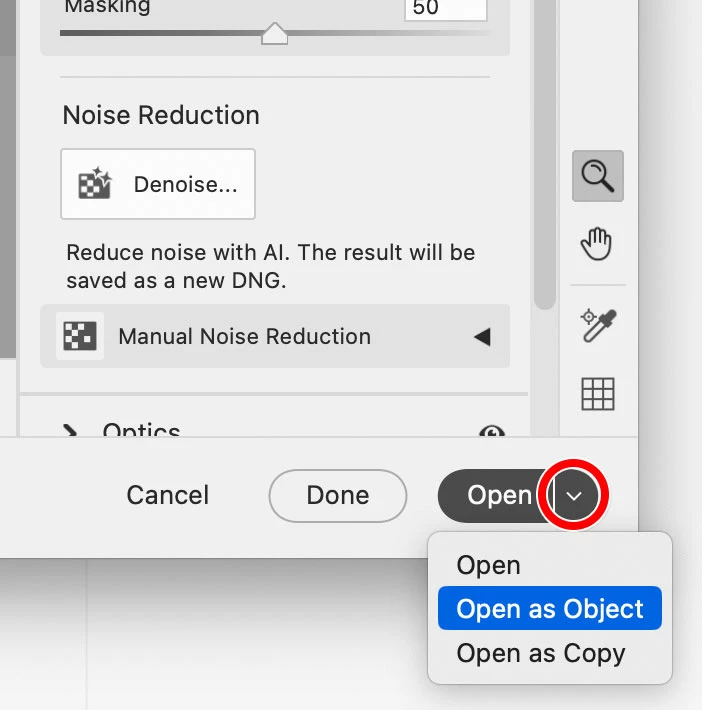
You do want to use one of these two methods, because these preserve the camera raw data in Photoshop:
- In Lightroom Classic, choose the command Photo > Edit In > Open as Smart Object in Photoshop. Or…
- Drag from Lightroom Classic, drop on Photoshop, Camera Raw opens, click Open as Object.
Both ways preserve the camera raw data as a Smart Object layer in a new Photoshop document, and Denoise can work with that if “New AI Features and Settings Panel” is enabled..
After that’s done correctly, then…
The third thing to get right is how you edit the raw Smart Object layer in Photoshop:
- You want to open Camera Raw by double-clicking the raw Smart Object layer. That’s a shortcut for selecting the raw Smart Object layer and choosing Layer > Smart Objects > Edit Contents. If you do it this way, Denoise is available because it’s editing at the raw data level.
- Do not open Camera Raw by choosing Filter > Camera Raw Filter. That does not actually edit the layer as raw data, because like other filters it just applies its effects to the layer without actually getting inside it. So, Denoise and several other Camera Raw features are not available in Camera Raw Filter.
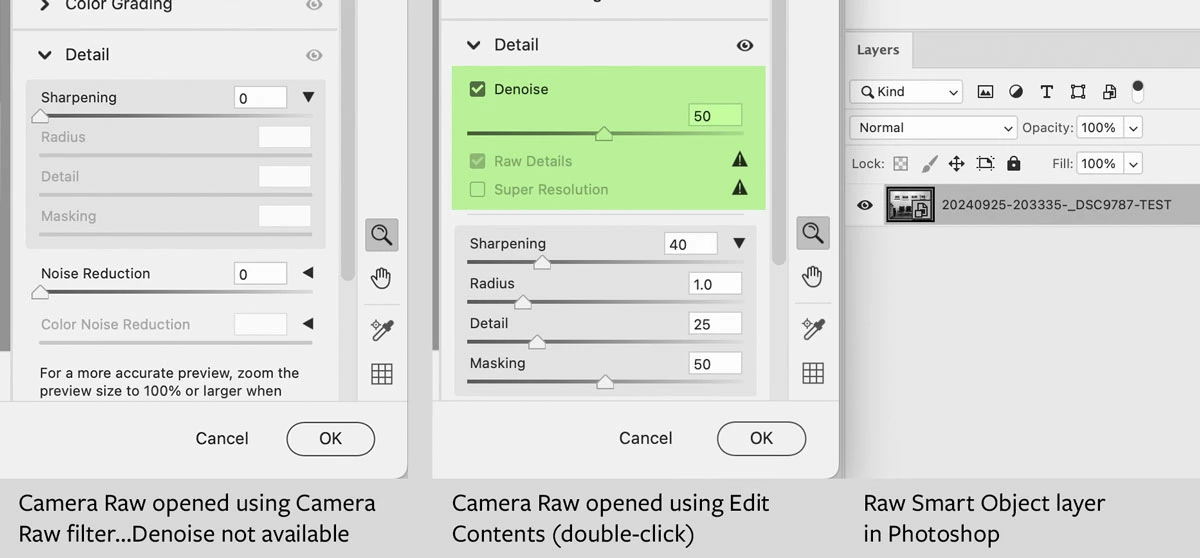
Remember everyone, Camera Raw Filter is only there as a convenience for Photoshop layers that are not actually raw! If a layer is a true raw Smart Object, you just about always want to Edit Contents (double-click) instead.





 AdChoices