Inspiring
October 8, 2025
Answered

Remove shape from text below where they intersect

  • October 8, 2025
  • 2 replies
  • 254 views

I want this simple effect:

The line is above the text and where they intersect, it cuts the text content. Where they don't intersect, the line is visible.


I'm using red just to make it clear, but I will be using a black and white texture to emulate something like this:
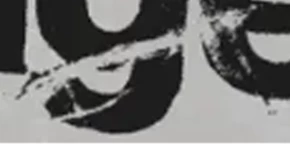
 

Important: I need the text to be editable, so the texture will stay on top, untouched. I can't rely on making a selection out of the text and then create a mask from that selection, because then I'm stuck to only being able to use that text.


Also, when it comes to the texture, should my texture be 100% black and white, or can I use texture that has gray as well? Or do I absolutely need black over transparency, only?


I would like this to be a workflow where I can save it as a style so I can easily reuse it.


Thanks
Correct answer TiagoRocha

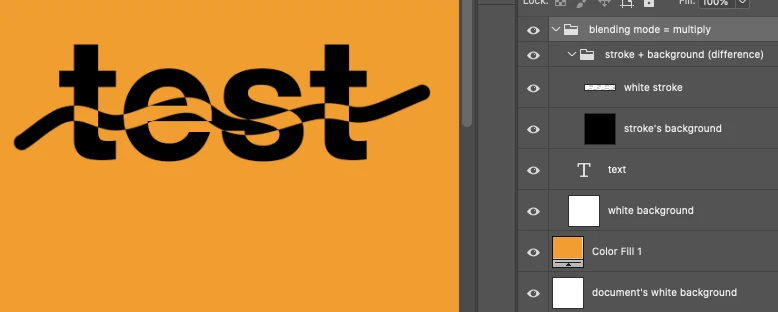
Found the solution! The stroke has to be set to the Difference blending mode, with a few extra tweaks. Here's a summary:


1 - The layer with the stroke has to be: black background with white stroke, otherwise (transparent background with black stroke, which is what I was initially using) Difference will not work.

2 - To allow different background colors without affecting the stroke where it doesn't intersect with the text, I had to add an extra white background below the text, group everything (stroke, text, that extra background) and set the group to Multiply:


2 replies

TiagoRochaAuthorCorrect answer
Inspiring
October 10, 2025

Found the solution! The stroke has to be set to the Difference blending mode, with a few extra tweaks. Here's a summary:


1 - The layer with the stroke has to be: black background with white stroke, otherwise (transparent background with black stroke, which is what I was initially using) Difference will not work.

2 - To allow different background colors without affecting the stroke where it doesn't intersect with the text, I had to add an extra white background below the text, group everything (stroke, text, that extra background) and set the group to Multiply:


Semaphoric
Community Expert
Community Expert
October 8, 2025

Put a new layer above the text layer and  link it to the text layer. Painting on this layer with white will hide the text, and they will move together as a unit with the Move tool, and the text will still be editable.

jane-e
Community Expert
Community Expert
October 9, 2025


@TiagoRocha 

I am not in my office now, but try this: put the paint on a new layer and set the blending mode for the layer to "Difference".


Group or Link the two layers.


Jane


Inspiring
October 9, 2025

None of the modes work. I tried that first as well, but no luck. Tried multiple approaches, using the Blend If, Knockout, etc, but I can't seem to find a way to make it work.