Participant
August 21, 2025
Answered

Removing a certain color from multiple layers/GIF

  • August 21, 2025
  • 2 replies
  • 404 views

Hello everyone,


First of all, I'm not Photoshop genius (obviously, or I wouldn't be posting here probably). I've tried looking around the internet and this community but couldn't find my answer. 


I have a GIF with a white-ish background. The GIF contains 520 layers, so before I just start removing them manually with Magic Wand and lose several hours of my life I'm looking for a way to remove said color on all GIF at once. I would like it to be transparent, so not replace it with another.


Thanks for any tips!
Correct answer Trevor.Dennis

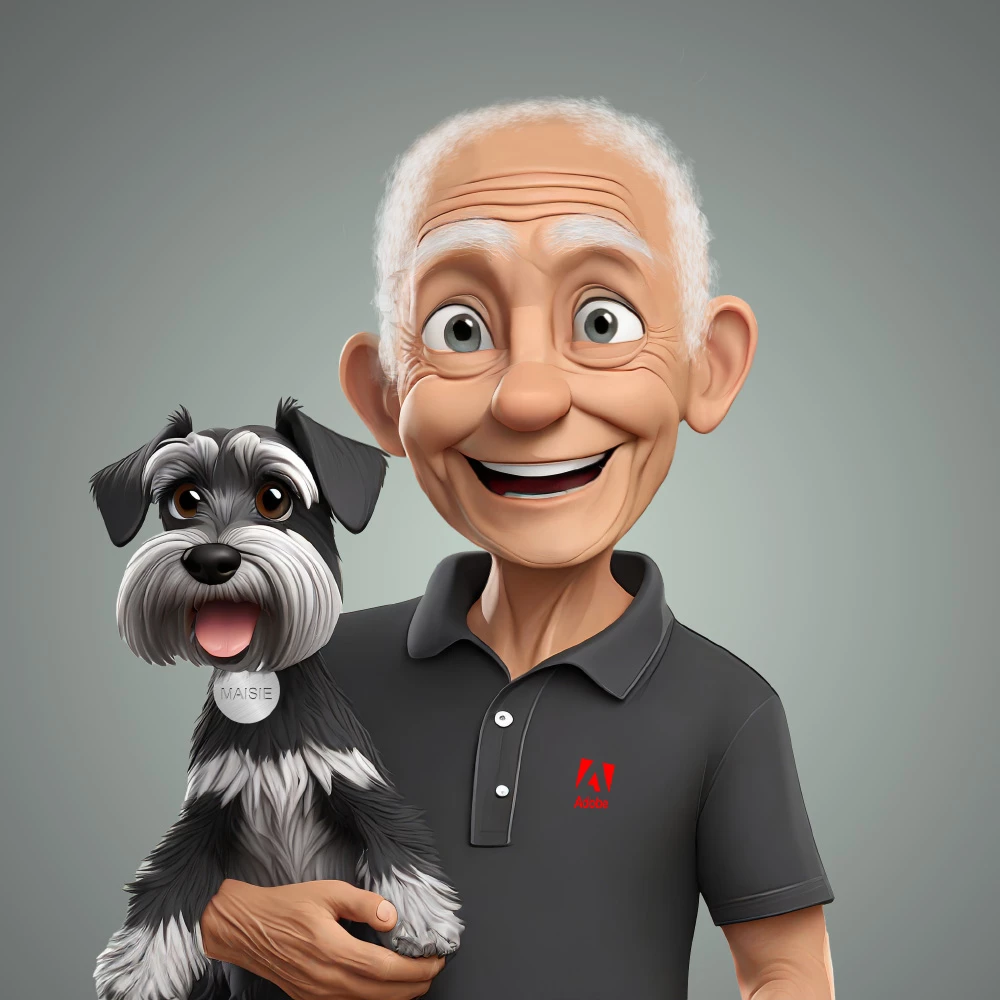
If this is a frame animation, then each frame has a layer.  You can place an adjustment later above those layers, and affect every layer/frame beneath it.  Or you can place some of those layers in a group, and clip an Adjustment layer to that group.


In the example below I have four frames of a rainbow layer style that goes red to red.

Note that the background is also red.

I have grouped the layers and placed a Hue/Saturation layer above that group, and clipped it to the group (the icon I have placed the green highlight around.

In the properties panel for the Hue/Sat adjustment layer I have selected the reds, and moved saturation to zero, and lightness to max.  That has made the reds in the animation frames show as white, but the red background is unaffected.

2 replies

Trevor.Dennis
Community Expert
Trevor.DennisCommunity ExpertCorrect answer
Community Expert
August 22, 2025

If this is a frame animation, then each frame has a layer.  You can place an adjustment later above those layers, and affect every layer/frame beneath it.  Or you can place some of those layers in a group, and clip an Adjustment layer to that group.


In the example below I have four frames of a rainbow layer style that goes red to red.

Note that the background is also red.

I have grouped the layers and placed a Hue/Saturation layer above that group, and clipped it to the group (the icon I have placed the green highlight around.

In the properties panel for the Hue/Sat adjustment layer I have selected the reds, and moved saturation to zero, and lightness to max.  That has made the reds in the animation frames show as white, but the red background is unaffected.

Stephen Marsh
Community Expert
Community Expert
August 21, 2025

This sounds like an animation with frame layers.


Try going into the Image > Mode > Color Table menu and removing the colour from the 256 available in the image.


https://helpx.adobe.com/au/photoshop/using/customizing-indexed-color-tables.html

ChrisVC6Author
Participant
August 21, 2025

Color Table seems to be grayed out... 

Stephen Marsh
Community Expert
Community Expert
August 21, 2025

Sorry, I was replying from my phone and forgot that a flattened layer structure is required to access the indexed color table.