
Participant
November 5, 2025
Answered

Removing a leetle area. "AI" doesn't see it. This shouldn't be hard. Please help.

  • November 5, 2025
  • 1 reply
  • 69 views

This should be so simple.  I just want to remove and blend in an area that should be easy for the AI to see.  The character has a little line of light on his jawline that shouldn't be there.  It should be the same as the other shadows.  
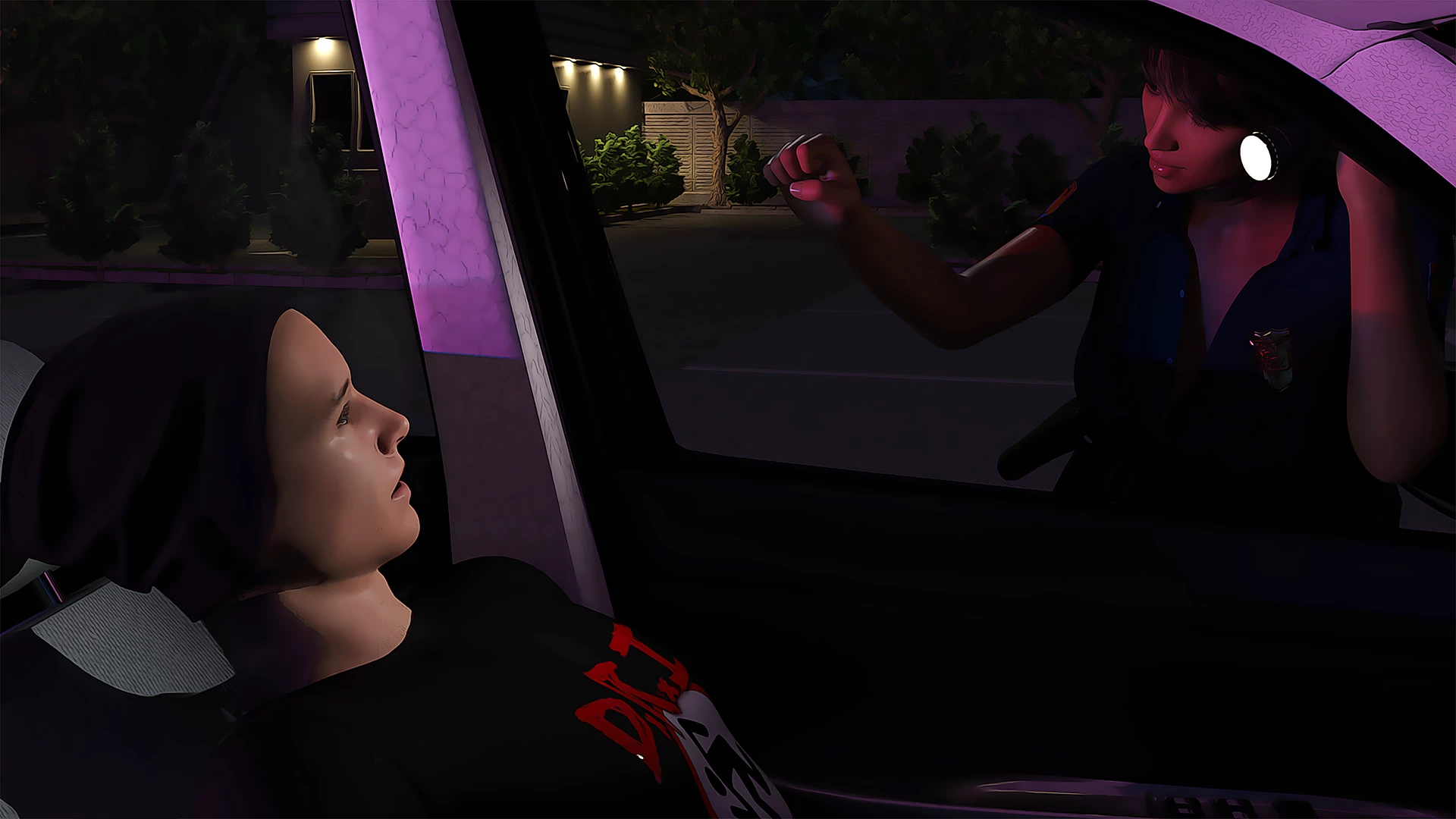
There is a little line of light along his jawline where it should be just part of the shadow.  See the little line along his jaw?  One would think that the lasso tool, which normally does a great job, would get it.  The spot remover doesn't get it either.  Even after a save and restart to account for bugginess, which often works, neither gets it that I just want to remove that freaking little line that's different from the color of 99% of the surrounding area.  I know the image isn't that great.  Whatever.  Please help I'm about to throw something.  
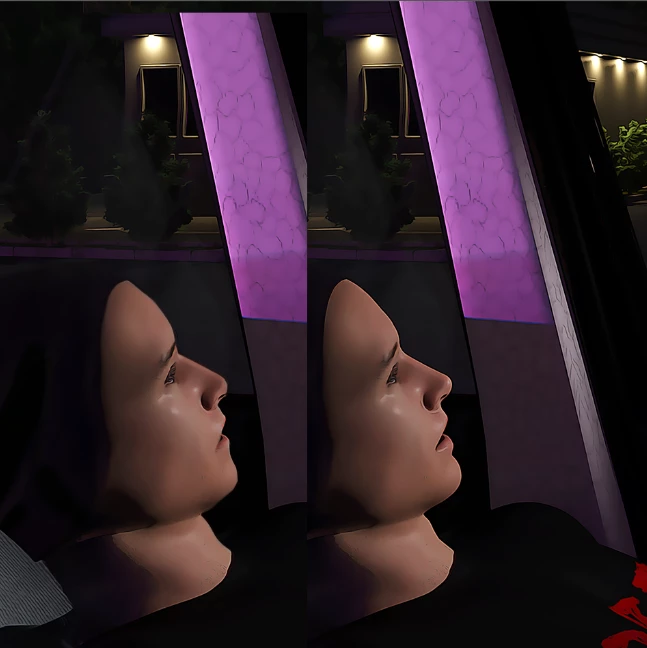
Correct answer Trevor.Dennis

Do you have the original image on a card, or phone or whatever?

The image has been heavily over sharpened, so you'd be much better off going back to the original and NOT over sharpening it.  You can fix it using the Remove tool with a tiny brush, or maybe the Healing brush.


I tried both Nano Banana and Flux Kontext with the prompt:

fix the bright halo around the outside of both faces. Remove other effects of the image being over sharpened

but neither made and improvement.  This was with Select All.  Making a smaller selection probably won't help with thos models because they would not have enough context to make sense of the prompt.


Was this a Halloween gag or something similar.  They look like plastic mannequins, and just a wee bit suspect.


1 reply

Trevor.Dennis
Community Expert
Trevor.DennisCommunity ExpertCorrect answer
Community Expert
November 5, 2025

Do you have the original image on a card, or phone or whatever?

The image has been heavily over sharpened, so you'd be much better off going back to the original and NOT over sharpening it.  You can fix it using the Remove tool with a tiny brush, or maybe the Healing brush.


I tried both Nano Banana and Flux Kontext with the prompt:

fix the bright halo around the outside of both faces. Remove other effects of the image being over sharpened

but neither made and improvement.  This was with Select All.  Making a smaller selection probably won't help with thos models because they would not have enough context to make sense of the prompt.


Was this a Halloween gag or something similar.  They look like plastic mannequins, and just a wee bit suspect.