Inspiring
August 7, 2026
Pergunta

Resizing a smart object

  • August 7, 2026
  • 5 respostas
  • 22 Visualizações

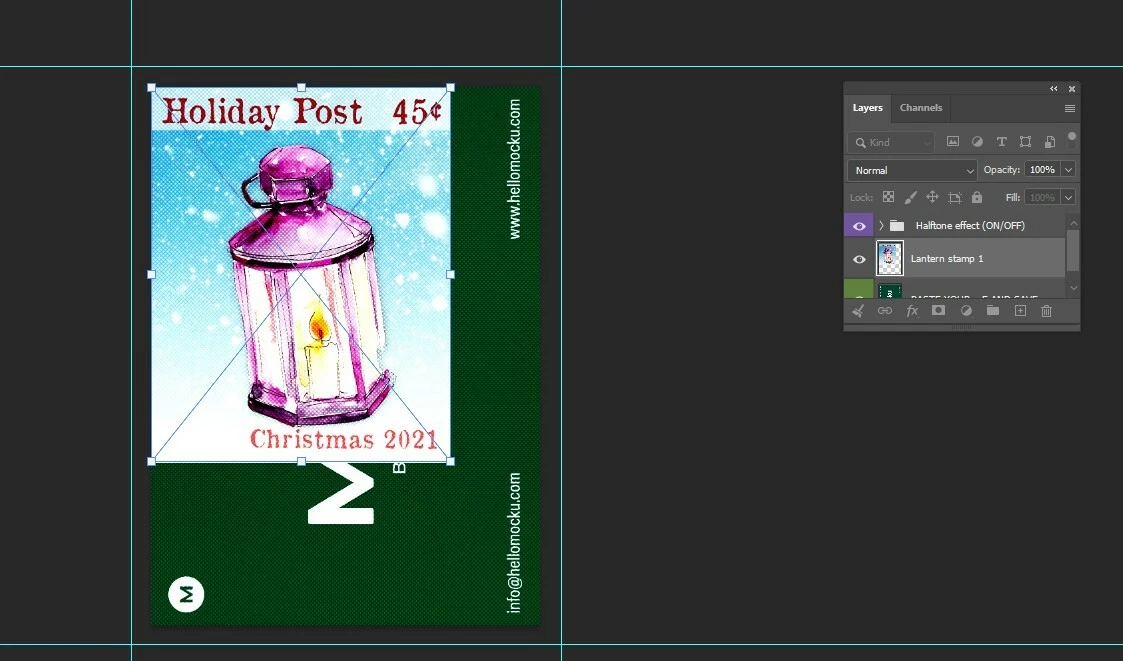
I am just learning to work with mockups and smart objects. This is a faux postage stamp I created and it’s going into a mockup that has deckled postage stamp edges etc. 
I’ve tried to use Free Transform to resize the “stamp” to the green “canvas” but it won’t fit exactly or proportionately. 

Is there something I can do to make it fit the green area precisely? Or something I can do to change the size of the green area so they’re both a closer match? 

Thank you. 


    5 Respostas

    Inspiring
    August 7, 2026

    I am thinking it might be easier to just resize my stamp images. 

    Claire H.
    Community Manager
    Community Manager
    August 7, 2026

    Hi ​@ladyinblack1964, Welcome to the Photoshop Community Forum! There are a couple of things you can try here.

    Option 1: Adjust the Faux Postage Stamp

    1. Select the Smart Object: Click on the layer containing the faux postage stamp in the Layers panel.

    2. Activate Free Transform: Press Ctrl + T (Windows) or Cmd + T (Mac) to activate the Free Transform tool.

    3. Resize Proportionally: Hold down the Shift key (to maintain proportions) and drag the corners of the bounding box to resize the stamp until it fits the green canvas accurately.

    4. Position the Stamp: Move the stamp into the desired location within the green canvas.

    5. Commit the Transformation: Press Enter (Windows) or Return (Mac) to apply the transformation.


    Option 2: Modify the Size of the Green Canvas

    1. Select the Green Canvas Layer: Click on the layer containing the green canvas in the Layers panel.

    2. Access Canvas Size: Go to Image > Resize > Canvas Size.

    3. Adjust Dimensions: Enter the desired width and height for the green canvas. Make sure to select the appropriate units of measurement.

    4. Anchor Position: Choose an anchor point to determine where the canvas will expand or contract.

    5. Change Canvas Color (if needed): If you want to change the color of the added canvas, select an option from the Canvas Extension Color menu.

    6. Apply Changes: Click OK to apply the new canvas size.

    Some more information on cropping: https://adobe.ly/4fSQSJy. Let me know if this helps! Otherwise, we can continue to make recommendations. ^CH


    Inspiring
    August 7, 2026

    Thank you for replying. 

    I had already tried the first option, and the stamp doesn’t fit proportionately to the canvas even if I am holding the shift key. It does alter the size of the stamp but it still doesn’t really fit.  

    I tried modifying the green canvas and when I do, somehow the stamp gets altered too. I’m attaching a screenshot. Am I supposed to modify it before I put the stamp on it? 

    Your directions are very thorough. I wonder if I’m doing something incorrectly?


    Inspiring
    August 7, 2026

    I am thinking it might be easier to resize my original stamp images. It wouldn’t be too difficult for me to do that.