


Luis Cue
Participant
Mar 5, 2026 2:41 PM UTC
Question

RTX 5070 Laptop - Black Screen/System Freeze and 0 MB VRAM in Photoshop 2026
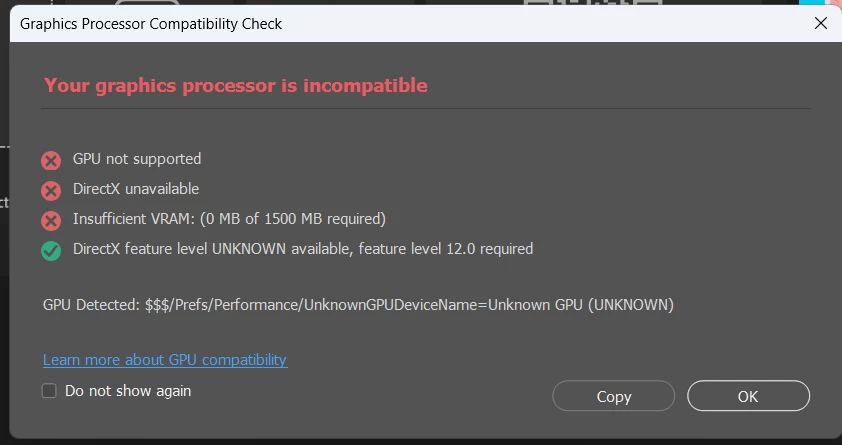
Hello, I am experiencing a critical issue with my new Lenovo Legion Pro 5 (2026) equipped with an NVIDIA RTX 5070 (8GB).

The Problem: When using the laptop screen in "Hybrid Mode", Photoshop fails to detect the GPU (shows 0 MB VRAM). This is random: sometimes it happens, and sometimes it doesn't.. Even worse, moving panels or windows causes a permanent Black Screen that forces me to manually restart the computer.

Important Observations:

  1. External Display works: If I move the Photoshop window to my external tablet (Huion), the flickering and black screens disappear. The issue seems tied to the laptop's internal display/Hybrid management.

  2. Legacy Mode: The only way to prevent the crash without restarting is checking "Use Older GPU Mode" in Preferences, but performance is terrible.

  3. The only real fix: Switching the entire laptop to "dGPU Only" (Discrete Graphics) mode via Lenovo Legion Space.

This is a professional workstation and I cannot rely on disabling my integrated graphics (killing battery life) just to use Photoshop. Please investigate the compatibility between the new 50-series  drivers, Windows 11 MPO, and Photoshop's GPU engine.

System Specs:

  • Laptop: Lenovo Legion Pro 5

  • GPU: NVIDIA RTX 5070 Laptop (8GB)

  • OS: Windows 11

    4 replies

    davescm
    Community Expert
    Community Expert
    Oct 30, 2026 3:30 PM UTC

    You should not need to completely disable the integrated graphics for all applications. Just go to the NVidia control panel and under 3D settings > Manage 3D settings ensure both Photoshop and sniffer are set to use the NVidia GPU.

    Dave

    Translate
    Participant
    Oct 29, 2026 6:48 PM UTC

    Did you ever solved the issue? I’m experience a simular experience. I have a Lenovo Legion 7i. Just bought it and it comes with

    Intel Core Ultra 9 275HX,

    32GB RAM,

    and NVIDIA GeForce RTX 5070.

    Photoshop will work for a little bit, and then it will lag, and then it will become unresponsive. 

    Translate
    Community Expert
    Oct 30, 2026 12:43 PM UTC

    ​@danny2000 Do you have installed the recent Studio version of NVidia’s graphic device driver?

    As I see you’re using a notebook. Normally that there are buildin a CPU with an integrated Intel graphics processor. This internal GPU can sometimes caused several issues if it’s enabled. Adobe recommends disabling second GPUs. Try to disable this.

    Open the Windows Device Manager, right-click the card's name and choose Disable.  

    See also step 5 and 6 in the linked document: https://helpx.adobe.com/lightroom-classic/kb/troubleshoot-gpu.html#solution-4 


    Translate
    My System: Intel i7-8700K - 64GB RAM - NVidia Geforce RTX 3060 - Windows 11 Pro 26H2 -- LR-Classic 15 - Photoshop 27 - Nik Collection 9 - PureRAW 6 - Topaz Photo AI
    Community Expert
    Mar 5, 2026 6:11 PM UTC

    Which graphic driver do you have install?

    Goto NVidia’s website and download the recent Studio version of the driver. NVIDIA Studio Driver 591.74 | Windows 11

    Then do a clean reinstallation of the driver: 

    Clean Installation Of Nvidia Graphic | NVIDIA GeForce Forums

    Wagnard Tools (DDU & More) Updated 0 | NVIDIA GeForce Forums


    Check if it’s help.


    Translate
    My System: Intel i7-8700K - 64GB RAM - NVidia Geforce RTX 3060 - Windows 11 Pro 26H2 -- LR-Classic 15 - Photoshop 27 - Nik Collection 9 - PureRAW 6 - Topaz Photo AI