
Participant
January 14, 2022
Question

Save as dialogue embed sRGB by default

  • January 14, 2022
  • 3 replies
  • 1360 views

Hey all, 


is there a way to set to embed sRGB by default, when using the save as dialogue?
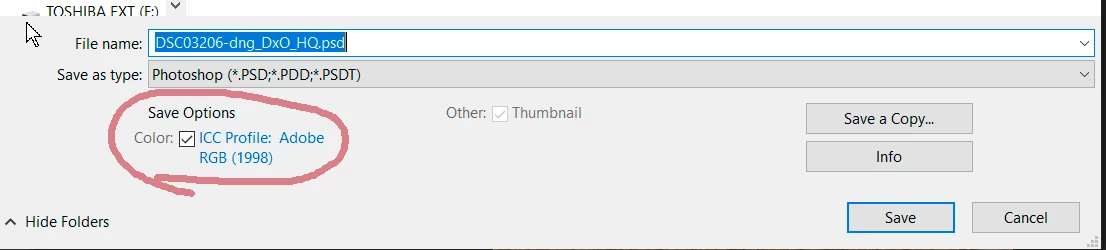
I can use "convert to profile" to convert it to sRGB, but I have to do that at every single image, which is really tiring. I had that checkbox show sRGB by default, but I reinstalled PS and now it`s defaulted to my working colour space. 

Any help is appreciated. 

This topic has been closed for replies.

3 replies

NB, colourmanagement
Community Expert
Community Expert
January 15, 2022

The save dialog's embedded profile option is set relative to the image colourspace [in this case AdobeRGB (1998)]

What you seem to be hoping for, is with this Adobe RGB image open, when you come to save for that to be automatically converted during saving to sRGB [and the profile embedded]. Is that right?

Photoshop doesn't do that. 

The now deprecated (problematic) Photoshop "save for web" used to convert and embed (but not reliably), I'd not recommend it.


If you have a batch of Adobe RGB files and want to convert to sRGB and save, that can be done using a folder action. 

this web page might help with that


I hope this helps
neil barstow, colourmanagement net :: adobe forum volunteer
google me "neil barstow colourmanagement" for lots of free articles on colour management
[please only use the blue reply button at the top of the page, this maintains the original thread title and chronological order of posts]

Stephen Marsh
Community Expert
Community Expert
January 14, 2022

That wouldn't make much sense by default, particularly so for a PSD. The save as ICC profile is the active ICC profile for the document(whether embedded, assigned or assumed). As you say, an explicit, dedicated conversion would be required.


Now if you were saving say derivative copied files from an Adobe RGB PSD to an sRGB JPEG, then this makes sense.


This is why Export As or Save for Web offer a checkbox to convert to sRGB, as it makes sense in these cases as one is creating a derivative copy from a master working file.

Participant
January 14, 2022

Hey Stephen, not PSD, that`s only in the screenshot, I save them in jpeg.

Stephen Marsh
Community Expert
Community Expert
January 14, 2022

It would be more helpful if the screenshot was representative of the process. 🙂


Using export rather than save as will offer you a checkbox for automated conversion.


You would either need an action or script to automate the conversion to sRGB and the use of the save command, a script would be better (if there is a reason why you need to use save rather than export).

D Fosse
Community Expert
Community Expert
January 14, 2022

If there is an embedded profile from, say, ACR or Lightroom, or anywhere else for that matter, that profile will always override your working space. The embedded profile should follow the file wherever it goes. It's what defines the numbers as actual colors and tonal values.


You can't just "change" a profile. Then you have to convert, which recalculates all the numbers to preserve appearance in the new color space.

Participant
January 14, 2022

My working colour space is Adobe RGB.