
Participating Frequently
November 3, 2017
Answered

Select Tool (to select area for noise reduction) not working on larger images (PS CC)

  • November 3, 2017
  • 1 reply
  • 602 views

Hi all,

I've searched but have not found anything that resembles my issue.  

I am having a problem with the select tool when I want to select a specific area to reduce noise, etc.    The weird thing is that the select tool works just fine on the same image when I resize it to something like 1600 pix wide, and it 'intelligently' selects the area.   When trying to do it on the full size version of the same image, the select tool is acting like a drawing tool and does not let me block off areas that I want to work on specifically.    Even if I use the select tool like a 'smart lasso' and try to connect the 'dots' to complete a selected area, only the line that the tool draws is affected by any changes that I try to make, like brighten, darken, etc.

It baffles me why the smart select tool works in 2 completely different ways on the same image when the only difference is the size of the image.

Can someone point me in the right direction?

Thanks!
    This topic has been closed for replies.
    Correct answer davescm

    Hi

    I assume you mean the quick selection tool? If so, I am not seeing that problem here - I've opened a couple of panoramas and have seen no impact. What width are you having problems with?

    You could try a couple of things :

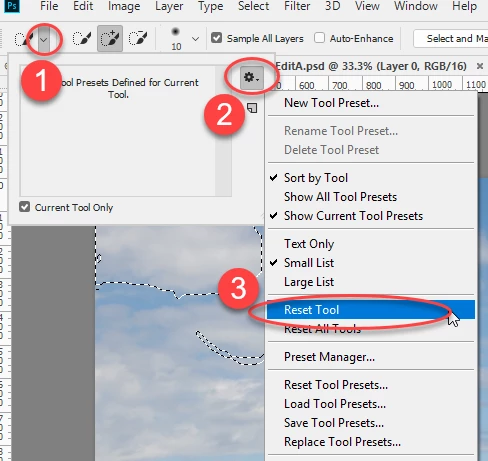
    1. Reset the tool :

    If that does not help :

    2. Reset Preferences .
    Go to Preferences >General and click on Reset Preferences on Quit. Click OK then close and restart Photoshop

    Dave

    1 reply

    davescm
    Community Expert
    davescmCommunity ExpertCorrect answer
    Community Expert
    November 3, 2017

    Hi

    I assume you mean the quick selection tool? If so, I am not seeing that problem here - I've opened a couple of panoramas and have seen no impact. What width are you having problems with?

    You could try a couple of things :

    1. Reset the tool :

    If that does not help :

    2. Reset Preferences .
    Go to Preferences >General and click on Reset Preferences on Quit. Click OK then close and restart Photoshop

    Dave

    LHFlyerAuthor
    Participating Frequently
    November 3, 2017

    Fantastic!  Resetting the tool solved the problem.  Thanks so much for the quick (and correct) answer!   Just very strange that it wouldn't work correct at a full size of the image (7900 pix wide approx), but at 1600pix wide, it was fine.