Participant
August 1, 2018
Answered

Setting a White Text Box Underneath Photo

  • August 1, 2018
  • 3 replies
  • 1731 views

I have adobe Photoshop CS6 and trying to leave space at bottom of photos for text.

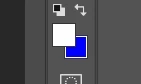
I open PS then open a photo - - I click on background icon in tool  bar - - Make sure the background is white - - I click on the crop icon and make
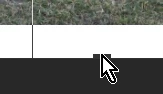
sure I'm on the top line crop tool - - I bring the bottom line down and release the mouse - - checkerboard pattern appears instead of white. What am I doing wrong?

Sometimes it works and when Igo to the next photo I get the checkerboard.

Can this be done with Automate Batch?

Can PS be set so when I open new photo and drop the bottom line, use the crop tool and get a white box every
time?
    Correct answer Rob_Cullen

    May I comment on this-

    I do not understand how you would add a white text box with the crop tool.

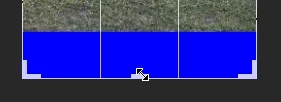
    To drag one edge of the crop box outside the image will extend the document background. So to drag the lower edge of a 'full-frame' crop outline will add extra space below the image.

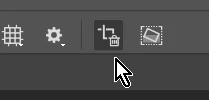
    This icon determines if the new area is transparent or uses the background color- (set to blue in my example)


    So White background = white extra document for text, etc.

    3 replies

    Rob_Cullen
    Community Expert
    Rob_CullenCommunity ExpertCorrect answer
    Community Expert
    August 2, 2018

    May I comment on this-

    I do not understand how you would add a white text box with the crop tool.

    To drag one edge of the crop box outside the image will extend the document background. So to drag the lower edge of a 'full-frame' crop outline will add extra space below the image.

    This icon determines if the new area is transparent or uses the background color- (set to blue in my example)


    So White background = white extra document for text, etc.

    Regards. My System: Windows-11, Lightroom-Classic 15.1.1, Photoshop 27.3.1, ACR 18.1.1, Lightroom 9.0, Lr-iOS 10.4.0, Bridge 16.0.2 .
    sharp_hands16B8
    Community Expert
    Community Expert
    August 2, 2018

    You should be able to write an action for this, but it depends on whether or not all the images are consistently sized at the source level. If not, you can add a box below arbitrarily by percentage.

    I don't remember if in CS6 you can set the extended canvas color. But, you're order would normally be something like this.

    (With the image already open)

    Start recording your action then.


    Layer > Flatten Image
    (press D) Sets default foreground/background colors

    Image > Canvas Size

    Set anchor to top center

    Change units to Percentage

    Set Height value to 115% (leave Width at 100%)

    Press OK.

    Stop recording your action.

    Now you can use that to Batch a folder and it should add a 15% white extension at the bottom.

    Trevor.Dennis
    Community Expert
    Community Expert
    August 2, 2018

    Mark I was going to mention setting rulers to Percentage when recording the Action, but you beat me to it.  It's a tip I first came across in Julliane Kost's blog about recording Actions.  I wonder if I can find it?

    This might be it.  SWMBO has just called me to eat, and I dare not keep her waiting. ;-)

    [EDIT]  Yep.  It starts right on the 7:00 point.   The whole video is well worth a watch if you do Actions, as there were a few really quite useful tips and tricks.

    Incidentally, I've had the odd rant about Adobe TV on this forum, complaining that Adobe's efforts to beautify the front end, made it more difficult to find content.  Even if you had a  good idea of the specific video you were looking for.  Well you can get back a lot of that usability by bypassing the new front end, and starting out from the Channels > Evangelists menu.

    Channels | Adobe TV

    Adobe Evangelists | Adobe TV

    Adobe Evangelists - Julieanne Kost | Adobe TV

    In fact this takes you to the list view that used to be the default, and worked really well as you could look through the long list of titles, or use the browser search facility to look for words appearing on that page.  It always seemed to me that it could be tricky for a new user to find something using Adobe TV's admittedly very pretty search function, if you didn't know what to look for.  So I am totally stoked to find this page, although I dare say I'd have done so before if I'd looked properly.  jane-e  and our other female posters would appreciate that I was severely handicapped having to look with my 'man eyes'.

    Automating Photoshop Using Actions - YouTube

    Advanced Automation (Actions, Droplets and Scripts) - YouTube

    JJMack
    Community Expert
    Community Expert
    August 2, 2018

    You have an Image in Photoshop on a background layer why not simply add some canvas to the bottom of the Image you can add ia with any color?  I do not understand how you would add a white text box with the crop tool.   You could select an area and clear it to the background color. Crop changes the Document canvas size Crops away image content.  Many things can be automated in Photoshop.   Add a layer and fill a white box.   You need to design the process if you want to batch an action and have it work well.   I do not understand what you are trying to do with the crop tool

    JJMack