bartonlew
Legend
January 11, 2022
Answered

sharpen using brush?

  • January 11, 2022
  • 2 replies
  • 1164 views

I have started to sharpen areas of my images where things are not very sharp, mindful that sharpening works best when a little is required - not a lot.  The question I have is, I have been converting the file to a smart object and using ACR filter - but there are 6 options for sharpening in the Sharpen filter.  I am only familair with Unsharp Mask.  What I would like to do is use a brush to apply sharpening, creating a kind of feather for the areas where I am sharpening and those where I am not.  Is this possible?  As far as I know, you can either sharpen an entire image or create a selection, which you would then turn into a smart object (or not) and sharpen the selection.  Is there a way to create a feather with the sharpening you apply, so there is not a hard line separating sharpened areas?  Thanks.  

This topic has been closed for replies.
Correct answer c.pfaffenbichler

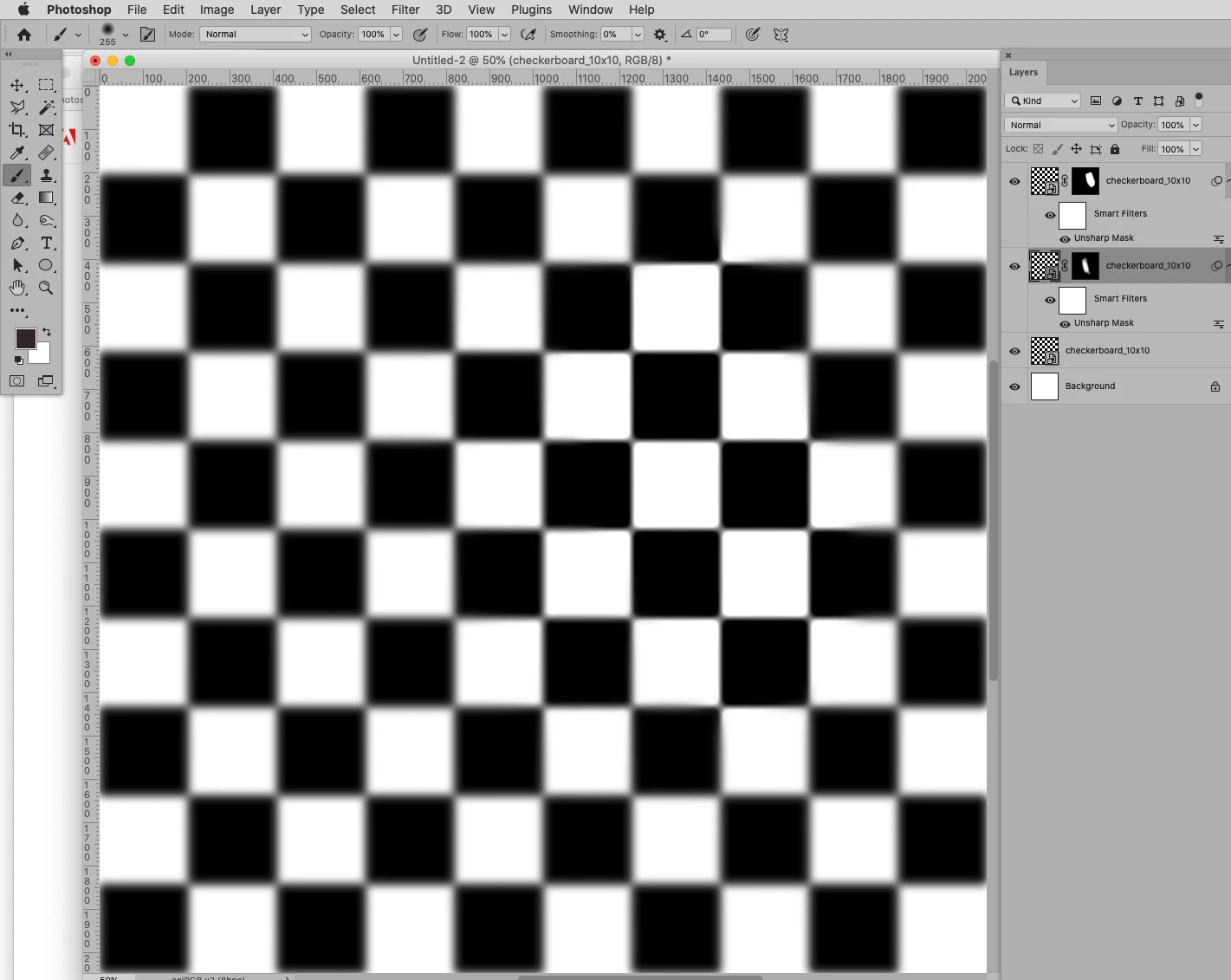
You can use the Mask of the Smart Filter or use multipple instances of the Smart Object, apply different Filters/Settings and Layer Masks to them. 

2 replies

Stephen Marsh
Community Expert
Community Expert
January 12, 2022

Another option is to use the history brush, however, for flexibility and a non-destructive workflow I prefer the smart object/smart filter + layer mask method as suggested by  c.pfaffenbichler.


P.S. I'd personally stay clear of the sharpen/blur tool.


Some basic info here:

https://helpx.adobe.com/photoshop/using/adjusting-image-sharpness-blur.html


c.pfaffenbichler
Community Expert
c.pfaffenbichlerCommunity ExpertCorrect answer
Community Expert
January 11, 2022

You can use the Mask of the Smart Filter or use multipple instances of the Smart Object, apply different Filters/Settings and Layer Masks to them. 

bartonlew
bartonlewAuthor
Legend
January 12, 2022

Thank you.  Can you please share the steps of what you did in your screenshot?  I tried to figure it out, and turned my layer into a smart object.  Then I addded a mask.  Then I filled it with black, and painted with white to reveal pixels.  But this exposed pixels against a checkerboard.  So I saw that you had a white background layer and I added a Layer using Convert to Background.  This turned the checkerboard white.  What am I doing wrong?  Masks still trip me up a little (or a lot).  Thanks.  


c.pfaffenbichler
Community Expert
Community Expert
January 12, 2022

Duplicate the SO (cmd-J) before applying the Filter and Layer Mask. 

This works out if the SO covers the whole Canvas anyway, if the SO itself contains transparency there are other options.