
Known Participant
March 27, 2026
Answered

Shortcut Contextual Taskl Bar

  • March 27, 2026
  • 3 replies
  • 41 views

Is there a way to hide and unhide the Contextual Tool Bar with a simple keyboard shortcut? I need to always quickly open and close the tool bar.

Correct answer leo.r

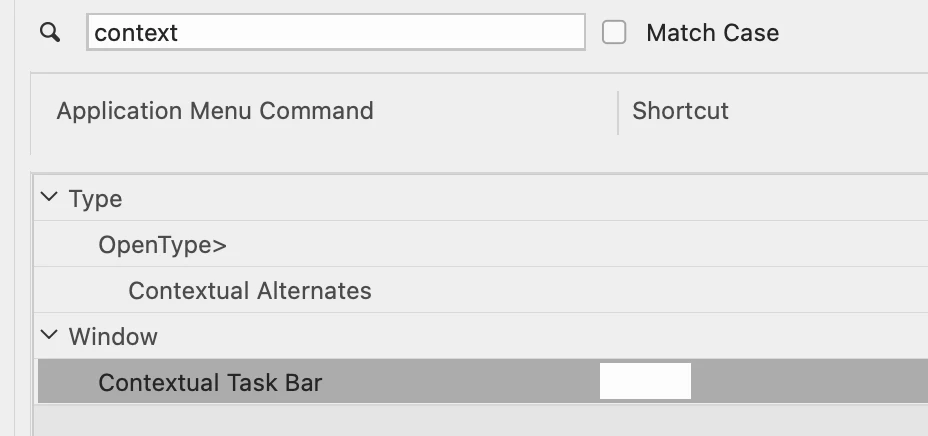
Yes, go to Edit > Keyboard Shortcuts and assign the desired shortcut:


3 replies

Trevor.Dennis
Community Expert
Community Expert
March 28, 2026

I use F3.


Edit > Keyboard Shortcuts > Application Menus

Scroll down to Window and then all the way to the bottom to Contextual Task Bar

Use whatever shortcut works for you.  I like the Function keys because they are a one key solution for a frequently used function.  I use F5, F6, and F7 to set workspaces.  F12 create Smart Object, Shift F12 New Smart Object via Copy.  You get the idea.  It can seriously streamline your workflow.


leo.r
Community Expert
leo.rCommunity ExpertCorrect answer
Community Expert
March 28, 2026

Yes, go to Edit > Keyboard Shortcuts and assign the desired shortcut:


Claire H.
Community Manager
Community Manager
March 27, 2026

Hi ​@BrandonBB,  To manage the visibility of the Contextual Task Bar in your application, follow these steps:

  1. Unhide the Contextual Task Bar:

    • Go to the menu and select Window.
    • Click on Contextual Task Bar to show it if it is currently hidden.
  2. Hide the Contextual Task Bar:

    • Again, go to the menu and select Window.
    • Click on Contextual Task Bar to hide it if it is currently visible.

Unfortunately, there is no keyboard shortcut specifically mentioned for quickly hiding and unhiding the Contextual Task Bar. You will need to use the menu options. I hope this helps! ^CH