Participant
October 30, 2025
Answered

Soften just one edge of a photo

  • October 30, 2025
  • 3 replies
  • 118 views

I've encountered this problem a few times, trying to engrave a photo on a coaster or something. I've got a couple of photos like the one attached that I want to do, but I don't want it to look odd where the photo is cropped at the bottom.


Is there a way of softening, or feathering, just that edge of the photo, to make it look more natural?


Thanks

Chris

Correct answer Conrad_C

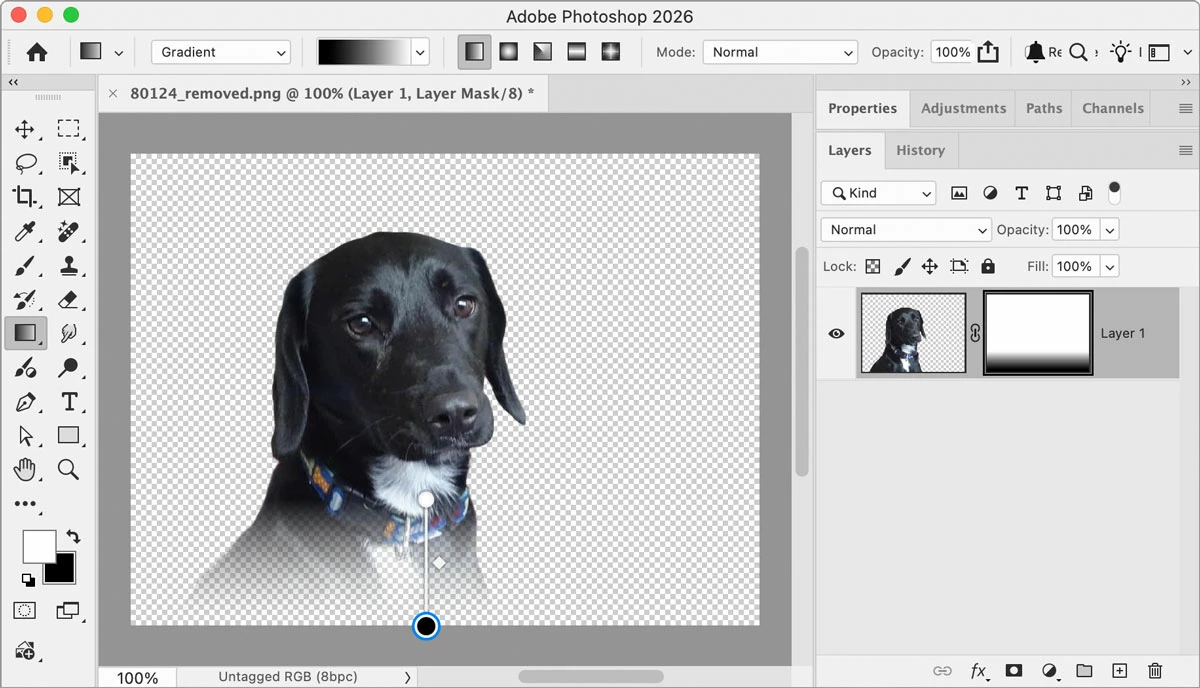
The image attached to the original post is PNG format with a transparent background (alpha channel), so if it’s important to preserve the transparent background, apply a layer mask with a black-to-white gradient on it.


If the engraving service requires a white, not transparent, background (I don’t know if that’s a thing), then adding a white-to-transparent gradient fill layer on top might be a better solution, but then you might also want to convert the dog layer to a Background layer (the command Layer > New > Background from Layer) so that the background is solid white instead of transparent.

3 replies

Trevor.Dennis
Community Expert
Community Expert
October 30, 2025

You can select part of a layer and apply any filter to just the selected area. Quick Mask is a good way to makle that selection as you can see how soft or hard the selection is. Most tools and filters will work directly to Quick Mask


Another trick is to remove the background so you can select just the dog outline (Ctrl click the layer's eye icon).

Then turn that selection into a workpath using the button at the bottom of the Paths panel.


You can then right cclick the path and choose Stroke, and the resulting drop-down to choose the required tool.

You need to set the preset size and strength (in the Options bar) before doing this.  You would do this on a copy of the layer so you mask out the areas you do not want the blur (or whatever) applied to.  This is something I use a lot.

Conrad_C
Community Expert
Conrad_CCommunity ExpertCorrect answer
Community Expert
October 30, 2025

The image attached to the original post is PNG format with a transparent background (alpha channel), so if it’s important to preserve the transparent background, apply a layer mask with a black-to-white gradient on it.


If the engraving service requires a white, not transparent, background (I don’t know if that’s a thing), then adding a white-to-transparent gradient fill layer on top might be a better solution, but then you might also want to convert the dog layer to a Background layer (the command Layer > New > Background from Layer) so that the background is solid white instead of transparent.

Stephen Marsh
Community Expert
Community Expert
October 30, 2025

@montyonthebonty - You would use a layer mask with a linear gradation, or simply add a white to transparent gradient fill layer above the original.