Participant
Jan 5, 2017 4:50 AM UTC
Answered

Spray Paint splatter effect

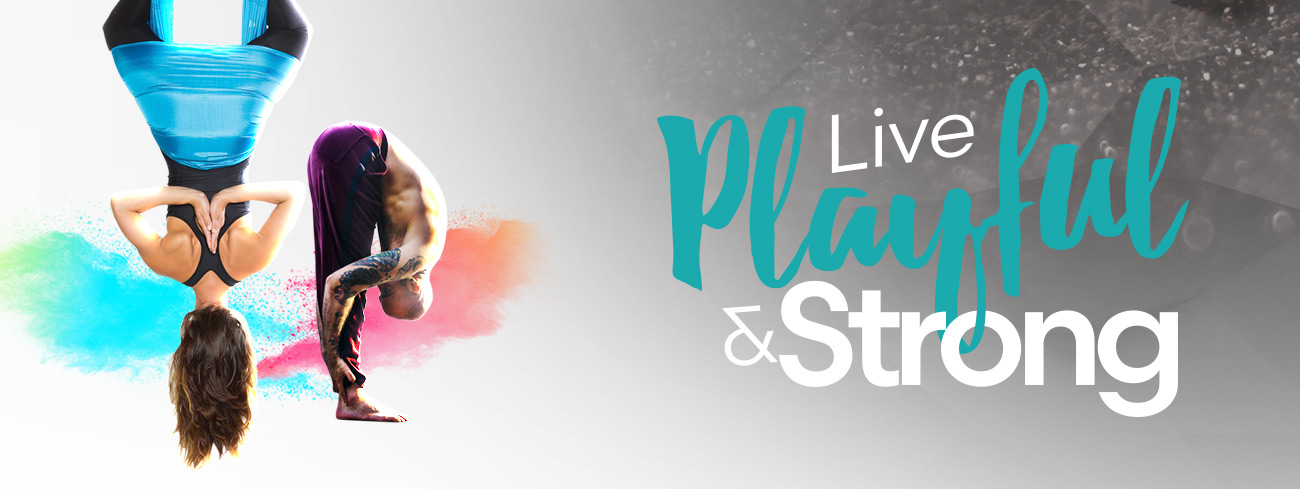
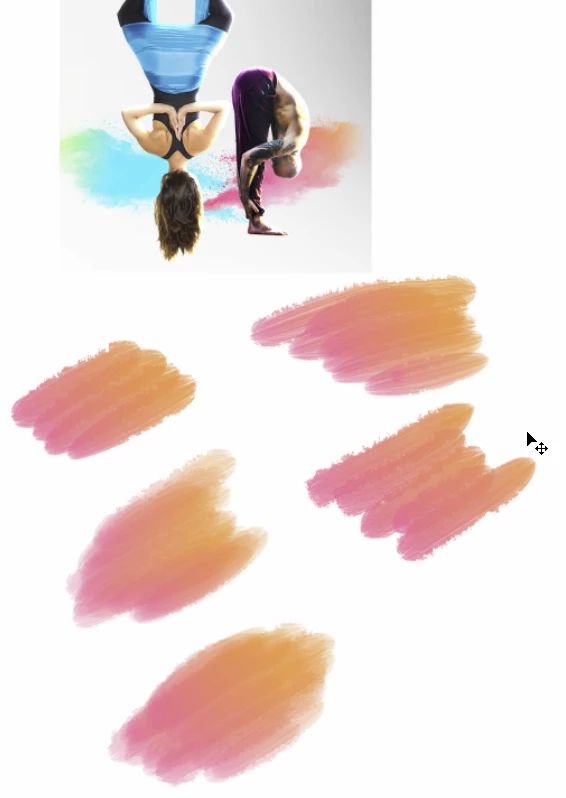
Hi I am still new and learning how to use adobe photoshop etc. I am wanting to create a spray paint splatter effect with a gradual change in colours -similar to the photo on this page:

Yogabox West End | Hot Power Yoga & AntiGravity Aerial Yoga Coming Soon

I know I could probably just download some pre made brushes but I would like to either make my own brushes or use a different technique to acheive this in either Photoshop or Illustrator. Any ideas or help on how to do this would be greatly appeciated.

Thanks in advance!

    This topic is closed to new replies. Start a new post to keep the conversation going.
    Trevor.Dennis
    Trevor.DennisCorrect answer
    Community Expert
    Jan 5, 2017 10:31 AM UTC

    How good are you with the brush engine?banner

    I'm starting with a preset like this

    Size jitter - Pen Pressure minimum diameter 20%

    Dual brush with the other brush looking like this

    Foreground / Background colour jitter set to Fade value 200

    A tiny bit of Opacity jitter 25%

    Build up checked

    Air brush enabled in the options bar with these settings

    Work from left to right building opacity.

    If I was doing this properly (for myself) I'd take time with the dual brush to give me some light splatter.  Also play with opacity probably using lower settings.  But this is all trying to be a bit too clever IMO, and it would be easier and more effective to build the colours and merge with the Mixer Brush, which is very effective, but takes some practice to get predictable results.

    4 replies

    Srishti Bali
    Community Manager
    Community Manager
    Oct 27, 2026 6:16 PM UTC

    Great comprehensive answer by ​@Trevor.Dennis If you're still having trouble achieving the desired splatter brush effect, this step-by-step tutorial by ​@Joseph Labrecque might be helpful:

    It walks you through creating and customizing splatter brush effects, which could be a great starting point for achieving the look you're after.

    For gradual color transitions, you could also experiment with applying a Gradient Overlay layer style to your splatter artwork.

    Hope this helps!

    Translate
    Thanks, Srishti Bali | Community & Engagement Strategist, Digital Imaging | Adobe
    Trevor.Dennis
    Community Expert
    Trevor.DennisCommunity ExpertCorrect answer
    Community Expert
    Jan 5, 2017 10:31 AM UTC

    How good are you with the brush engine?banner

    I'm starting with a preset like this

    Size jitter - Pen Pressure minimum diameter 20%

    Dual brush with the other brush looking like this

    Foreground / Background colour jitter set to Fade value 200

    A tiny bit of Opacity jitter 25%

    Build up checked

    Air brush enabled in the options bar with these settings

    Work from left to right building opacity.

    If I was doing this properly (for myself) I'd take time with the dual brush to give me some light splatter.  Also play with opacity probably using lower settings.  But this is all trying to be a bit too clever IMO, and it would be easier and more effective to build the colours and merge with the Mixer Brush, which is very effective, but takes some practice to get predictable results.

    Translate
    MBorowiec
    Participating Frequently
    Jan 5, 2017 8:11 AM UTC

    EDIT:

    Sorry, i do not notice Your stand for brushes... Please ignore my message.

    Or You can just use splatter brushes, You can find them all around web, like so: Splatter Free Brushes - (841 Free Downloads)

    Translate
    c.pfaffenbichler
    Community Expert
    Community Expert
    Jan 5, 2017 7:48 AM UTC

    Photographs (or scans) are the first choice for stuff like that in my opinion (the color can relatively easily be edited), very likely you can find numerous fitting stock images.

    Translate