
LeesaA007
Participant
April 7, 2019
Question

STILL cannot change color of a shape or stroke

  • April 7, 2019
  • 3 replies
  • 26644 views

I am taking this as a grad course class, and is the first time I've ever us PS. I cannot change a shape's color. When I select the layer and the shape and get the color selector, I click and click and click, and it changes in the foreground/background, but it does nothing to the shape. It's like it's set NOT to change the shape's color. See below.

I want to change the color of the right circle
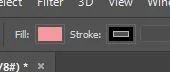
No matter how I click on this when I'm in the layer, have the shape selected, nothing changes. I have to do it backwards. I have to create new circles with new colors every time, and it's time consuming to try and size them to exactly what I need. It's like I have messed up my settings or something where I cannot change colors.

    This topic has been closed for replies.

    3 replies

    jane-e
    Community Expert
    Community Expert
    April 7, 2019

    leesap30254189  wrote

    I am taking this as a grad course class, and is the first time I've ever us PS.

    ...

    I want to change the color of the right circle

    Hi Lee,

    The circle on the right is selected with marching ants. If it’s pixels, you can choose Edit > Fill and fill with the Foreground or Background color.

    You say it’s the first time you’ve used PS, and it sounds like you are trying to use it without learning it first. There is a lot of information missing from your query.

    • How did you create the shape?
    • With the Ellipse selection tool?
      With the Ellipse shape drawing tool? As a shape? As a path? As pixels?
    • What kind of layer is it on? Background? Regular? Shape?
    • You mentioned Foreground / Background, but your screenshot is Fill / Stroke. Which do you mean?

    As a new user, you may not be able to answer all of these questions. Answer what you can, and post a screen shot to help us figure out the rest so we can best help.

    Jane

    JJMack
    Community Expert
    Community Expert
    April 7, 2019

    First when you post a screen capture Post the Full screen capture showing all of Photoshop UI All that you can see. ie Photoshop's window,  image window the layers Palette the tool bar the tool option bar etc..  What you posted we have no idea  of what your document layer stack structure is.  If any layer is currently targeted.  What tool is active.  You posted bits that shows little we can see there is an active selection  that is a circle.   The  tool that is active can create or edit shape layer by the bits of the option bar posted.  Is there a shape layer in your document? I can not tell.

    No shape ins this one

    JJMack
    JJMack
    Community Expert
    Community Expert
    April 7, 2019

    This one has three shape layers.

    JJMack
    JJMack
    Community Expert
    Community Expert
    April 7, 2019

    Now it has one

    JJMack
    Theresa J
    Community Expert
    Community Expert
    April 7, 2019

    First, the layer needs to a shape layer, not a pixel layer if you want the fill and stroke colors you show in the screen capture. We can’t tell what kind of layer it is from what you shared. My guess is that you created a pixel layer to start, not a shape layer.

    Second, you need to select the shape layer and one of the shape tools in order to change the colors with the swatches in the options bar. Shape tools include the selection arrow and pen tool.

    LeesaA007
    LeesaA007Author
    Participant
    April 7, 2019

    Okay-I'm going to test--I just watched a quick video! I think I get it now. I'm going to test it now

    c.pfaffenbichler
    Community Expert
    Community Expert
    April 7, 2019

    Second, you need to select the shape layer and one of the shape tools in order to change the colors with the swatches in the options bar.

    Like the Direct Selection Tool (A).

    leesap30254189, please post a screenshot with the pertinent Panels (Layers, Paths, Toolbox, Options Bar, …) visible.