

Trevor.Dennis
Community Expert
Community Expert
May 29, 2026
Question

Strange Color Picker Panel

  • May 29, 2026
  • 6 replies
  • 119 views

Does anyone know what’s going on here?  I’ve never seen anything like it in all the years I’ve used PS.  I’m guessing that resetting Preferences will fix it, but I’m putting that off in case someone might tell me, ‘Oh yeah.  That’s the many worlds quantum cat in a box color picker.’  or some kind of rarely seen PS Easter Egg.  
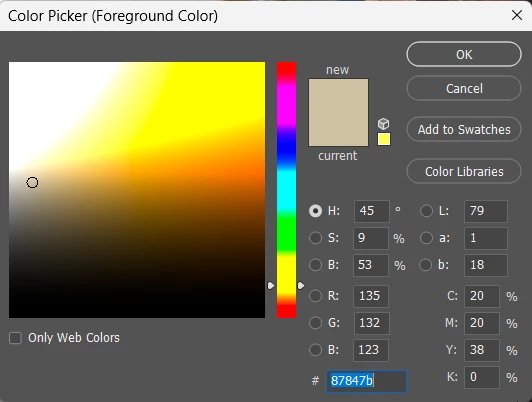
 

I did add the pre-2020 swatches from this YouTube video earlier today, so there’s a good chance that broke something.

    6 replies

    Trevor.Dennis
    Community Expert
    Community Expert
    June 2, 2026

    Thanks for all the help guys. It’s only the DNG files that have the problem, and show P3 PQ as the profile.


    Changing the Profile to sRGB fixes the Color Picker.

    While the Color Picker appears to be unusable, it does not affect sampling from the image, and JPGs saved from a processed DNG file are fine.  Where it was causing a real problem was using Generative Fill.  Now there’s a modern issue to have!  BTW  The prompt was meaningless, and just something to demonstrate what the Ai does with the iPhone DNG file’s native profile.

    Thanks again for the help.  Man, I HATE these small posting windows!!! 

    Conrad_C
    Community Expert
    Community Expert
    June 1, 2026

    The document that was causing the issue was taken with Adobe Project Indigo on an iPhone 16 Pro Max and was a 16bit DNG file.  dropping it to 8 bit made no difference.


    You mentioned the Project Indigo camera app, which I enjoy using, so I tried one of my own images from that app. It took only seconds to reproduce the Color Picker you saw, see picture below.


    As you said, changing the bit depth makes no difference. But…as the others were asking, I checked the document profile in the status bar, which I always display anyway. It says the document profile is Rec.2020 PQ (which stands for Perceptive Quantizer transfer function, as I just learned for the first time).


    Converting to a color space we’re more used to, such as sRGB, changes the Color Picker back to something Photoshop uses are more familiar with. So it looks like it’s about the HDR-optimized color space + transfer function.


    Rec.2020 PQ is one of the three color spaces offered by Adobe Camera Raw when opening a DNG file from the Project Indigo app. I’m guessing that those three were chosen by Adobe because Project Indigo DNG files are HDR-native, and those color spaces are much more familiar to video editors/colorists who have been working with HDR video far longer than most photographers have been working with HDR-native images. (Many photographers today still think of HDR only in terms of HDR merges, and not about HDR-encoded images straight out of camera like this. But some of the newest pro bodies are starting to offer single-frame HDR straight out of camera, just as HDR video cameras and some phone apps have been doing for a while.) 


    It seems important to point out that all three of those HDR choices cause that “weird” color picker, even though the other two choices are the familiar sRGB and P3. This is why I think it ultimately isn’t about the gamut at all, it’s probably about that transfer function. Because if you use the non-HDR versions of sRGB and P3, of course the Color Picker looks the way we’re used to. What’s different is whether the color space is using that PQ transfer function.


    The other way I was able to reproduce it is to start a blank document, and use Convert to Profile and choose a color profile with PQ in the name. That results in the unexpected Color Picker. But by now, we can see that under appropriate conditions, that Color Picker appearance might be expected after all.

    davescm
    Community Expert
    Community Expert
    June 2, 2026

    Thanks for confirming the color profile Conrad, it does explain the colour picker. Rec2020 PQ was designed for display of video on HDR monitors. Viewed on a standard (SDR) monitor it will clip at the top of the luminosity range as demonstrated by the colour picker screenshots.

    Dave

    davescm
    Community Expert
    Community Expert
    June 1, 2026

    @Trevor.Dennis Can you show the profile at the bottom left of the document window, with a problem doc open (example below). Those in colour settings are just the defaults for new documents.


    Dave

    Trevor.Dennis
    Community Expert
    Community Expert
    May 31, 2026

    Yep. This is from Google’s Ai Summarizer, and seems to cover it.


    davescm
    Community Expert
    Community Expert
    May 29, 2026

    One other thought - do you have ‘Precise color management for HDR display’ set in Technology Previews and are viewing on a display that is not HDR. If so, uncheck it.

    Dave

    Trevor.Dennis
    Community Expert
    Community Expert
    May 31, 2026

    Thanks Dave.  That HDR setting was not turned on, but I am pretty sure it is to do with the iPhone images.  I tried opening a new document and the color picker was back to normal, but I realised that the issue persists with all of the iPhone images.  These are DNG taken with the Project Indigo app.  

    I have just discovered that what appears to be a related issue is affecting Gemini 3.1 as three times in a row it has done something like this.  The second time was this image and the prompt was ‘Change focus making everything sharp. Add reflections to the water.’  I’d intended a longer prompt, but my fingers were moving quicker than my brain and I hit the Enter key.  I didn’t think it was to do with the reflection request, so I tried one last time with just the Change Focus prompt, and it did the same thing.

    I’ve just checked JPGs taken with the iPhone camera app, and I’m seeing the same banded color picker. 

    If I create a new blank document, and drag one of the iPhone layers to that document, the color picker is back to normal.  That gives me a problem because I NEVER obsess about colour, and always work in sRGB, so I basically know nothing about the Color Settings. 

    This is from an affected image

    And this from a normal image with an unaffected Color Picker

    Is there any difference?  It’s hard to tell in these annoyingly small post windows.


    Trevor.Dennis
    Community Expert
    Community Expert
    May 31, 2026

    If I open Assign Profile with one of the iPhone images I see this:

    Assigning pretty much any of the options turns the image to custard.

    Assign Profile with a normal document looks completely different:

    I’ll do a search for ‘iPhone color profile in Photoshop and Lightroom.  I can’t be the first person to encounter this.

    Trevor.Dennis
    Community Expert
    Community Expert
    May 29, 2026

    I reset Preferences which made no difference, but creating a new document fixed it.  The document that was causing the issue was taken with Adobe Project Indigo on an iPhone 16 Pro Max and was a 16bit DNG file.  dropping it to 8 bit made no difference.  

    It has the look of the Cutout Filter or Index color throttled down to four hue values.  It’s interesting that it’s just the colors in the panel that are so restricted.  Anyway.  It’s all OK now, although not in the project I was working on.  


    c.pfaffenbichler
    Community Expert
    Community Expert
    May 29, 2026

    Probably not relevant, but still: What is the image’s Color Space/ICC Profile?