
Participating Frequently
February 12, 2023
Answered

Stroke an ellipse with a brush in PS 2023 on mac

  • February 12, 2023
  • 3 replies
  • 2143 views


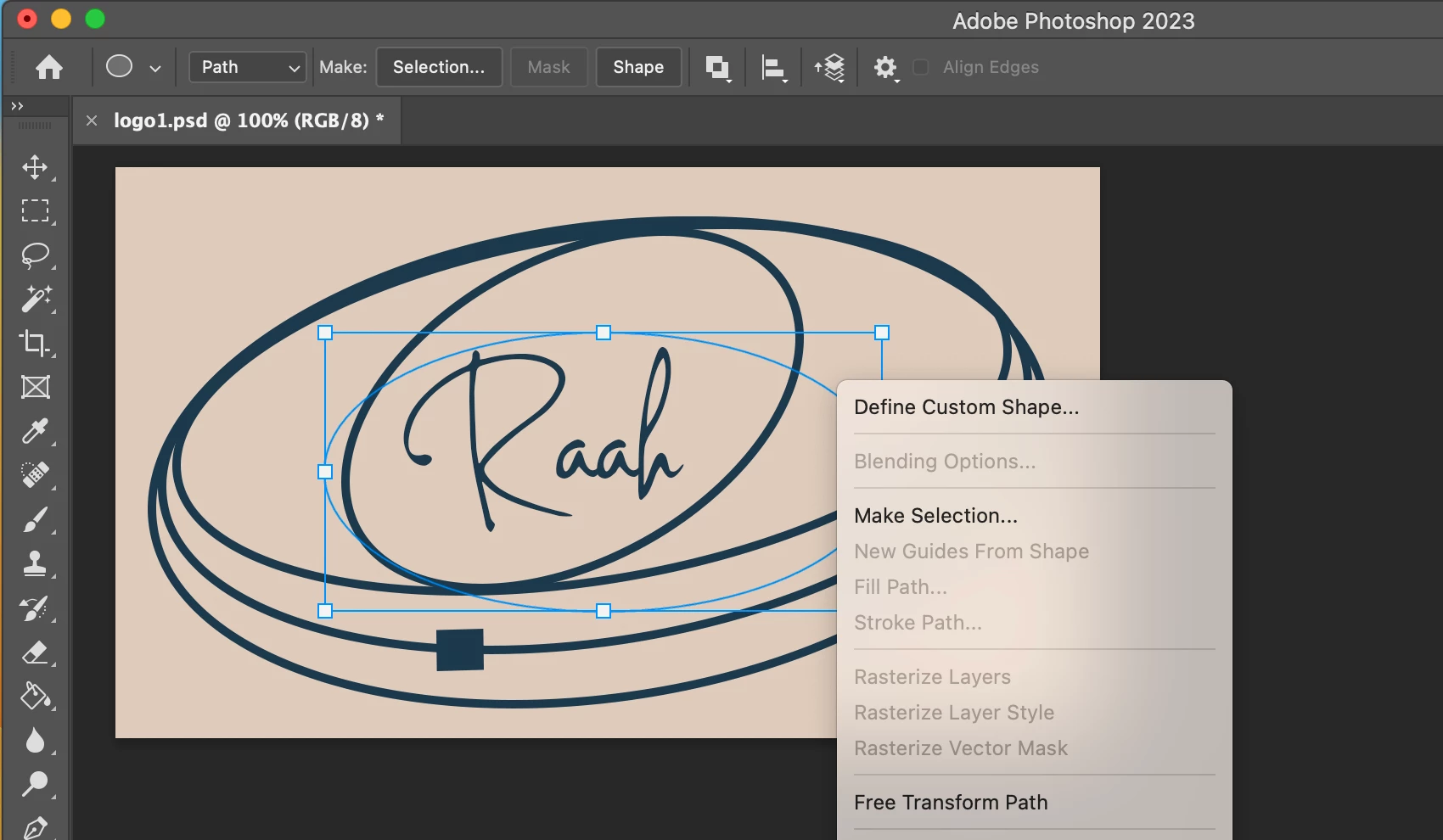
I'm a very basic PS user, and have not been able to figure this out.  I want to stroke an ellipse path with a brush stroke.  I've tried watching Youtube tutorials on this and still haven't been able to figure it out.  I've made an elliptical path, and then tried to right click to "stroke path" but it is always greyed out.  What am I doing wrong?  Thanks for your help!
This topic has been closed for replies.
Correct answer jane-e

Hi @Renee28038092g6w9 


You still haven't mentioned which layer you are on. Did you see my first paragraph? You can't stroke a path if you are on a Type layer or a Shape layer. Create a new layer it should work.


If you are not sure, show a screenshot of your Layers panel.


Jane


3 replies

Trevor.Dennis
Community Expert
Community Expert
February 13, 2023

Rene,  I am not sure you are following Jane's advice.  I'm guessing that you used the Elliptical Shape tool set to Path because of thhe perfect ellipse in your screen shot.  You must have a raster layer selected as below (mine is named Stroked Path).  Whatever brush preset is currently selected, along with current foreground colour and brush size and opacity will be applied.


This is the result for the above path.  If you know that Stroke Path is already set to your required tool, you can use the icon at the bottom of the Paths panel, (my red highlight)


If you select a brush preset with size jitter set to Pressure, and check Simulate Pressure then the stroke will be tapered as below.  The same would apply to whatever brush setting was set to Pressure.


The same would apply to whatever brush setting was set to Pressure.  Like Scatter jitter fore instance.


Participating Frequently
February 13, 2023

Thanks so much for this!  It helped to clarify what I was doing wrong.  I finally got it now!!

Leslie Moak Murray
Community Expert
Community Expert
February 12, 2023


.......................

-Edit-  Or do you want the stroke on its own layer? That can be done but it will be a raster and might get fuzzy if you rotate it like in your image.

jane-e
Community Expert
Community Expert
February 12, 2023

Leslie, I'm not in my office now and can't check. You drew a Shape and Renée drew a Path. Does your method work for Paths?


Jane


Leslie Moak Murray
Community Expert
Community Expert
February 12, 2023

Well the Ellipse tool has a path. That's what I used.

jane-e
Community Expert
Community Expert
February 12, 2023

@Renee28038092g6w9 


When you stroke a path, PS puts pixels on the current layer. You aren't showing your layers panel so we can't see what layer you are on. You may be on a Type layer, for instance. You might create a new blank layer first to put the pixels on.


In addition, PS will use your current foreground swatch and the options for the tool that you select when you add the stroke. If you want to stroke with the Brush, choose a brush and size first. If you don't like it, choose undo and change the settings, then stroke the path again.


Jane


Participating Frequently
February 13, 2023

Sure, I have a current brush selected when I click the brush tool, but that's not what is getting applied when I click "Stroke" for the path.  I can change the color and the thickness of the stroke and if it is a dash or a pattern, but what I'm asking is how to apply like a wide charcoal or a watercolor stroke to it, which I can't seem to do.

jane-e
Community Expert
jane-eCommunity ExpertCorrect answer
Community Expert
February 13, 2023

Hi @Renee28038092g6w9 


You still haven't mentioned which layer you are on. Did you see my first paragraph? You can't stroke a path if you are on a Type layer or a Shape layer. Create a new layer it should work.


If you are not sure, show a screenshot of your Layers panel.


Jane