Known Participant
November 12, 2025
Question

Stroke not working correctly with Zoom?

  • November 12, 2025
  • 2 replies
  • 260 views

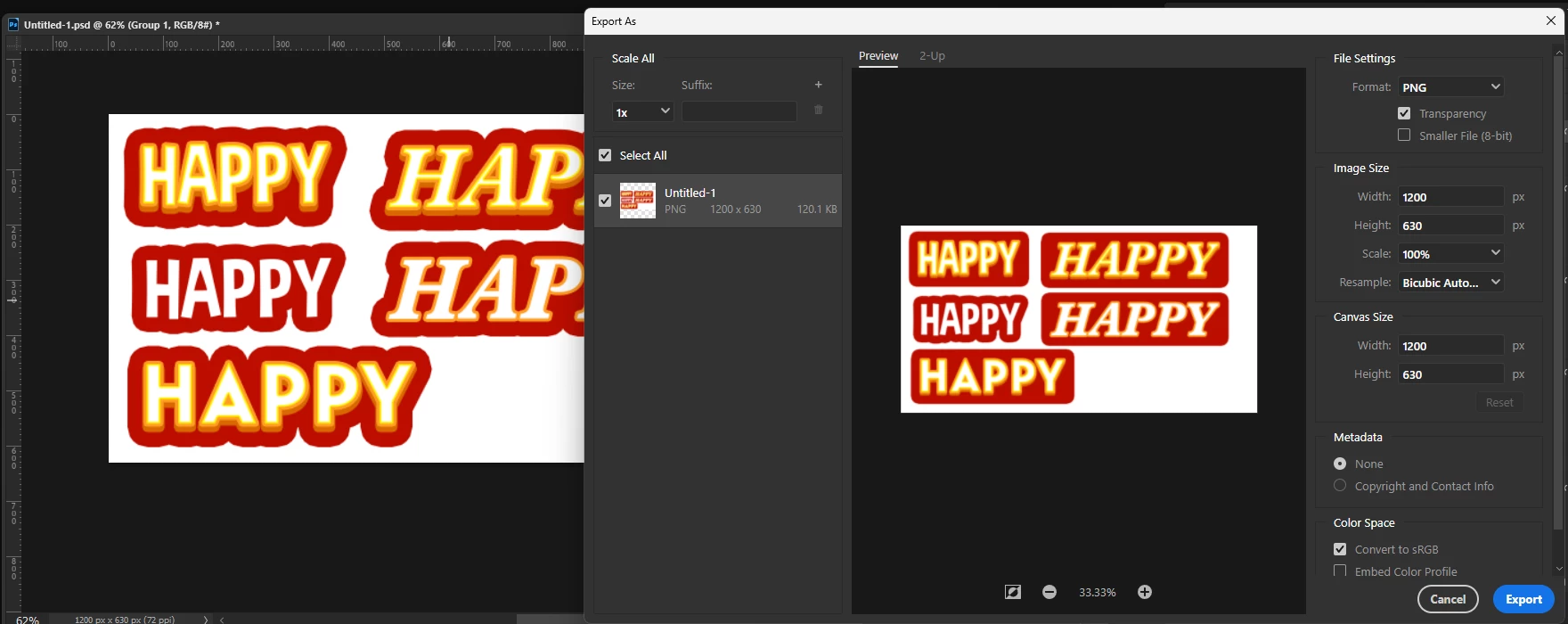
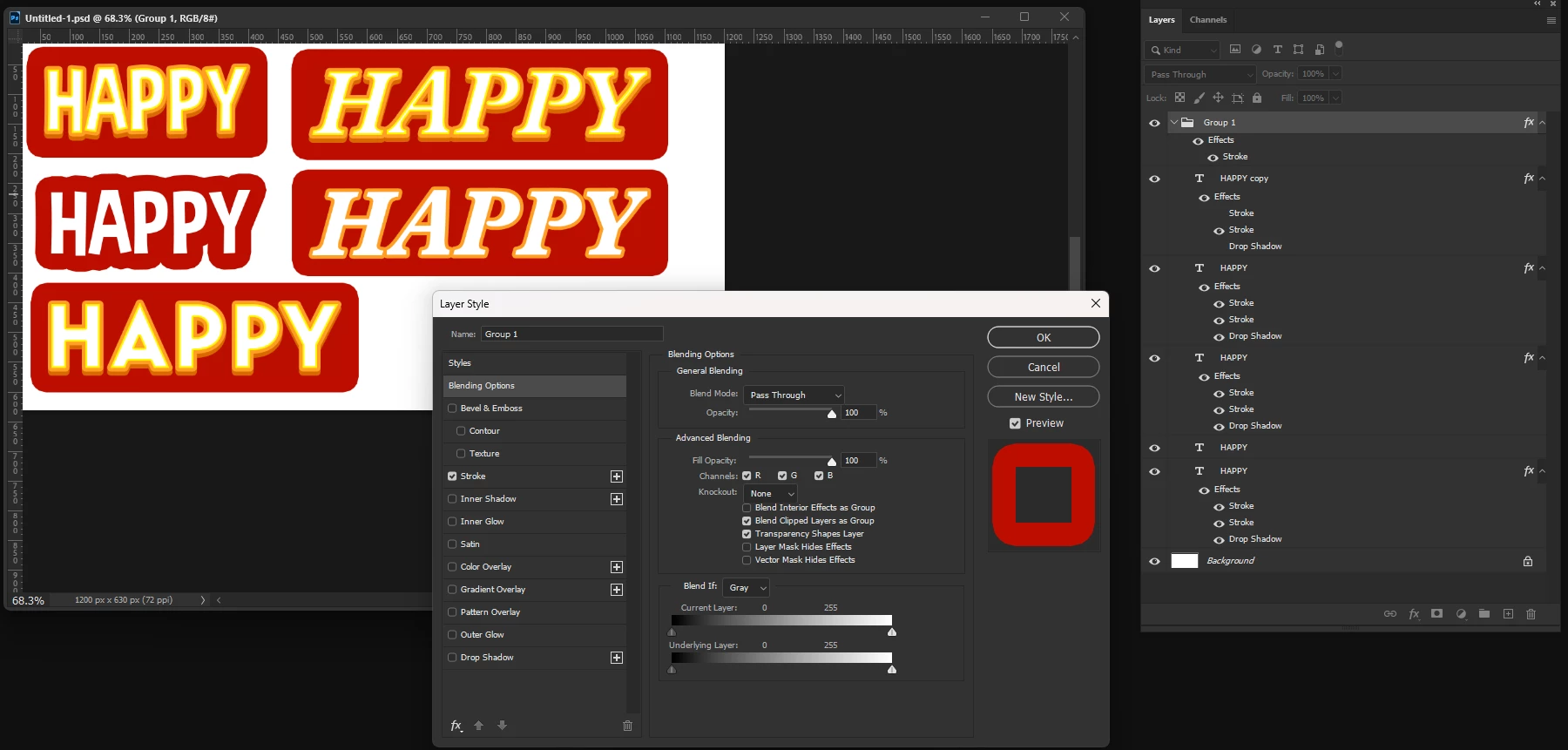
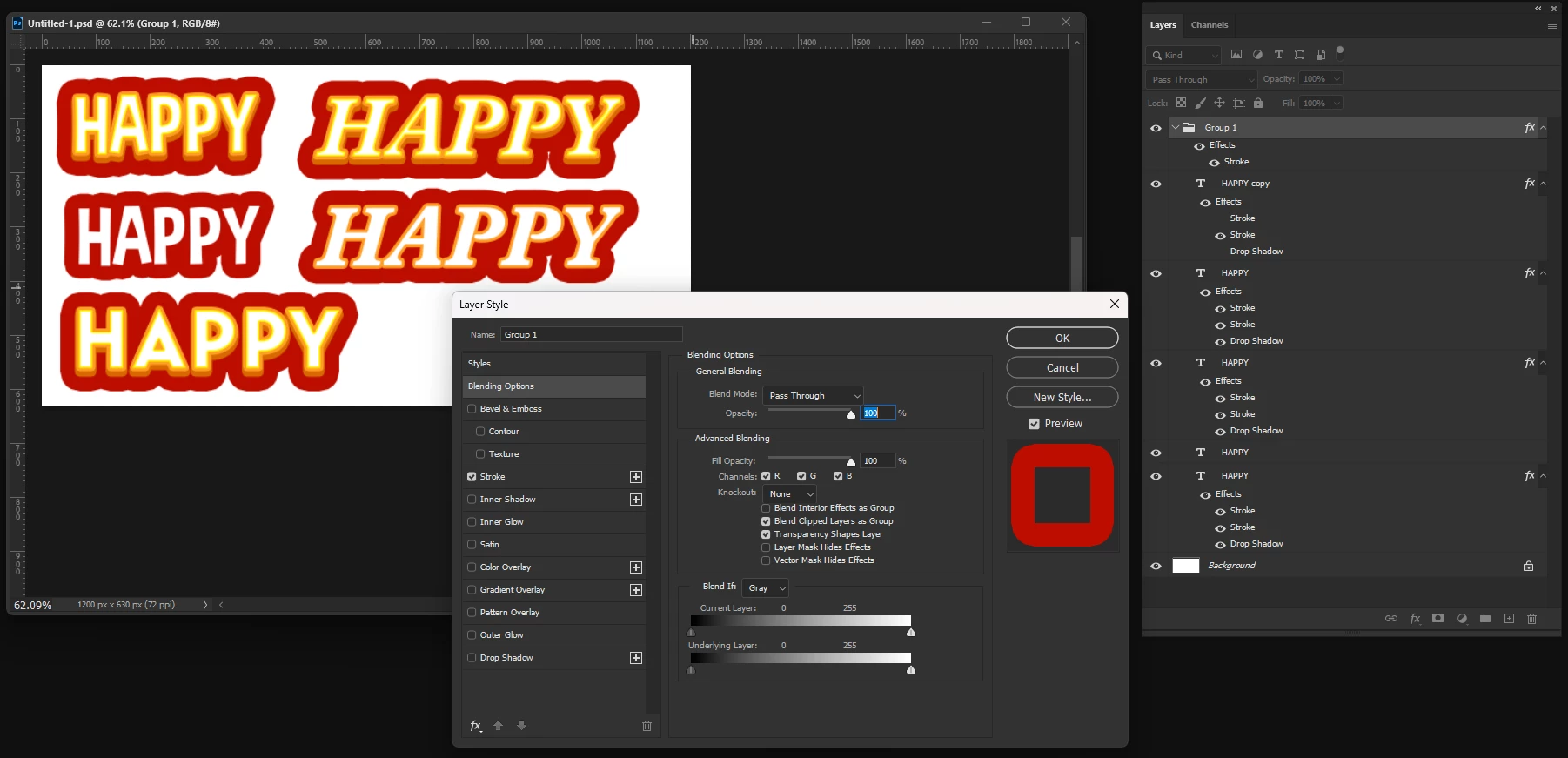
Odd reults with group effects, I've done this a million times in the past. If i have a stroke on the layer then group it and add another the group sees it as a rectangle. This is odd, if i zoom out you no longer see it however whats very odd is that if i save it as a .png you can see the error? The only difference between the two screen shots is the Zoom setting but the exported png has the error??
Adobe Photoshop Version: 27.0.0 20251015.r.25 d1c1320 x64 (final, Release)
Operating System: Windows 11 64-bit
Version: 11 or greater 10.0.22631.6199
System architecture: Intel CPU Family:6, Model:14, Stepping:13, AVX2, HyperThreading
Physical processor count: 8
Logical processor count: 16
Processor speed: 2304 MHz
Built-in memory: 32644 MB
Free memory: 20925 MB
Memory available to Photoshop: 25091 MB
Memory used by Photoshop: 70 %


2 replies

Trevor.Dennis
Community Expert
Community Expert
November 14, 2025

It would be help to see your layers panel, and more helpful still if you se the tumbnails to large in Panel Options.

Expand the extras on all layers and show the the image as well (naturally). 


I suspect there is something going on with your layers structure. I bet if you look closely yourself you'll see what is going on. Turn off one layer at a time sort of thing. Ctrl click the layers or alt click the thumnail toi view in isolation. Do still pleas show us though, as we do love a puzzel here.  🙂

LVChrisAuthor
Known Participant
November 20, 2025

Just ran the update to Photoshop released this AM (27.1.0) Problem is still there.

Sameer K
Community Manager
Community Manager
November 13, 2025

Hey, @LVChris. Welcome to the Photoshop Community. I'll need more specific info about this, and I'll help you figure this out. Please share the system information from Photoshop Help > System Info> Copy & paste it into a text document, then upload & attach it here. 


Does this happen with all documents or a particular document?

Try these steps:

1 - Enable 'Use legacy 'Export As' menu by going to Photoshop > Edit > Preferences (CTRL + K) > Export and check if that helps.


If it does not, go to the location of the preference folder below and rename it to backup.

  • Windows 10/11: Users/[user name]/AppData/Roaming/Adobe/Adobe Photoshop [version]/Adobe Photoshop [version] Settings
  • You can press Press the Windows key > Enter 'Run' > Enter %APPDATA%\Adobe
  • Rename the Adobe Photoshop folder by adding a .old at the end. (Adobe Photoshop 2024 > Rename > Adobe Photoshop 2024. old), You can restore these preferences later if needed.(https://adobe.ly/4860qM9)
  • Restart the computer.

These changes will provide a fresh start to Photoshop, much like a new installation. Let me know how it goes.


Awaiting to hear from you. Thanks! 

Sameer K

(Type '@' and type my name to mention me when you reply)

LVChrisAuthor
Known Participant
November 13, 2025

Thank you @Sameer K

 i did share my system info in the post, but here it is again.

Adobe Photoshop Version: 27.0.0 20251015.r.25 d1c1320 x64 (final, Release)
Operating System: Windows 11 64-bit
Version: 11 or greater 10.0.22631.6199
System architecture: Intel CPU Family:6, Model:14, Stepping:13, AVX2, HyperThreading
Physical processor count: 8
Logical processor count: 16
Processor speed: 2304 MHz
Built-in memory: 32644 MB
Free memory: 20925 MB
Memory available to Photoshop: 25091 MB
Memory used by Photoshop: 70 %


I have reset my preferences as you instructed and see the same issue.

Tried multiple fonts and using keys to zoom rather than mouse wheel same issue, In this video you can see it on some layers  then disappear  and appear on other layers, weird.

Ged_Traynor
Community Expert
Community Expert
November 14, 2025

@LVChris that is only part of the system info, you need to copy and paste the entire thing