Participant
April 17, 2025
Answered

text tool and paint bucket

  • April 17, 2025
  • 2 replies
  • 440 views

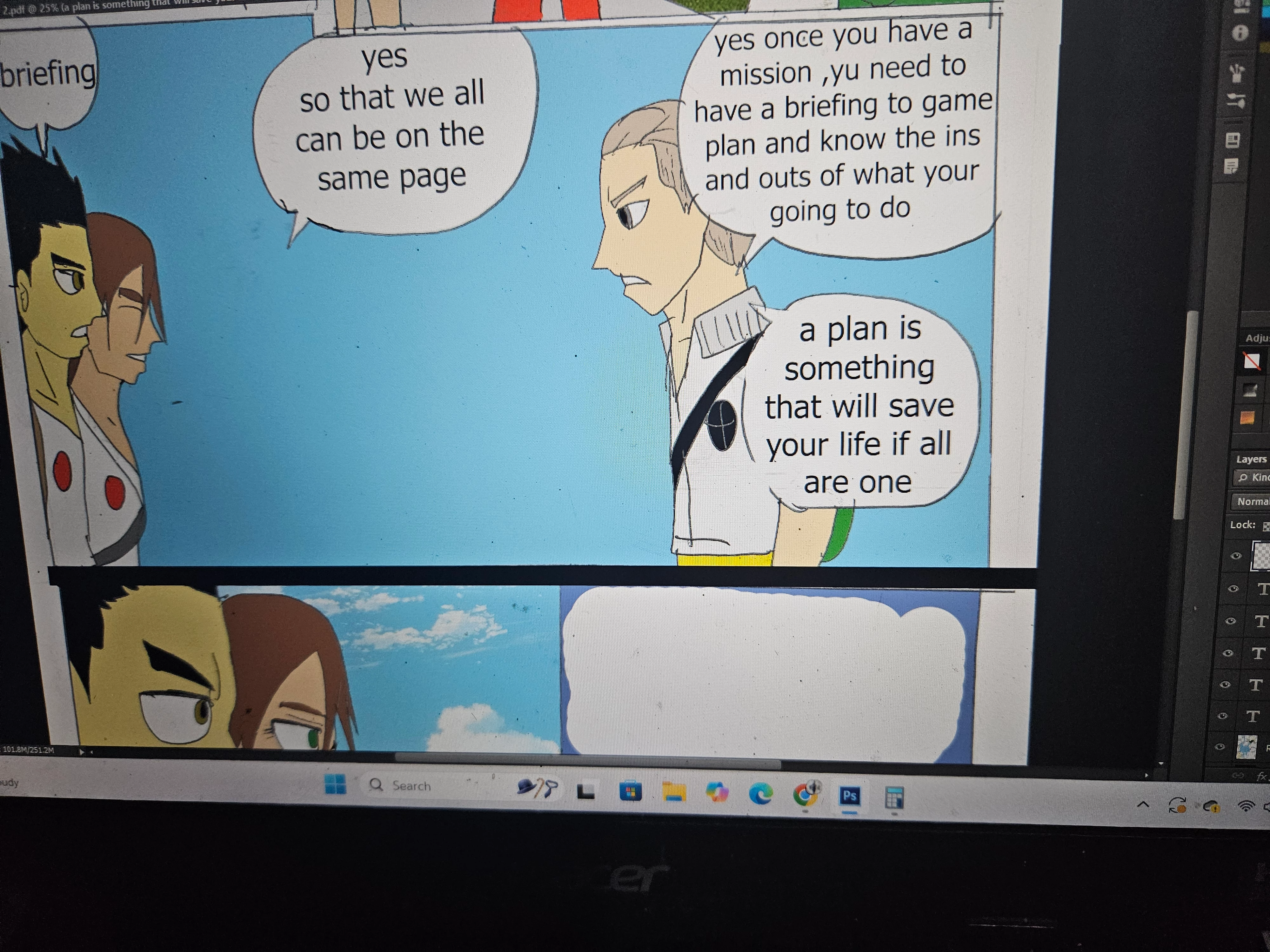
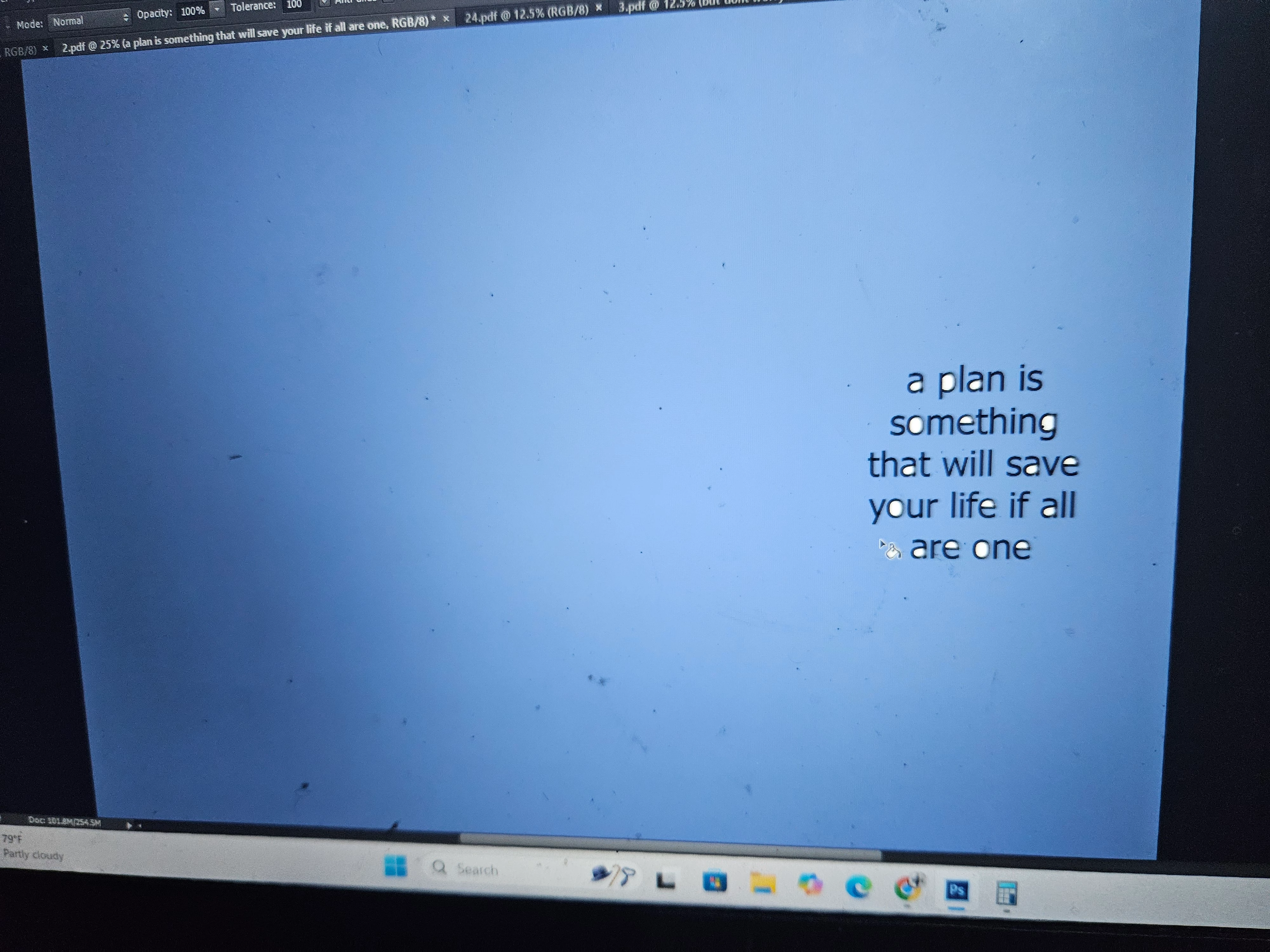
i make comics and i use the text tool to make text bubbles and when i us the paint bucket tool ,and i try to fill an area ,but the entire thing just messed up,can i get some help

Correct answer Trevor.Dennis

Ji @jonathan_5481   Do you know how to use layers and masks?  You must at least have the text on its own layer.


Experienced PS users will rarely use the Paint Bucket tool, but rather fill a layer or selection using Alt Backspace.

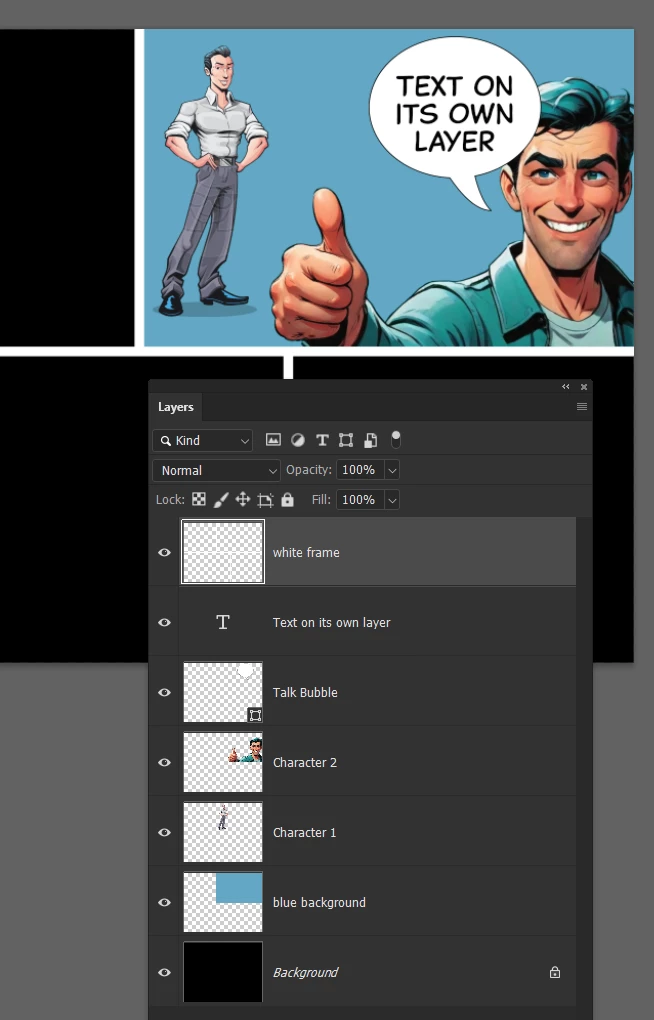
Note below that the white frame is at the top of the layer stack, and the blue rectangle second from from bottom.  The blue overlaps the white frame ensuring no gaps.  The characters and other content are all on separate layers.  This means you can move and resize the the frame contents without worrying about the blue background.


Note that I have linked the talk bubble and text layer.  What I would normally do is select both layers and combine them in a Smart Object, but for the sake of this post, it's easier to see what's going on with them linked.


2 replies

Trevor.Dennis
Community Expert
Trevor.DennisCommunity ExpertCorrect answer
Community Expert
April 17, 2025

Ji @jonathan_5481   Do you know how to use layers and masks?  You must at least have the text on its own layer.


Experienced PS users will rarely use the Paint Bucket tool, but rather fill a layer or selection using Alt Backspace.

Note below that the white frame is at the top of the layer stack, and the blue rectangle second from from bottom.  The blue overlaps the white frame ensuring no gaps.  The characters and other content are all on separate layers.  This means you can move and resize the the frame contents without worrying about the blue background.


Note that I have linked the talk bubble and text layer.  What I would normally do is select both layers and combine them in a Smart Object, but for the sake of this post, it's easier to see what's going on with them linked.


Trevor.Dennis
Community Expert
Community Expert
April 17, 2025

As you progress, perhaps group the contents of each frame (Select the layers and Shift G)

This will make it easier to edit the individual frames.

Participant
April 17, 2025

hey thanks i finally got it , i just merge the layers and it worked!!! thanks

jane-e
Community Expert
Community Expert
April 17, 2025

@jonathan_5481 


We need to see your entire workspace, including the Layers panel. Instead of using your phone to take a picture, use the Screenshot application that comes with macOS to take a screenshot.

https://support.apple.com/guide/mac-help/take-a-screenshot-mh26782/mac


Jane