
Participating Frequently
September 4, 2024
Answered

Text tool creative warp grayed out and does not function.

  • September 4, 2024
  • 4 replies
  • 1626 views

The text tool creative warp icon in grayed out in the tool bar. If I go to preferences and click on "enable narrow tool bar" to allow it to work, it doesn't stay on restart. I'm using the latest updated version of Photoshop 2024, Windows 11.
Correct answer Ged_Traynor

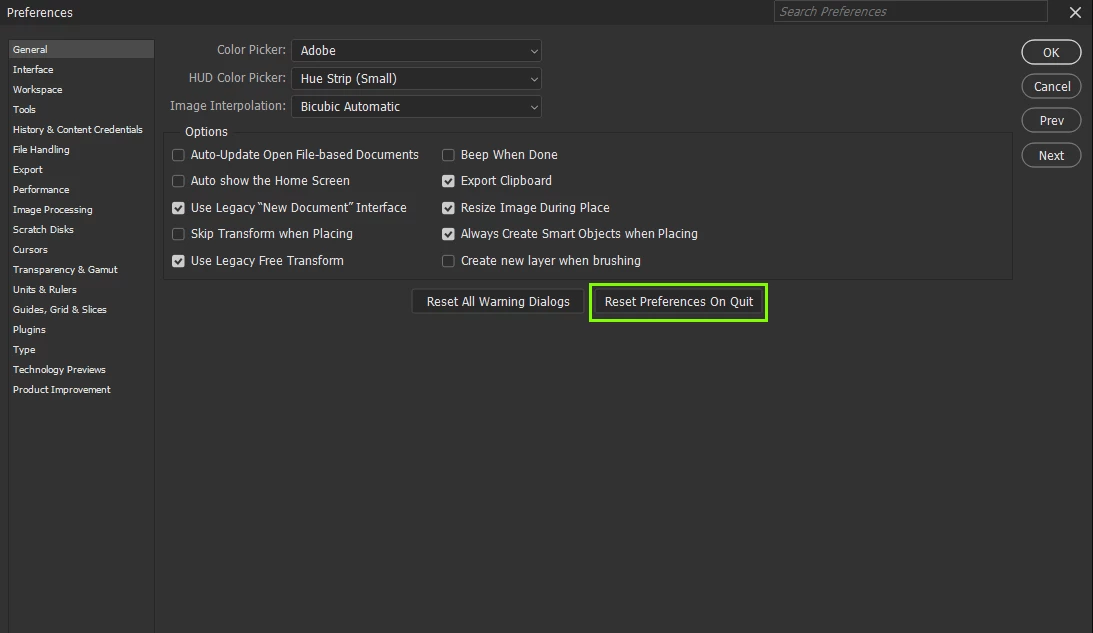
@davidc74331813 you can also reset them from within Photoshop, just hit ctrl + k to bring up the preferences dialog

4 replies

Participating Frequently
September 6, 2024

Thank you, I appreciate it.

Participating Frequently
September 6, 2024

Perhaps I'm not understanding how the type tool's creative warp tool is supposed to work. It seems to work if I apply the desired effect when I first type in the text. However, when I leave the text tool and return to do more edits, the warp tool no longer will work. I have reset the preferences to no avail. I've even uninstalled and reinstalled Photoshop making sure I did not transfer any old preferences or plug-ins. Still, the same result.  ??

Ged_Traynor
Community Expert
Community Expert
September 6, 2024

You need to reselect the text for the warp function to be available again

Ged_Traynor
Community Expert
Ged_TraynorCommunity ExpertCorrect answer
Community Expert
September 6, 2024

@davidc74331813 you can also reset them from within Photoshop, just hit ctrl + k to bring up the preferences dialog

Participating Frequently
September 5, 2024

Thanks for the reply to my problem. However, my knowledge base is limited and I don't understand the search text to reset  preferences manually. Where do I type this and do I type it exactly how it's shown?

Ged_Traynor
Community Expert
Community Expert
September 5, 2024

@davidc74331813 it's working as expected for me with Photoshop version 25.11, have you tried manually resetting your Photoshop preferences
https://helpx.adobe.com/ie/photoshop/using/preferences.html#Manually
Remember to back up your settings before doing the preference reset
https://helpx.adobe.com/ie/photoshop/using/preset-migration.html