Participant
December 2, 2025
Question

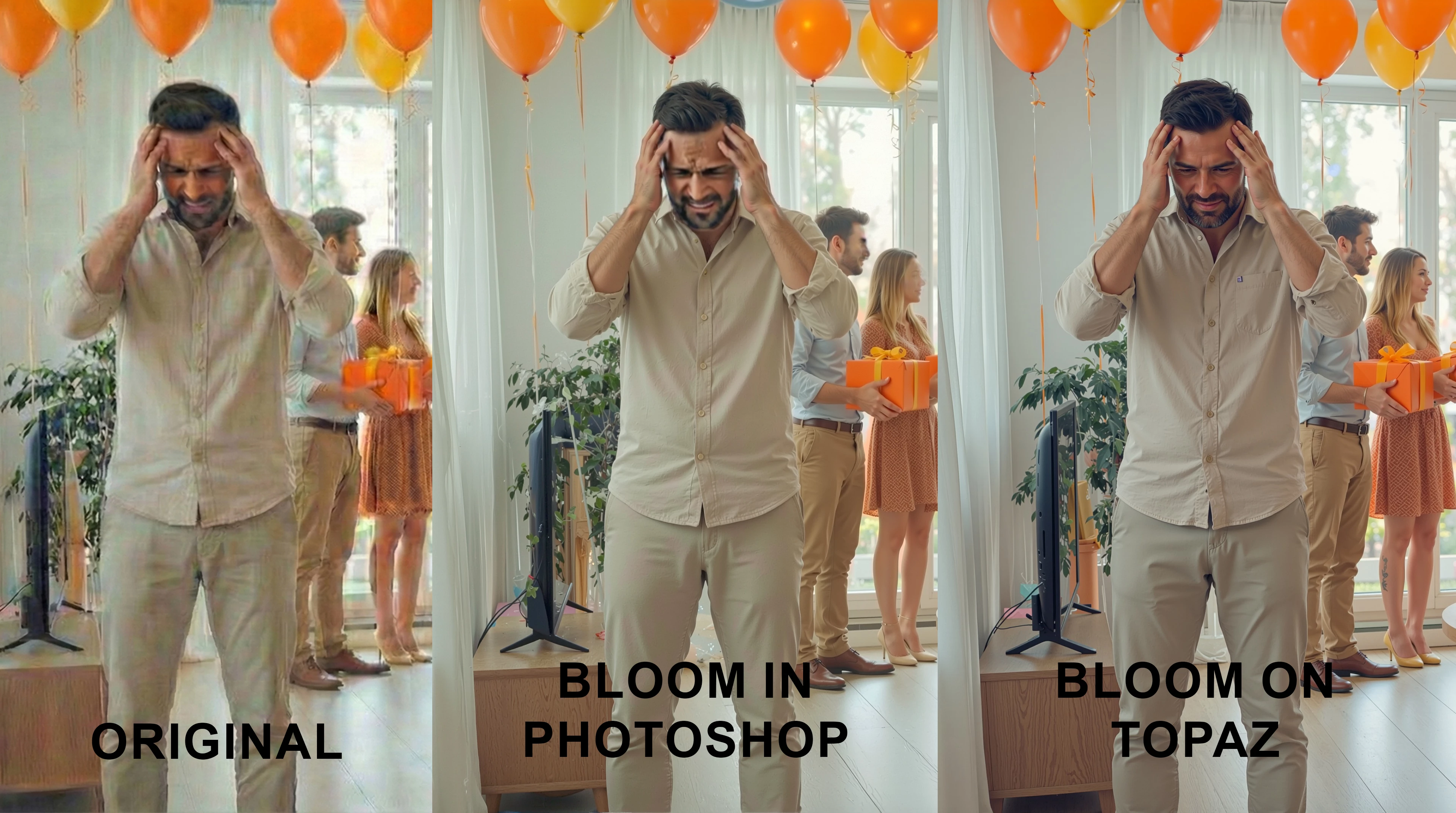
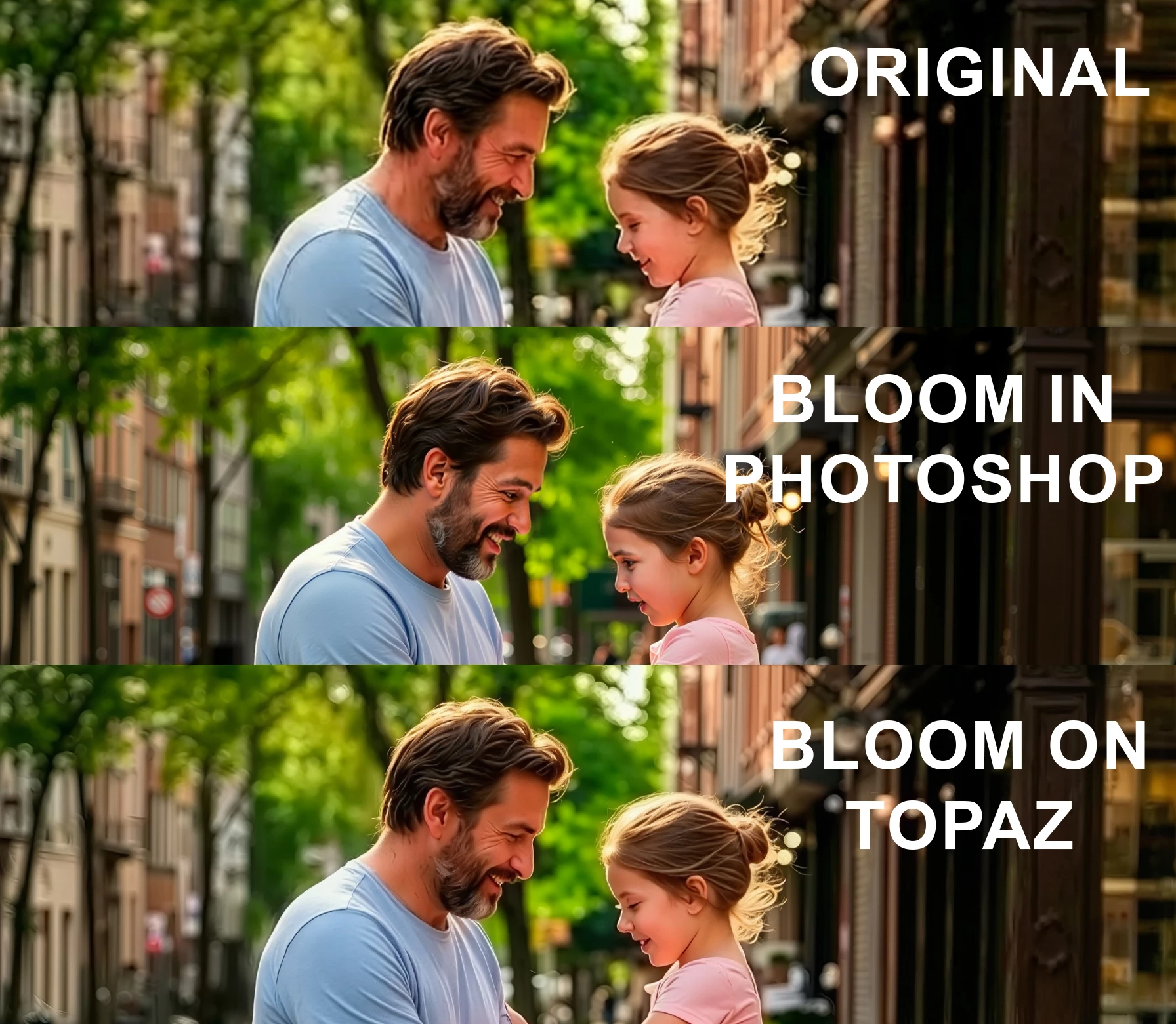
The Bloom upscaler isn't working correctly in Photoshop.

  • December 2, 2025
  • 2 replies
  • 173 views

When using the Bloom upscaler in Photoshop, the image becomes heavily distorted, and people's faces become unnatural or remain blurry. Creativity is set to 0.bloom-2.jpgBloom.jpg
2 replies

Denys5CC2Author
Participant
December 2, 2025

Windows 11 Home 25H2
Photoshop 27.1.0
The settings you suggested didn't help. I don't think it's an operating system issue, as my colleagues have the same problem, and they have MacBooks.

Noel Orridge
Community Manager
Community Manager
December 2, 2025

Hi @Denys5CC2! Thank you for reaching out! Could you please share the version of your Photoshop application and the version of your operating system?


In the meantime, try these preferences and see if they help:


Thanks a bunch! 

Noel
Denys5CC2Author
Participant
December 4, 2025

Hi @Noel Orridge. Any other ideas?

Noel Orridge
Community Manager
Community Manager
December 4, 2025

Hi @Denys5CC2! It's unfortunate that the suggested preferences didn't help. I was unable to reproduce the same results on my Windows machine. 


Here are a few more things you can try:


1) Disable GPU Acceleration: Try turning off GPU acceleration temporarily to see if it affects the outcome.

Go to Edit > Preferences > Performance, and uncheck "Use Graphics Processor." Then restart Photoshop and test again. If this works, your GPU drivers might be old. Please ensure you have the latest Studio Drivers if you have an NVIDIA GPU.


2) Try using a slightly higher resolution image to start with.


3) From Image > Generative Upscale > try using Gigapixel to preserve existing detail.


4) Before upscaling, lower the Sharpening, Texture, Clarity, and slightly apply Noise Reduction to your image to prevent hallucinations.


Hope this helps!

Noel