


Inspiring
October 17, 2018
Answered

Transform controls are larger than selection

  • October 17, 2018
  • 4 replies
  • 1412 views

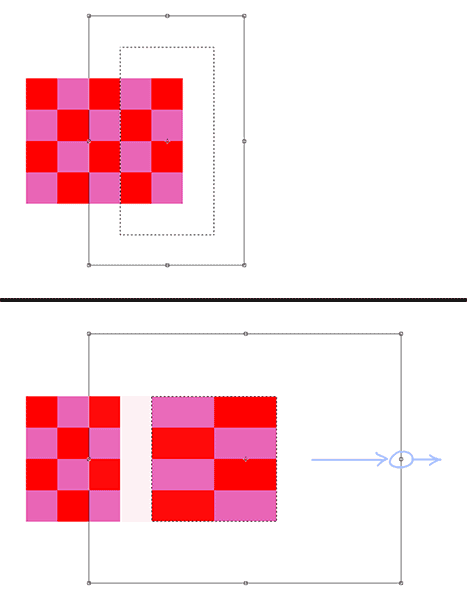
I make a selection, then I free transform. The transform border is slightly larger than the selection. When I stretch out the transform controls, it creates a gap in the graphic. This proves to be a nuisance when working with layers that have effects applied.

How do I make the transform controls be the exact size of the selection?

In this example: each color square is a pixel. I've made a selection that encompasses the two right columns. Then I add the free transform controls. When I grab the middle-right transform dot and pull it to the right, a gap appears, due to the controls being larger than my selection.
Photoshop CC 19.1.6

Correct answer visualhorizons

I had a 0.2px feather applied accidentally. That's what was causing this. :/

4 replies

visualhorizonsAuthorCorrect answer
Inspiring
October 29, 2018

I had a 0.2px feather applied accidentally. That's what was causing this. :/

lambiloon
Community Expert
Community Expert
October 18, 2018

Hi try to reset it from preferences and close and open again the Photoshop hope that helps...Thanks

Ali Sajjad / Graphic Design Trainer / Freelancer / Adobe Certified Professional
Muqqarib Hassan
Inspiring
October 17, 2018

It is only available in the cc  2019 updates.

please try deselecting "Use Graphics Processor" located in Photoshop's Preferences > Performance, then restart your Photoshop

Inspiring
October 18, 2018

Okay, I updated, checked Legacy Compositing, closed Photoshop, opened Photoshop.

The problem is still there.

Muqqarib Hassan
Inspiring
October 18, 2018

Hi, please try deselecting "Use Graphics Processor" located in Photoshop's Preferences > Performance, then restart Photoshop

Muqqarib Hassan
Inspiring
October 17, 2018

Hi, Have you checked the edit>Preferences>Performance > legacy composting. ?

Inspiring
October 17, 2018

I'm not seeing an option for legacy compositing.