


Participant
November 24, 2025
Answered

Transform / Move Tool adds +1 pixel offset when moving layers with mouse

  • November 24, 2025
  • 1 reply
  • 339 views

Photoshop Version: 27.0.0
OS: Windows 11 25H2

Issue Summary

When moving a layer using the mouse, Photoshop adds a +1 pixel offset to either the X or Y position. The issue does not occur when moving the layer using keyboard arrow keys.

Video Evidence

I have attached a video demonstrating the issue.
👉 Please watch the attached video to see the exact problem happening step by step.


Steps to Reproduce

Initial Setup:

  • Ruler Units: Pixels

  • Create any document (any size).

  • Create a layer of 150 × 150 px (or any size).

  • Open Info Panel (press F8) to monitor X/Y coordinates.


Reproduction Steps:

Select the layer.

  1. Press Ctrl + T (Free Transform) to show layer position values in the Info panel.

  2. Note the current position values.

    • Example: X = 249, Y = 69

  3. Move the layer using the mouse into a new position.

    • Move to X = 195, Y = 26

    • Click Done (✓) or press Enter to apply transform.

  4. Press Ctrl + T again to check the final position.


Actual Result

  • The layer is positioned at:
    X = 195, Y = 27
    (Y value increased by +1 pixel)

  • Sometimes the shift happens on X, sometimes on Y, depending on the direction moved.


Expected Result

  • The layer should remain exactly at the intended position:
    X = 195, Y = 26

  • No pixel offset should be introduced when moving with the mouse.


Additional Notes

  • This issue occurs only when moving layers with the mouse.

  • Moving with keyboard arrow keys always positions the layer correctly.

  • The bug is inconsistent but repeatable when moving in different directions.

My System Information 

My Full system information is provided here:
🔗 https://sharetext.io/8a8dee9b
Correct answer LEMONardo

@krishna chip 


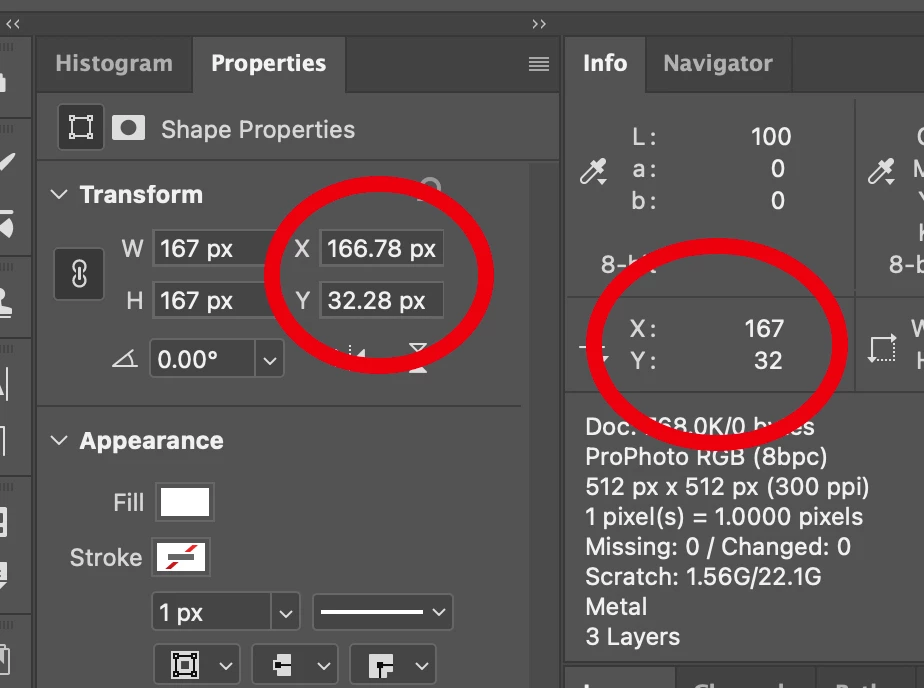
Non-integer values are allowed when moving in Free Transform mode.

It makes sense because for example, when you rotate a rectangle for 10°, the coordinate changes are always supposed to result in non-integer values.

But the Info panel only displays integers, and those numbers are rounded up.

That is why you have been seeing those increments by 1.


Instead of monitoring X/Y coordinates from the Info panel,

I would suggest you use the Properties panel, which tells you the coordinates without requiring Free Transform mode to be activated.


This way you can avoid those fractions and decimals and rounding-ups altogether.


Those input boxes (W, H and X, Y) also do calculations (+ - * /).

You can type +9 after the existing text in the X input box, to move something to the right by 9px.


If for some particular reason, you must move things around in Free Transform mode,

You can try Legacy Tree Transform.

Settings > General > Use Legacy Free Transform

It looks like this will retain pixel-perfect coordinates when you move / resize something.


I have been a UI designer all my life, I understand your frustration.

But Photoshop has not been a preferable tool for the job for quite some years now.

1 reply

Sameer K
Community Manager
Community Manager
November 24, 2025

Hey, @krishna chip. Welcome to the Photoshop Community. I've checked your account, and I couldn't find an active subscription.


For now, I've moved this to discussions as it is just mathematical. Head here to read a previous conversation: https://adobe.ly/3LQf4ky


I hope this helps. Thanks!

Sameer K

(Type '@' and type my name to mention me when you reply)

Participant
November 24, 2025

Hi @Sameer K,

Thank you for the response.

I would like to clarify that this issue is not just a mathematical observation.
It is a functional, reproducible bug in Photoshop Version 27.0.0 where moving a layer with the mouse introduces a +1 pixel shift in the X or Y position.

Even if my subscription is not active, the behavior of the app should remain technically correct.
Photoshop shouldn’t change pixel coordinates on its own after a transform.

I have already provided:

  • A detailed, step-by-step reproduction procedure

  • A video clearly showing the incorrect +1 px shift

  • Full system information: https://sharetext.io/8a8dee9b

The offset does not occur when moving with keyboard arrow keys — only with the mouse — which indicates that the issue might be related to mouse event calculations or rounding inside Transform/Move logic.

Why this is important

Fixing this kind of issue will improve more than just the Transform tool.
The same mouse-based positioning logic is used in multiple UI interactions, such as:

  • Moving layers

  • Nudging objects while dragging

  • Using the Hand tool

  • Positioning shapes, masks, or selections

  • Transforming objects in real-time

Correcting the pixel-rounding behavior would make the entire UI feel more accurate, smoother, and more responsive for everyone.

This is especially important for:

  • Precision design

  • Pixel-perfect UI work

  • Icon design

  • Retouching workflows

  • Alignment-sensitive tasks

So this is not only a small visual issue — it has a practical impact on accuracy.

If possible, please have the engineering team test this behavior directly in Photoshop 27.0.0.
I’m happy to share more recordings or tests if needed.

Thank you for taking the time to review this

LEMONardoCorrect answer
Inspiring
November 24, 2025

@krishna chip 


Non-integer values are allowed when moving in Free Transform mode.

It makes sense because for example, when you rotate a rectangle for 10°, the coordinate changes are always supposed to result in non-integer values.

But the Info panel only displays integers, and those numbers are rounded up.

That is why you have been seeing those increments by 1.


Instead of monitoring X/Y coordinates from the Info panel,

I would suggest you use the Properties panel, which tells you the coordinates without requiring Free Transform mode to be activated.


This way you can avoid those fractions and decimals and rounding-ups altogether.


Those input boxes (W, H and X, Y) also do calculations (+ - * /).

You can type +9 after the existing text in the X input box, to move something to the right by 9px.


If for some particular reason, you must move things around in Free Transform mode,

You can try Legacy Tree Transform.

Settings > General > Use Legacy Free Transform

It looks like this will retain pixel-perfect coordinates when you move / resize something.


I have been a UI designer all my life, I understand your frustration.

But Photoshop has not been a preferable tool for the job for quite some years now.